
1. Introduzione
ORGBRO X3 è una stampante termica Bluetooth compatta e portatile, progettata per diverse esigenze di stampa, tra cui appunti, etichette, foto e altro ancora. Questo dispositivo utilizza la tecnologia di stampa termica, eliminando la necessità di inchiostro o toner. La sua alta risoluzione garantisce stampe nitide e stabili. Questo manuale fornisce istruzioni dettagliate per l'installazione, il funzionamento e la manutenzione della stampante ORGBRO X3.
2. Contenuto della confezione
Si prega di verificare che tutti gli articoli siano presenti nel pacco:
- Mini stampante termica ORGBRO X3
- 1 rotolo di carta termica adesiva bianca da 80 mm x 3 m
- 3 rotoli di carta termica colorata da 80 mm x 3 m (giallo, rosa, blu)
- Cavo di ricarica USB
- Manuale dell'utente (questo documento)

Immagine: la stampante ORGBRO X3 mostrata con vari materiali stampati e rotoli di carta inclusi.
3. Prodotto finitoview
Familiarizza con i componenti principali della tua stampante ORGBRO X3:

Immagine: la stampante ORGBRO X3 che dimostra la connettività Bluetooth con uno smartphone e icone che rappresentano varie funzioni dell'app, come la stampa di documenti, la stampa di modelli, la stampa di etichette, la selezione di adesivi, la scansione e i graffiti.
Componenti chiave:
- Pulsante di accensione: Situato nella parte superiore, serve per accendere/spegnere la stampante.
- Fessura di uscita della carta: Dove nasce la carta stampata.
- Coperchio dello scomparto della carta: Si apre per caricare la carta termica.
- Porta di ricarica: Per collegare il cavo di ricarica USB.
- Spia luminosa: Visualizza lo stato della stampante (ad esempio, in carica, connessa, errore).
4. Impostazione
4.1 Caricamento della stampante
- Collegare il cavo di ricarica USB in dotazione alla porta di ricarica della stampante.
- Collegare l'altra estremità del cavo USB a un adattatore di alimentazione USB standard (non incluso) o alla porta USB di un computer.
- La spia luminosa indicherà lo stato di carica. Assicurarsi che la stampante sia completamente carica prima del primo utilizzo per una durata ottimale della batteria.
4.2 Caricamento della carta termica
- Aprire delicatamente il coperchio del vano carta.
- Inserire un rotolo di carta termica nell'apposito vano, assicurandosi che il lato di stampa sia rivolto verso la testina di stampa. Il lato di stampa è solitamente più liscio e, se graffiato leggermente con un'unghia, lascerà un segno.
- Estrarre un piccolo pezzo di carta dallo scomparto, estendendolo oltre la fessura di uscita della carta.
- Chiudere saldamente il coperchio del vano carta finché non scatta in posizione.

Immagine: La stampante ORGBRO X3 che mostra la larghezza di stampa massima di 3.15 pollici (80 mm) e exampsupporta vari formati di carta, tra cui 0.7" (18 mm), 1.1" (28 mm), 2.09" (53 mm) e 3.15" (80 mm).
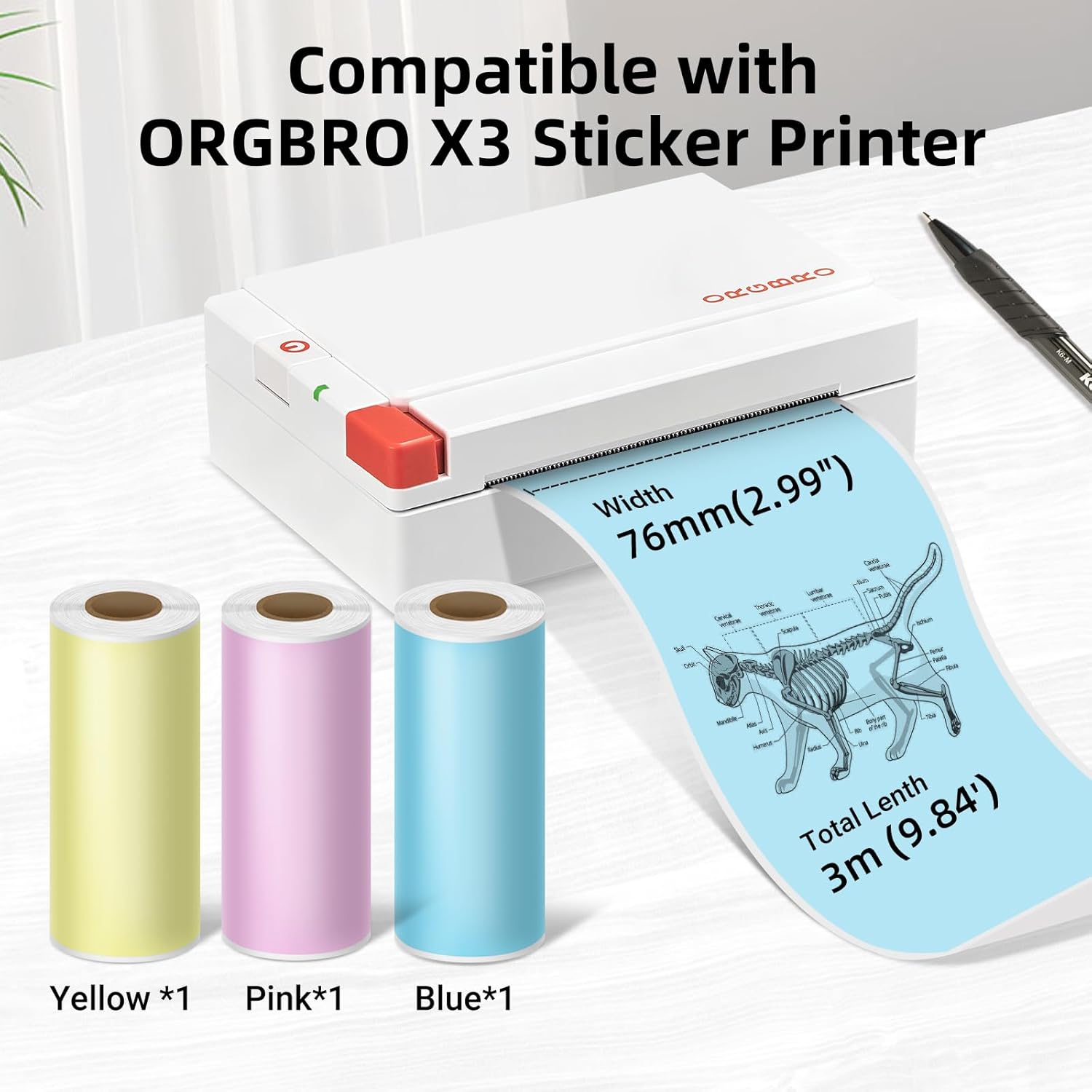
Immagine: la stampante ORGBRO X3 è mostrata accanto a tre rotoli di carta termica colorata (giallo, rosa, blu), che indicano la compatibilità e le dimensioni di 76 mm (2.99") di larghezza e 3 m (9.84') di lunghezza totale.
4.3 Installazione dell'app e associazione Bluetooth
- Scarica l'App: Cercare l'app 'ORGBRO' nell'app store del tuo smartphone (Google Play Store per Android o Apple App Store per iOS). Installa l'applicazione.
- Accendi la stampante: Tenere premuto il pulsante di accensione sulla stampante ORGBRO X3 finché la spia non si accende.
- Abilita Bluetooth: Sul tuo smartphone, vai alle impostazioni Bluetooth del tuo dispositivo e assicurati che il Bluetooth sia abilitato.
- Accoppia dispositivo: Apri l'app ORGBRO. L'app dovrebbe rilevare automaticamente le stampanti ORGBRO X3 nelle vicinanze. Seleziona "X3" dall'elenco dei dispositivi disponibili per stabilire una connessione. Segui le istruzioni visualizzate sullo schermo per completare il processo di associazione.
5. Istruzioni per l'uso
5.1 Funzioni di stampa
L'app ORGBRO offre diverse funzioni per massimizzare l'utilità della tua stampante:
- Stampa del documento: Stampa documenti di testo, note o web pagine direttamente dal tuo telefono.
- Stampa del modello: Utilizza modelli predefiniti per etichette, elenchi o elementi decorativi.
- Stampa di etichette: Crea etichette personalizzate per l'organizzazione, la spedizione o l'uso personale.
- Adesivi per la selezione: Accedi a una raccolta di adesivi per migliorare le tue stampe.
- Funzione di scansione: Convertire documenti o disegni fisici in formato digitale per la stampa.
- Funzione Graffiti: Disegna o scrivi direttamente all'interno dell'app e stampa le tue creazioni.

Immagine: la stampante ORGBRO X3 che illustra la sua ampia gamma di utilizzi nella vita quotidiana, tra cui la stampa di etichette per regali, immagini, adesivi, appunti di studio e liste della spesa.

Immagine: La stampante ORGBRO X3 raffigurata come una "Mini stampante termica - Compagna di casa", mostrataasinapplicazioni come etichette di categorie familiari, appunti di studio, buoni regalo e foto.
5.2 Suggerimenti per la stampa
- La ORGBRO X3 è una stampante termica e stampa solo in nero. La stampa a colori non è supportata.
- Assicurarsi che la carta termica sia caricata correttamente, con il lato di stampa rivolto verso la testina di stampa.
- Per risultati ottimali, utilizzare carta termica del marchio ORGBRO.
- I rotoli di carta inclusi sono autoadesivi e consentono di attaccare facilmente le stampe.
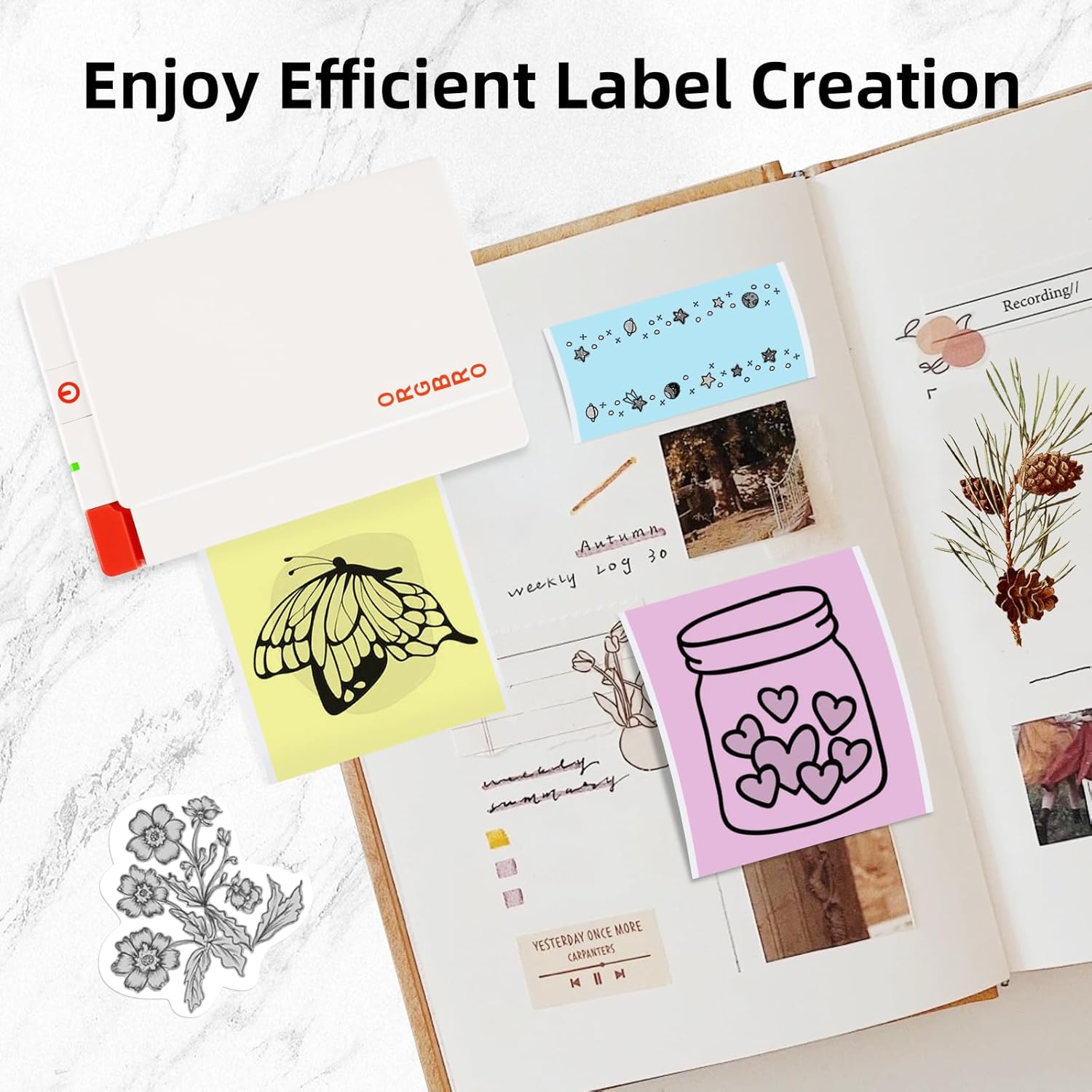
Immagine: illustra le caratteristiche della carta adesiva ORGBRO, evidenziando la stampa nitida, la facilità di strappo e le forti proprietà adesive.

Immagine: mostra varie etichette e adesivi creativi stampati con la stampante ORGBRO X3, disposti in un registro, che illustrano la creazione efficiente di etichette.

Immagine: Un bambino colora un'immagine stampata dalla stampante ORGBRO X3, sottolineando l'aspetto "Libera colorazione, libera immaginazione".
6. Manutenzione
6.1 Pulizia della testina di stampa
Per garantire una qualità di stampa ottimale, pulire periodicamente la testina di stampa:
- Spegnere la stampante e scollegarla dalla fonte di alimentazione.
- Aprire il coperchio del vano carta.
- Pulire delicatamente la testina di stampa con un batuffolo di cotone leggermenteampcon alcol isopropilico. Lasciare asciugare completamente prima di chiudere il coperchio e utilizzare la stampante.
6.2 Conservazione della carta
Una corretta conservazione della carta termica contribuisce a preservarne la qualità e la longevità:
- Conservare la carta termica in un luogo fresco e asciutto.
- Tenere lontano dalla luce solare diretta, dall'umidità elevata e dal calore eccessivo.
- Ridurre al minimo l'attrito o la pressione sui rotoli di carta per evitare uno scolorimento prematuro.
7. Risoluzione Dei Problemi
Se riscontri problemi con la stampante ORGBRO X3, fai riferimento ai seguenti problemi comuni e alle relative soluzioni:
- La stampante non si accende: Assicurati che la stampante sia completamente carica. Collegala a una fonte di alimentazione e riprova.
- Impossibile connettersi tramite Bluetooth:
- Assicurati che il Bluetooth sia abilitato sullo smartphone e che la stampante sia accesa.
- Riavviare sia la stampante che lo smartphone.
- Assicurati che l'app ORGBRO abbia le autorizzazioni Bluetooth.
- Scarsa qualità di stampa (stampe sbiadite o vuote):
- Verificare che la carta termica sia caricata correttamente con il lato di stampa rivolto verso l'alto.
- Il rotolo di carta potrebbe essere esaurito; sostituirlo con uno nuovo.
- Pulire la testina di stampa come descritto nella sezione Manutenzione.
- Assicurarsi che la carta non sia vecchia o danneggiata a causa di una conservazione impropria.
- Inceppamento carta:
- Spegnere la stampante.
- Aprire il coperchio del vano carta e rimuovere con cautela la carta inceppata.
- Assicurarsi che la carta sia caricata dritta e non stropicciata.
- La stampante non risponde: Prova a resettare la stampante spegnendola e riaccendendola. Se il problema persiste, contatta l'assistenza clienti.
8. Specifiche
| Caratteristica | Specificazione |
|---|---|
| Modello | ORGBRO X3 |
| Tecnologia di stampa | Stampa termica (senza inchiostro) |
| Risoluzione | 300 DPI |
| Larghezza di stampa | 2-3 pollici (50-80 mm), massimo 3.15 pollici (80 mm) |
| Velocità di stampa | Fino a 47 pollici al minuto (20 mm/secondo) |
| Connettività | Bluetooth |
| Tipo di carta | Carta termica (non adesiva e autoadesiva) |
| Dimensioni del rotolo di carta | 80 mm (3.15 pollici) di larghezza x 3 m (9.84 piedi) di lunghezza |
| Fonte di alimentazione | Batteria ricaricabile |
9. Garanzia e assistenza clienti
La stampante per adesivi ORGBRO X3 è coperta dalla garanzia standard del produttore. Per informazioni specifiche sulla garanzia, consultare la scheda di garanzia inclusa nella confezione o visitare il sito ufficiale ORGBRO. websito. In caso di domande, necessità di assistenza tecnica o segnalazione di un difetto, contattare l'assistenza clienti ORGBRO tramite le informazioni di contatto fornite sulla confezione del prodotto o sul sito ufficiale. websito. Quando contatti l'assistenza, tieni a portata di mano il modello del prodotto e la data di acquisto.


