1. Introduzione
The Fanvil V66 is a professional IP videophone designed for business environments, offering advanced communication features and a modern design. It features a 7-inch color touchscreen, Bluetooth, and WiFi 6 connectivity, ensuring versatile and high-quality communication.
Cosa c'è nella scatola
- Telefono IP Fanvil V66
2. Prodotto finitoview
Familiarize yourself with the components of your Fanvil V66 Prime Business Phone.
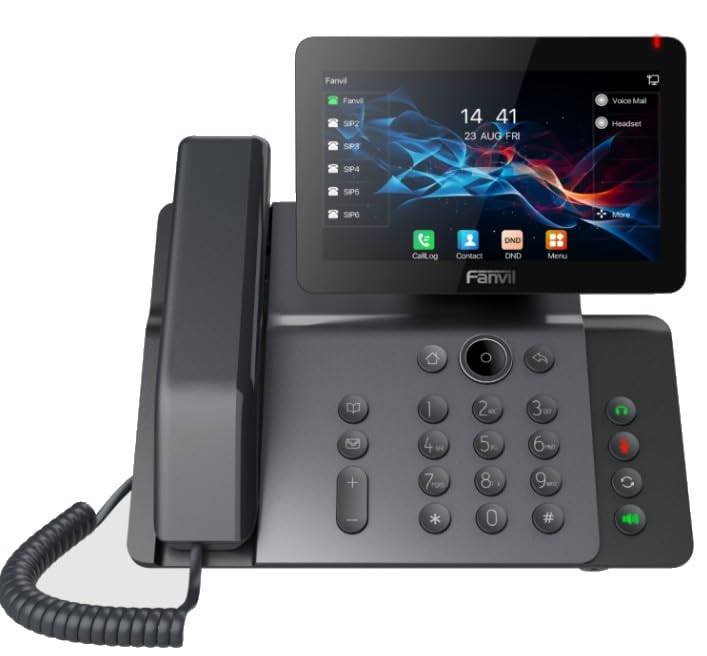
Figura 1: Fronte view of the Fanvil V66 Prime Business Phone, showing the 7-inch color display, numeric keypad, and function keys.
Caratteristiche principali
- 7-inch HD Color LCD Screen: Inclinable design for optimal viewing.
- Bluetooth & WiFi 6 Connectivity: For fast and stable wireless connections.
- 116-Key Numeric Keypad: Provides comprehensive control over phone functions.
- Integrated Audio and Video System: Supports high-quality professional calls and videoconferences.
- Interfaccia utente intuitiva: Quick menu access for calls, contacts, and main functions.
3. Impostazione
3.1 Assemblaggio del telefono
- Fissare il supporto da scrivania: Align the stand with the slots on the back of the phone and push until it clicks into place.
- Collegare il portatile: Inserire un'estremità del cavo spiralato del ricevitore nel ricevitore e l'altra estremità nella porta del ricevitore sulla base del telefono.
3.2 Collegamento alla rete e all'alimentazione
- Connessione Ethernet: Collegare un'estremità del cavo Ethernet alla porta LAN sul retro del telefono e l'altra estremità allo switch o al router di rete.
- Power Connection (Choose one):
- Alimentazione su Ethernet (PoE): If your network switch supports PoE, the phone will power on automatically once connected via the Ethernet cable. No separate power adapter is needed.
- Adattatore di alimentazione: If PoE is not available, connect a compatible power adapter to the DC 12V port on the phone and then plug it into a power outlet.
- The phone will automatically power on and begin the boot-up sequence.
3.3 Configurazione iniziale
Upon first boot, the phone may prompt you for initial network settings or firmware updates. Follow the on-screen instructions. For advanced network settings or SIP account configuration, consult your network administrator or IT support.
4. Istruzioni per l'uso
4.1 Effettuare chiamate
- Composizione: Pick up the handset, press the Speaker button, or press the New Call soft key. Dial the desired number using the keypad.
- Chiamata rapida: If configured, press the assigned speed dial key.
- Dai Contatti: Tap the "Contacts" icon on the display, select a contact, and tap the call icon.
4.2 Ricezione delle chiamate
When an incoming call rings, you can:
- Risposta: Pick up the handset, press the Speaker button, or tap the "Answer" soft key on the display.
- Declino: Tap the "Decline" soft key.
4.3 Using the 7-inch Color Display
The touchscreen display provides access to various functions and settings:
- Schermata iniziale: Displays time, date, line status, and quick access icons.
- Navigazione: Swipe left/right or tap icons to navigate through menus.
- Tasti soft: Context-sensitive buttons displayed at the bottom of the screen.
- Impostazioni: Access phone settings, network configuration, and user preferences.
4.4 Bluetooth and WiFi Connectivity
- Bluetooth: Go to "Settings" > "Bluetooth" to enable and pair with Bluetooth headsets or other devices.
- Wi-Fi 6: Go to "Settings" > "Wi-Fi" to enable, scan for available networks, and connect. Enter the password if required.
5. Manutenzione
5.1 Pulizia del telefono
- Use a soft, dry, anti-static cloth to clean the phone's surface.
- Per lo schermo, utilizzare una soluzione detergente specifica per schermi e un panno in microfibra.
- Evitare l'uso di prodotti chimici aggressivi, detergenti abrasivi o umidità eccessiva.
5.2 Aggiornamenti software
Periodically check for firmware updates to ensure optimal performance and security. Updates can usually be found in the phone's "Settings" menu under "System" or "Firmware Update," or provided by your IT department.
6. Risoluzione Dei Problemi
| Problema | Possibile causa | Soluzione |
|---|---|---|
| Il telefono non si accende. | Nessuna connessione elettrica o fonte di alimentazione difettosa. | Check power adapter connection or Ethernet cable for PoE. Ensure power outlet is functional. |
| Impossibile connettersi alla rete. | Ethernet cable disconnected, incorrect network settings, or Wi-Fi issues. | Verify Ethernet cable is securely connected. Check Wi-Fi settings and password. Contact network administrator for IP configuration. |
| No dial tone or audio during calls. | Handset/headset not connected properly, volume too low, or SIP registration issue. | Ensure handset/headset is plugged in correctly. Adjust volume. Verify SIP account registration status on the display. |
| Il display non risponde. | Problema temporaneo del software. | Restart the phone by disconnecting and reconnecting power. If issue persists, contact support. |
7. Specifiche
| Caratteristica | Dettaglio |
|---|---|
| Marca | Fanvil |
| Numero di modello | V62 PRO (Note: Product series is V66) |
| Colore | Nero |
| Display | 7-inch HD Color LCD, Inclinable |
| Connettività | Bluetooth, WiFi 6, Ethernet (PoE support) |
| Tastiera | 116 chiavi |
| Materiale | Plastica |
| Fonte di alimentazione | Adattatore di alimentazione / PoE |
| Dimensioni (L x P x A) | Dimensioni: 20 x 20 x 15 cm |
| Peso dell'articolo | 600 grammi |
| Dispositivi compatibili | EHS (Electronic Hook Switch) headsets |
8. Garanzia e supporto
For warranty information, please refer to the warranty card included with your product or visit the official Fanvil website. If you encounter any issues not covered in this manual or require further assistance, please contact your vendor or Fanvil technical support.
- Supporto online: Visita il sito ufficiale di Fanvil website for FAQs, documentation, and support resources.
- Assistenza tecnica: Contact your authorized Fanvil reseller or service provider.


