1. Introduzione
Welcome to the CyberpowerPC Gamer Xtreme GXi3200BSTV10 Gaming Desktop PC. This manual provides essential information for setting up, operating, maintaining, and troubleshooting your new gaming system. Designed for high-performance gaming and demanding applications, this PC features an Intel Core i5-14400F processor, NVIDIA GeForce RTX 5060 graphics, 16GB DDR5 RAM, and a 1TB PCIe SSD, all running on Windows 11 Home.
For optimal performance and longevity, please read this manual thoroughly before using your computer.
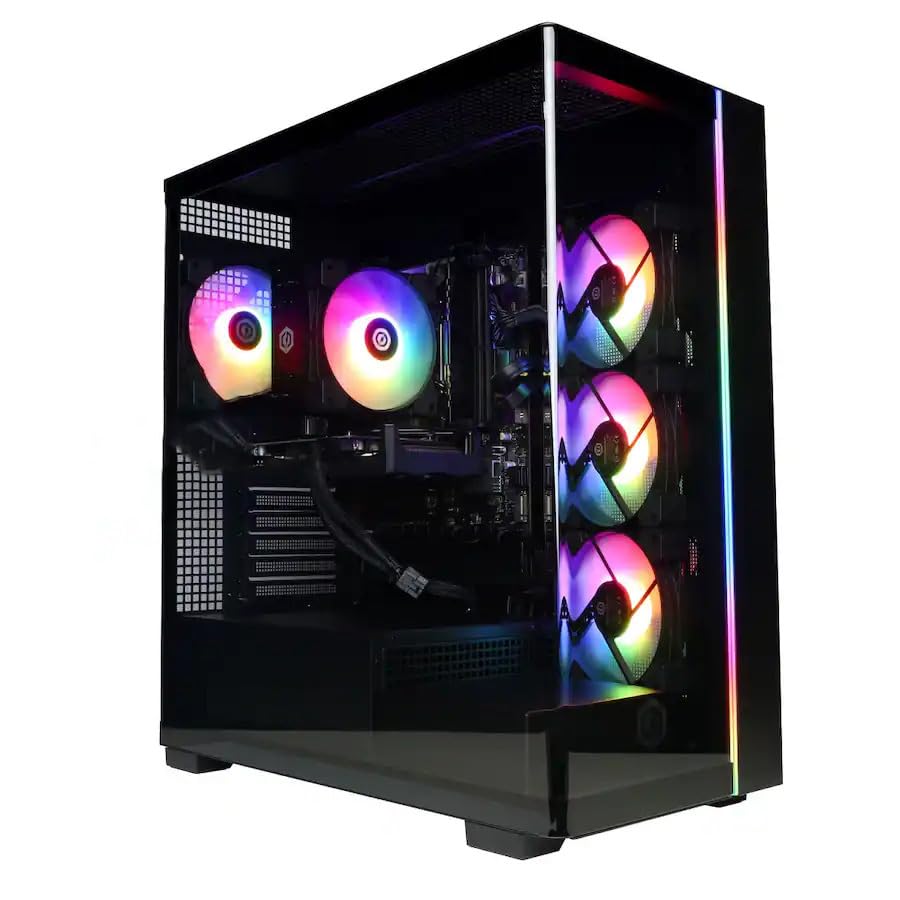
Immagine: Frontale view of the CyberpowerPC Gamer Xtreme GXi3200BSTV10 Gaming Desktop PC, showcasing its sleek design and RGB lighting elements.
2. Cosa c'è nella scatola
Upon unpacking your CyberpowerPC Gamer Xtreme GXi3200BSTV10, please ensure all the following items are present:
- CyberpowerPC Gamer Xtreme GXi3200BSTV10 Desktop PC
- Cavo di alimentazione
- Tastiera da gioco RGB
- Mouse da gioco RGB
- Documentazione (incluso questo manuale)

Image: The included CyberpowerPC NOHI 2 Black Wired RGB 104-Key Keyboard and CyberPowerPC Elite M2 Black Wired RGB 4-Button Mouse.
3. Guida all'installazione
Follow these steps to set up your new CyberpowerPC Gamer Xtreme desktop:
3.1 Disimballaggio e posizionamento
- Estrarre con cautela il PC e tutti gli accessori dall'imballaggio. Conservare l'imballaggio per eventuali trasporti futuri o richieste di intervento in garanzia.
- Posizionare il PC su una superficie stabile e piana, con un'adeguata ventilazione. Assicurarsi che vi sia spazio libero attorno alle prese d'aria di aspirazione e di scarico.
- Remove any protective films or internal packing materials from the PC case.
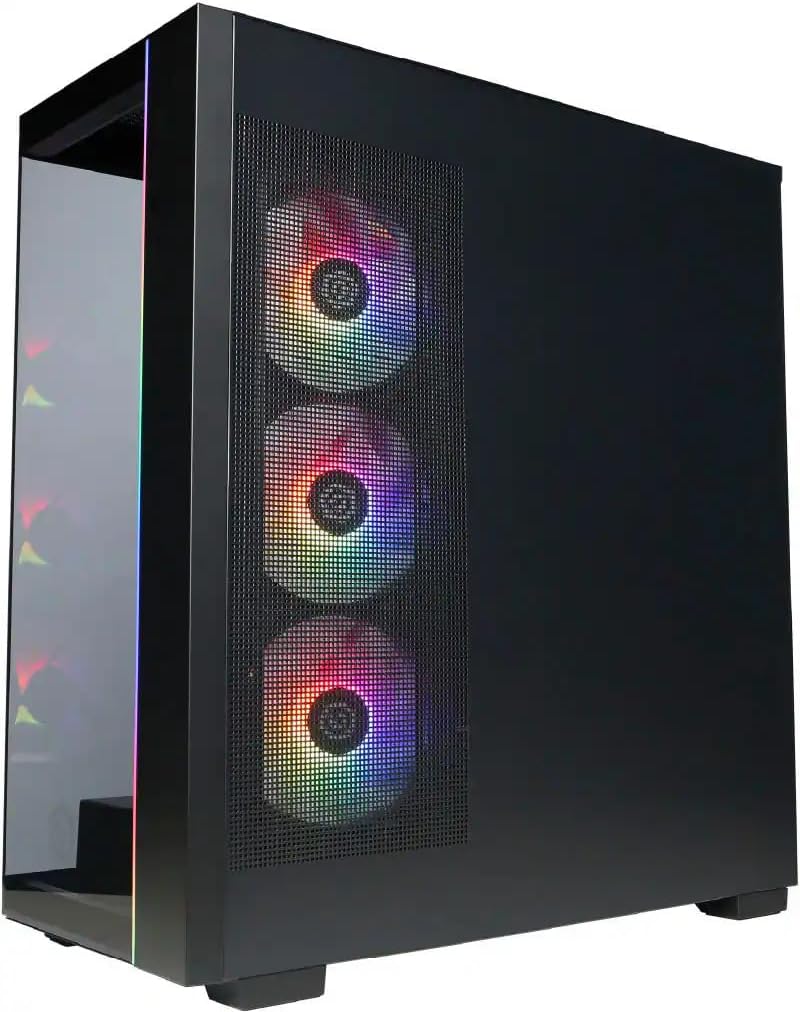
Immagine: Lato view of the PC case, highlighting the mesh panel for airflow and the RGB fans visible through it.
3.2 Collegamento delle periferiche
Connect your monitor, keyboard, mouse, and other devices to the appropriate ports on the back of the PC.
- Monitorare: Connect your monitor to one of the graphics card's display outputs (DisplayPort or HDMI). Ensure it's connected to the dedicated graphics card (NVIDIA GeForce RTX 5060), not the motherboard's integrated graphics ports.
- Tastiera e mouse: Connect the included RGB keyboard and mouse to any available USB ports.
- Rete: For wired internet, connect an Ethernet cable to the RJ-45 port. For wireless internet, ensure the Wi-Fi antennas (if provided) are attached.
- Audio: Collegare gli altoparlanti o le cuffie alle prese di uscita audio.
3.3 Collegamento dell'alimentazione e avvio iniziale
- Collegare il cavo di alimentazione all'alimentatore (PSU) del PC e quindi a una presa elettrica dotata di messa a terra.
- Premere il pulsante di accensione situato nella parte anteriore o superiore del PC.
- Follow the on-screen instructions to complete the Windows 11 Home setup process. This may include setting up your user account, network connection, and privacy settings.
4. Utilizzo del PC
This section covers basic operation of your CyberpowerPC Gamer Xtreme.
4.1 Accensione/spegnimento e riavvio
- Accensione: Premere una volta il pulsante di accensione.
- Fermare: Fare clic sul pulsante Start in Windows, quindi selezionare Arresta il sistema > Arresta il sistema.
- Ricomincia: Fare clic sul pulsante Start in Windows, quindi selezionare Arresta > Riavvia.
- Arresto forzato: If the system is unresponsive, press and hold the power button for 5-10 seconds until the PC turns off. Use this only as a last resort.
4.2 Connettività di rete
- Cablato (Ethernet): Once the Ethernet cable is connected, Windows 11 should automatically detect and connect to the network.
- Senza fili (Wi-Fi): Fare clic sull'icona Wi-Fi nella barra delle applicazioni, selezionare la rete desiderata, immettere la password e fare clic su Connetti.
4.3 Controllo dell'illuminazione RGB
Your system features customizable RGB lighting for fans, case, and CPU cooler. Control software for RGB lighting may be pre-installed or available for download from the CyberpowerPC website. Refer to the specific software's instructions for detailed customization options.

Immagine: dettagliata view of the RGB fans, illustrating the vibrant lighting effects within the PC case.

Image: Close-up of the CPU cooler, showing its design and integrated RGB lighting.
5. Manutenzione
Una manutenzione regolare contribuisce a garantire la longevità e le prestazioni ottimali del tuo PC.
5.1 Pulizia
- Esterno: Utilizzare un morbido, damp cloth to clean the exterior of the case. Avoid harsh chemicals.
- Polvere: Periodically clean dust from the internal components, especially fans and heatsinks, using compressed air. Ensure the PC is powered off and unplugged before opening the case.
- Filtri dell'aria: If your case has removable air filters, clean them regularly to maintain optimal airflow.
5.2 Aggiornamenti software
- Aggiornamenti di Windows: Regularly check for and install Windows updates to ensure security and performance improvements. Go to Settings > Windows Update.
- Aggiornamenti driver: Keep your graphics card drivers (NVIDIA GeForce) and other component drivers updated for best performance and compatibility. Visit the respective manufacturer's websiti per i driver più recenti.
5.3 Backup dei dati
Regularly back up your important data to an external drive or cloud storage to prevent data loss in case of hardware failure or other issues.
6. Risoluzione Dei Problemi
Questa sezione fornisce soluzioni ai problemi più comuni che potresti riscontrare.
6.1 Nessun potere
- Assicurarsi che il cavo di alimentazione sia collegato saldamente sia al PC sia alla presa a muro.
- Check if the power switch on the PSU (located at the back of the PC) is in the 'ON' position.
- Prova la presa con un altro dispositivo per verificare che sia alimentata.
6.2 Nessuna visualizzazione sul monitor
- Verify that the monitor is powered on and its video cable is securely connected to the graphics card (NVIDIA GeForce RTX 5060) on the PC.
- Ensure the monitor's input source is set correctly (e.g., HDMI 1, DisplayPort).
- Try connecting the monitor to a different display output port on the graphics card.
6.3 System Running Slowly
- Check Task Manager (Ctrl+Shift+Esc) for applications consuming excessive CPU, RAM, or disk resources.
- Assicurarsi che Windows e i driver siano aggiornati.
- Esegui una scansione completa del sistema per rilevare malware o virus.
- Verify that the PC has adequate ventilation and is not overheating.
7. Specifiche
Detailed technical specifications for your CyberpowerPC Gamer Xtreme GXi3200BSTV10:

Image: Infographic summarizing key specifications including Intel Core i5-14400F, NVIDIA GeForce RTX 5060, 16GB DDR5 RAM, and 1TB PCIe NVMe M.2 SSD.
| Componente | Specificazione |
|---|---|
| Processore | Intel Core i5-14400F (10-Core, 2.5 GHz base, up to 4.7 GHz Turbo Boost) |
| Scheda grafica | NVIDIA GeForce RTX 5060 8 GB GDDR7 |
| Memoria RAM | 16 GB DDR5 6000 MHz |
| Magazzinaggio | SSD PCIe NVMe M.2 da 1 TB |
| Sistema operativo | Windows 11 Casa |
| Connettività wireless | Wi-Fi (802.11ax), Bluetooth |
| Audio | Audio ad alta definizione a 7.1 canali |
| Uscite di visualizzazione | 3x DisplayPort, 1x HDMI |
| Porte USB | 1x USB-C 3.2, 3x USB-A 3.2, 4x USB-A 2.0 |
| Dimensioni (LxWxH) | 18.1 x 9.2 x 20 pollici |
| Peso dell'articolo | 40 libbre |
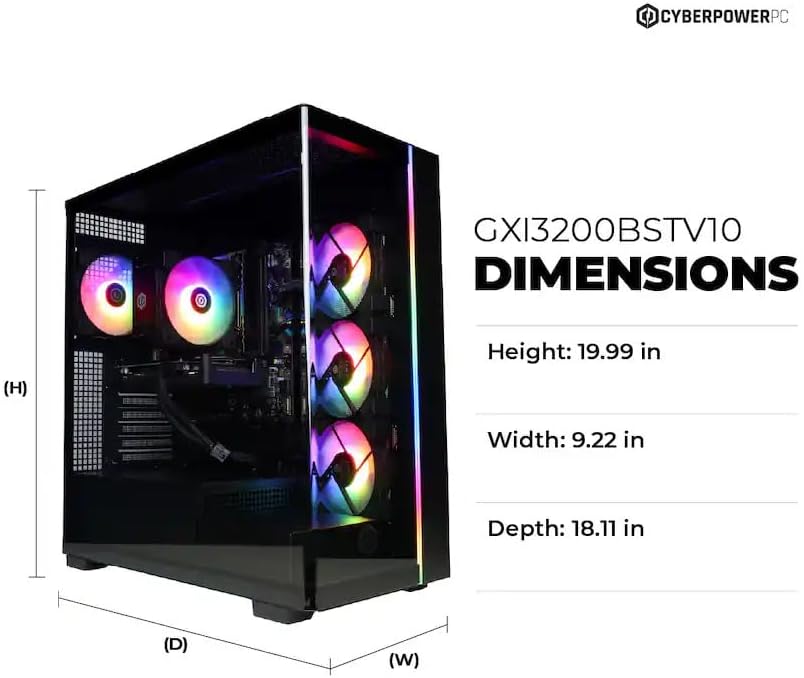
Image: Diagram illustrating the dimensions of the CyberpowerPC Gamer Xtreme GXi3200BSTV10: Height 19.99 in, Width 9.22 in, Depth 18.11 in.
8. Garanzia e supporto
8.1 Garanzia del produttore
Your CyberpowerPC Gamer Xtreme GXi3200BSTV10 comes with a Garanzia del produttore di 1 annoLa presente garanzia copre i difetti di materiali e fabbricazione in condizioni di normale utilizzo. Si prega di conservare la prova d'acquisto per eventuali reclami in garanzia.
For specific terms and conditions of the warranty, please refer to the documentation included with your PC or visit the official CyberpowerPC websito.
8.2 Supporto tecnico
If you encounter issues that cannot be resolved using the troubleshooting steps in this manual, please contact CyberpowerPC technical support. Have your model number (GXi3200BSTV10) and serial number ready when contacting support.
You can typically find support contact information on the CyberpowerPC website or in the documentation provided with your system.


