1. Introduzione
The OTTOCAST Car TV Mate Pro is a versatile device designed to enhance your in-car entertainment experience. It allows you to connect various HDMI output devices, such as TV sticks and gaming consoles, to your car's factory-installed wired CarPlay display. Additionally, it features an integrated wireless CarPlay adapter, providing seamless connectivity for navigation, calls, and music without the need for cables. This manual provides detailed instructions for setting up and operating your Car TV Mate Pro.
2. Prodotto finitoview e contenuto della confezione
The Car TV Mate Pro is a compact and lightweight device, designed for easy integration into your vehicle. It features essential ports for connectivity and comes with necessary accessories for immediate use.

Immagine: The compact OTTOCAST Car TV Mate Pro device with its integrated USB cable.

Immagine: Close-up of the Car TV Mate Pro showing its USB plug, HDMI port, and USB 2.0 port.
Contenuto della confezione:
- 1x Car TV Mate Pro device
- 1x USB A to C plug adapter
- 1x Manuale utente
- Imballaggio del prodotto

Immagine: Visual representation of the Car TV Mate Pro package contents.
3. Istruzioni per l'installazione
The Car TV Mate Pro offers a hassle-free plug-and-play setup. Follow these steps to get started:
- Collegamento alla porta USB di CarPlay: Plug the Car TV Mate Pro's USB connector into your car's factory-installed wired CarPlay USB port. No external power is needed for the adapter itself.

Immagine: The USB plug of the Car TV Mate Pro being inserted into a car's USB port.
- Insert TV Stick/HDMI Device: Connect your TV stick (e.g., Fire TV Stick) or other HDMI output device into the HDMI port on the Car TV Mate Pro.

Immagine: A Fire TV Stick being inserted into the HDMI port of the Car TV Mate Pro.
- Power TV Stick (se necessario): Most TV sticks require external power. Use a separate USB port in your car or a car charger to power your TV stick.
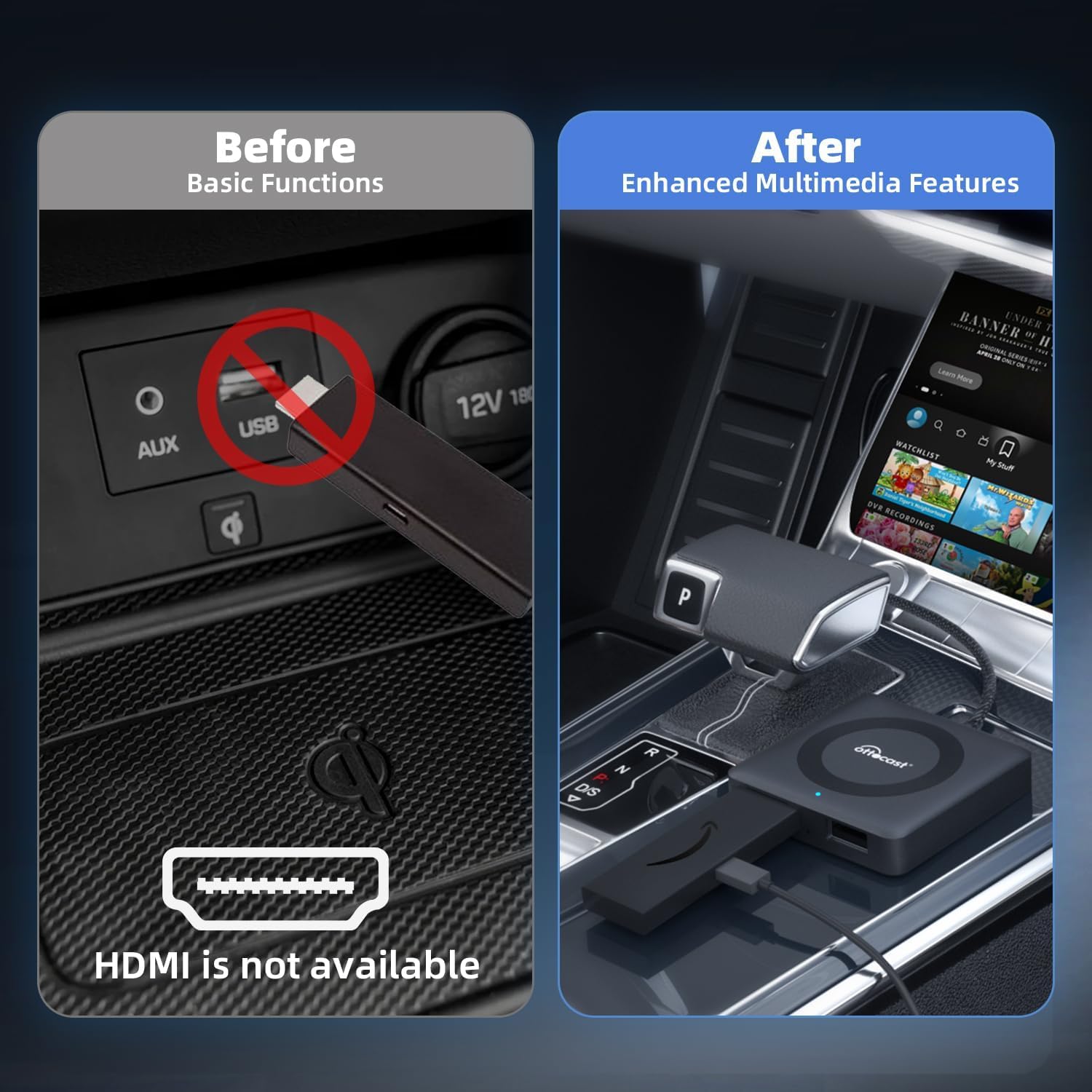
Immagine: A hand plugging a power cable for the TV stick into a car's USB power outlet.
- Connect to Wireless CarPlay (Optional): If you wish to use wireless CarPlay, ensure your phone's Bluetooth and Wi-Fi are enabled. On your car's screen, select the CarPlay option. Pair your phone with the device via Bluetooth (look for "AUTO-XXXX" or similar).

Immagine: Visual guide for connecting to wireless CarPlay, showing the adapter plugged in, phone Bluetooth settings, and CarPlay interface.
4. Istruzioni per l'uso
4.1 Using with TV Sticks/HDMI Devices:
Once your TV stick is connected and powered, and the Car TV Mate Pro is plugged into your car's CarPlay USB port, your car's screen should display the TV stick's interface. Use the remote control of your TV stick to navigate and enjoy streaming content.
- Enjoy streaming services like Netflix, YouTube, Prime Video, Hulu, and more.
- Experience crystal-clear 2K HD visuals and a 60Hz refresh rate.
- Nota: While using the entertainment feature, CarPlay will not be accessible.

Immagine: Car TV Mate Pro connected, displaying streaming services on the car's screen.
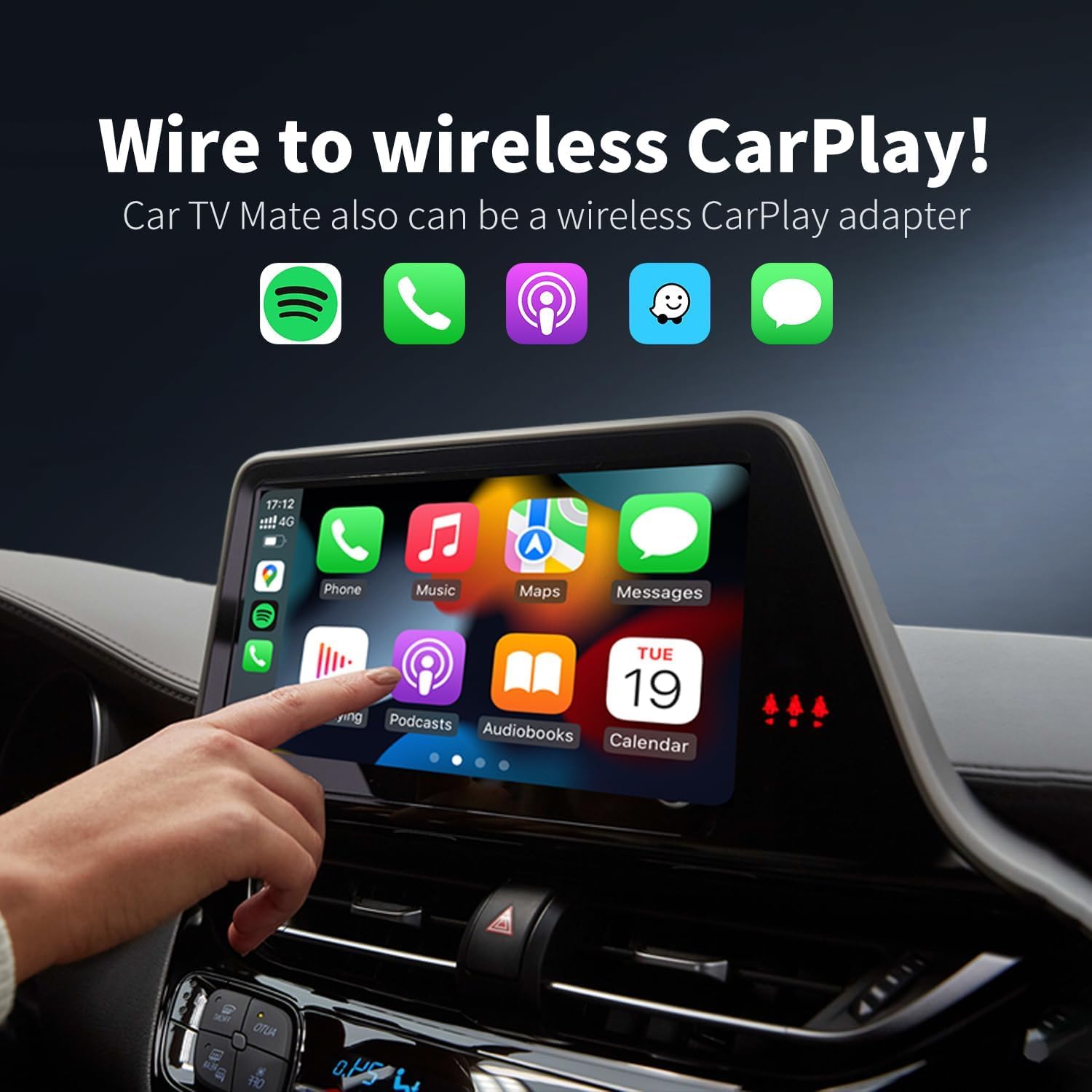
Immagine: Various streaming service logos displayed around the Car TV Mate Pro device, indicating compatibility.
4.2 Using Wireless CarPlay:
The Car TV Mate Pro has an integrated wireless CarPlay adapter. To switch to wireless CarPlay mode:
- On your car's display, select the CarPlay option.
- Assicurati che il Bluetooth e il Wi-Fi del tuo iPhone siano attivi.
- Pair your iPhone with the Car TV Mate Pro via Bluetooth.
- Once connected, your iPhone's CarPlay interface will appear on the car's screen.
- Nota: You cannot use both TV stick features and CarPlay simultaneously.

Immagine: A car's display showing the CarPlay interface, indicating wireless connectivity.
4.3 4K TV Stick Resolution Adjustment:
If you are using a 4K TV stick, you may need to adjust its resolution for optimal display on your car's screen. Follow these steps:
- Open the TV stick settings interface and click "Display & Audio".
- Click "Display" to confirm and then "Video Resolution".
- Select any resolution (1080P 60Hz is recommended) and confirm. Do not select "Auto".

Immagine: Screenshots illustrating the steps to adjust video resolution on a TV stick.
5. Compatibilità
The Car TV Mate Pro is compatible with over 800 car models equipped with factory-installed wired CarPlay. It supports a wide range of HDMI output devices and smartphones.
- Necessario: Factory-installed wired CarPlay.
- Dispositivi supportati: TV sticks (e.g., Fire TV Stick, Google TV, Roku TV, Apple TV), gaming consoles (e.g., Nintendo Switch), smartphones, tablets, set-top boxes, DVD players, and other devices with HDMI outputs.
- Nota importante: Car TV Mate Pro adds wireless CarPlay but does not support Android Auto. Neither product (Car TV Mate 1st Gen or Pro 2nd Gen) supports HDMI output.
Immagine: A grid of car logos (Audi, Benz, Porsche, VW, Honda, Nissan, Ford, Lexus, Volvo, Cadillac, Chevrolet, Citroen, Kia, Toyota, Buick, Hyundai) indicating broad compatibility.
To verify specific compatibility for your vehicle, please visit the official OTTOCAST compatibility checker:
6. Risoluzione Dei Problemi
- No Signal on Car Screen:
- Ensure the Car TV Mate Pro is securely plugged into the CarPlay USB port.
- Verify that your HDMI device (e.g., TV stick) is correctly inserted into the adapter's HDMI port and is receiving power.
- Check your car's display input settings to ensure the correct input (CarPlay or HDMI) is selected.
- If using a 4K TV stick, ensure the resolution is manually set to 1080P 60Hz and not "Auto" (refer to section 4.3).
- Wireless CarPlay Connection Issues:
- Confirm that your iPhone's Bluetooth and Wi-Fi are turned on.
- Ensure your iPhone is paired with the Car TV Mate Pro via Bluetooth.
- Restart your iPhone and the car's infotainment system.
- Problemi di ritardo o prestazioni:
- Ensure your HDMI device has sufficient power.
- Check the internet connection stability if streaming content.
- For 4K TV sticks, verify the resolution setting is optimized for your car's display (1080P 60Hz).
7. Manutenzione
To ensure the longevity and optimal performance of your OTTOCAST Car TV Mate Pro, follow these simple maintenance guidelines:
- Mantenere il dispositivo pulito e privo di polvere e detriti. Utilizzare un panno morbido e asciutto per la pulizia.
- Evitare di esporre il dispositivo a temperature estreme o alla luce solare diretta per periodi prolungati.
- Non tentare di smontare o riparare il dispositivo autonomamente, poiché ciò invaliderebbe la garanzia.
- Conservare il dispositivo in un luogo fresco e asciutto quando non viene utilizzato.
8. Specifiche
| Caratteristica | Dettaglio |
|---|---|
| Numero di modello | CA361-C3 |
| Dimensioni del pacco | 4.76 x 4.45 x 1.02 pollici |
| Peso dell'articolo | 1.59 once |
| Colore | Nero |
| Materiale | Plastica |
| Interfaccia Hardware | USB, HDMI |
| Dispositivi compatibili | Smartphones, TV sticks, Gaming Consoles, Set-top boxes |
| Risoluzione dell'uscita video | Up to 2K HD (60Hz refresh rate) |
| Connettività wireless | Wireless CarPlay (via Bluetooth/Wi-Fi) |
9. Garanzia e supporto
9.1 Informazioni sulla garanzia:
The OTTOCAST Car TV Mate Pro comes with a Protezione di 2 anno warranty, offering hassle-free replacement for 2 years from the order date. Proof of purchase is required for warranty claims.

Immagine: Diagram illustrating the 2-year protection plan.
9.2 Assistenza clienti:
For any questions, technical support, or warranty claims, please contact OTTOCAST customer service:
- Method 1: Via Amazon Product Page
- On the product page, click "Ottocast Store".
- Then click "Ask a Question" or call the service number provided on the store page.
- Method 2: Via After Sales App
- Download the After Sales App for quick support, compatibility checks, and updates.
- Link per il download dell'app: OTTOCAST After Sales App
- Supporto via e-mail: Support@ottocast.com (7x24 ore online)

Immagine: Visual guide for contacting customer support via Amazon or the After Sales App.
10. Video di prodotto
Watch these official videos from the seller for a visual guide on setting up and using your OTTOCAST Car TV Mate Pro.
Brief for OTTOCAST Car TV Mate & Wireless Carplay Adapter
Descrizione del video: Questo video fornisce una breve panoramicaview of the OTTOCAST Car TV Mate Pro, demonstrating its core functionalities including connecting TV sticks for in-car entertainment and enabling wireless CarPlay. It shows the device being plugged in, a Fire TV interface on the car screen, and wireless CarPlay activation.
Car TV Mate TV Stick Converter for Car
Descrizione del video: This video focuses on the Car TV Mate Pro's capability as a TV stick converter. It illustrates how to connect a TV stick to the device and display its content on the car's infotainment screen, highlighting the ease of bringing home entertainment into your vehicle.
OTTOCAST Car TV Mate Max
Descrizione del video: This video showcases the OTTOCAST Car TV Mate Max, a similar product, demonstrating its features and benefits for in-car entertainment. It provides a general idea of the user experience with OTTOCAST's car entertainment adapters.
OTTOCAST Car TV Mate Pro also is a wireless CarPlay adapter
Descrizione del video: This video highlights the dual functionality of the Car TV Mate Pro, specifically focusing on its ability to act as a wireless CarPlay adapter. It demonstrates the seamless transition from wired to wireless CarPlay for enhanced convenience.
Amazon Fire TV on CarPlay Display
Descrizione del video: This video specifically demonstrates how to use an Amazon Fire TV stick with the OTTOCAST Car TV Mate Pro to display Fire TV content directly on your car's CarPlay screen, showcasing the integration and user experience.