1. Introduzione
Welcome to your new HP 14 Laptop. This manual provides comprehensive instructions to help you get started, operate, maintain, and troubleshoot your device. Designed for portability and productivity, your HP 14 Laptop features a thin, lightweight design with a micro-edge display, making it ideal for daily tasks and on-the-go use.
Key features include an Intel Celeron N4120 processor, 16GB RAM, 192GB storage (64GB eMMC + 128GB SD card), and Windows 11 Home in S Mode. A 1-year subscription to Microsoft 365 is also included to enhance your productivity.

Figure 1.1: The HP 14 Laptop, showcasing its sleek design and open display.
2. Impostazione
2.1 Accensione iniziale e configurazione di Windows
- Connetti alimentazione: Collegare l'adattatore CA alla porta smart pin CA del laptop e quindi a una presa di corrente.
- Accensione: Open the laptop lid and press the power button. The laptop will start.
- Configurazione della modalità Windows 11 Home S: Follow the on-screen instructions to complete the initial Windows 11 Home S Mode setup. This includes selecting your region, language, connecting to a Wi-Fi network, and setting up your Microsoft account.
- Microsoft 365 Activation: Activate your included 1-year Microsoft 365 subscription by following the prompts during Windows setup or by opening any Office application (Word, Excel, PowerPoint) after setup is complete.
2.2 Collegamento delle periferiche
Your HP 14 Laptop offers various ports for connecting external devices:
- Dispositivi USB: Connect USB drives, external keyboards, or mice to the USB 3.1 Gen 1 Type-A ports or the USB 3.1 Gen 1 Type-C port.
- Display esterno: Use the HDMI 1.4b port to connect an external monitor or projector. The laptop supports up to FHD (1920x1080)@60Hz resolution on external displays.
- Dispositivi audio: Plug headphones or a headset with a microphone into the headphone/microphone combo jack.
- Scheda SD: Insert an SD card into the multi-format SD media card reader for expanded storage or data transfer.

Figura 2.1: Oltreview of core components including Intel Celeron processor and integrated graphics.
3. Istruzioni per l'uso
3.1 Utilizzo del touchpad
The integrated precision touchpad supports multi-touch gestures for efficient navigation:
- Rubinetto: Single tap to click.
- Scorrimento con due dita: Posiziona due dita sul touchpad e scorri verso l'alto o verso il basso per scorrere.
- Zoom con pizzico: Posiziona due dita sul touchpad e avvicinale o allontanale per ingrandire o ridurre lo zoom.
- Clic destro: Tocca con due dita o premi l'angolo inferiore destro del touchpad.

Figure 3.1: The laptop's keyboard and touchpad area.
3.2 Connettività wireless
- Wifi: To connect to a Wi-Fi network, click the network icon in the taskbar, select your desired network, and enter the password if required.
- Bluetooth: Per associare i dispositivi Bluetooth, vai su Impostazioni di Windows > Dispositivi > Bluetooth e altri dispositivi e segui le istruzioni per aggiungere un nuovo dispositivo.
3.3 Usando il Webcam e microfoni
L'HD 720p integrato webcam and dual array microphones are suitable for video calls and online meetings. Ensure your internet connection is stable for optimal performance.

Figure 3.2: Laptop in use for a video conference.
3.4 Modalità S di Windows 11
Your laptop comes with Windows 11 Home in S Mode, which offers enhanced security and performance by exclusively running apps from the Microsoft Store. If you need to install apps from outside the Microsoft Store, you can switch out of S Mode to standard Windows 11 Home. This is a one-way switch; you cannot revert to S Mode after switching.
Per uscire dalla modalità S:
- Vai a Impostazioni > Sistema > Attivazione.
- Nella sezione "Passa a Windows 11 Home", seleziona Vai allo Store.
- Sul Disattiva la modalità S (or similar) page that appears in the Microsoft Store, click the Ottenere pulsante.
- Follow the on-screen prompts to complete the switch.
4. Manutenzione
4.1 Cura della batteria
Your HP 14 Laptop features an 11-hour battery life and HP Fast Charge technology. To maximize battery lifespan:
- Evitare temperature estreme.
- Non scaricare completamente la batteria frequentemente.
- Se non si utilizza il computer portatile per lunghi periodi, conservarlo con una carica parziale (circa il 50%).
4.2 Pulizia
- Display: Utilizzare leggermente un panno morbido e privo di lanugine dampcon acqua o un detergente per schermi. Non spruzzare il liquido direttamente sullo schermo.
- Tastiera e chassis: Utilizzare un panno morbido e asciutto. Per lo sporco ostinato, un panno leggermente damp è possibile utilizzare un panno, assicurandosi che non penetri liquido nelle aperture.
4.3 Aggiornamenti software
Regularly update your Windows operating system and drivers to ensure optimal performance, security, and compatibility. Windows Update typically handles this automatically, but you can manually check for updates in Impostazioni > Aggiornamento di Windows.
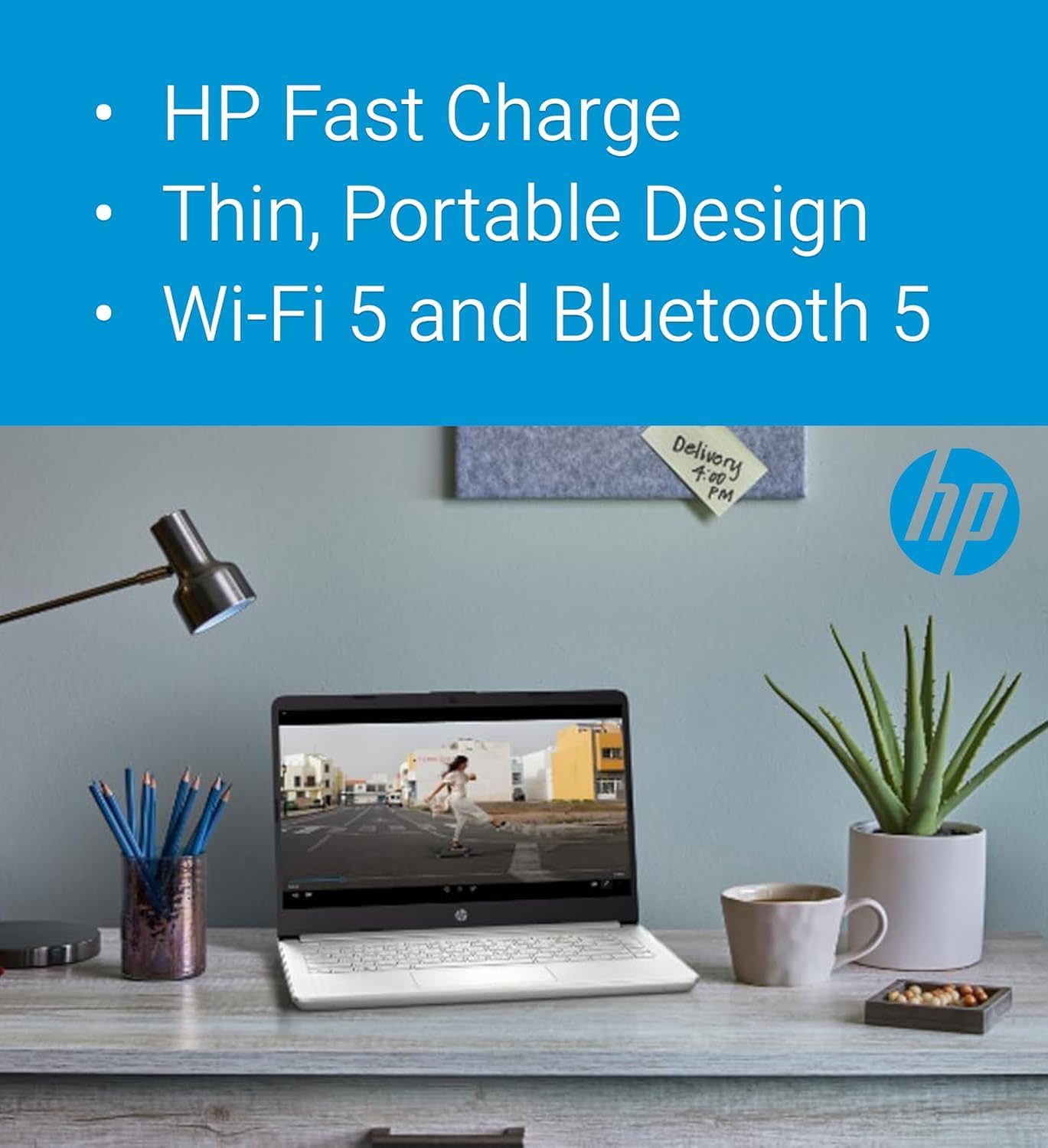
Figure 4.1: Features like HP Fast Charge contribute to easy maintenance and portability.
5. Risoluzione Dei Problemi
Questa sezione affronta i problemi più comuni che potresti riscontrare con il tuo laptop HP 14.
5.1 Problemi di alimentazione
- Il portatile non si accende: Ensure the AC adapter is securely connected to both the laptop and a working power outlet. Try a different outlet. If the battery is completely drained, it may take a few minutes of charging before the laptop powers on.
- La batteria non si carica: Verify the AC adapter is functioning correctly. Check for any damage to the cable or port.
5.2 Problemi di visualizzazione
- Schermo nero: Connect an external monitor to the HDMI port to check if the issue is with the laptop's display or the graphics output. Try pressing Tasto F4 (or the display toggle key) to switch display modes.
- Schermo tremolante: Update your graphics drivers. If the issue persists, it might indicate a hardware problem.
5.3 Problemi di connettività
- Wi-Fi non connesso: Ensure Wi-Fi is enabled. Restart your router and the laptop. Check if other devices can connect to the network.
- Dispositivo Bluetooth non associato: Ensure the Bluetooth device is in pairing mode and within range. Check laptop's Bluetooth settings.
Per una risoluzione dei problemi più avanzata o per problemi non trattati qui, fare riferimento al supporto HP websito o contattare il servizio clienti.
6. Specifiche
Below are the detailed technical specifications for the HP 14 Laptop:
| Componente | Specificazione |
|---|---|
| Processore | Intel Celeron N4120 (4 cores, 4 threads, 1.1 GHz base, up to 2.6 GHz turbo, 4MB L3 cache) |
| Display | 14-inch HD (1366x768), Micro-edge, BrightView, 220 nit, 45% NTSC |
| Grafica | Grafica Intel UHD 600 integrata |
| Memoria (RAM) | 16GB DDR4-2400MHz |
| Magazzinaggio | 192GB (64GB eMMC + 128GB SD card) |
| Sistema operativo | Windows 11 Home S Mode |
| Connettività wireless | Realtek RTL8822CE 802.11a/b/g/n/ac (2x2) Wi-Fi, Bluetooth 5 |
| Audio | Doppi altoparlanti |
| Batteria | 3-cell, 41Wh Lithium-ion (Up to 11.5 hours battery life) |
| Webcamma | Risoluzione HD 720p Webcamma |
| Sicurezza | Firmware TPM 2.0 |
| Tastiera | English, non-backlit |
| Dimensioni (L x P x A) | 12.8 x 8.8 x 0.7 pollici (32.4 x 22.5 x 1.8 cm) |
| Peso | 3.5 libbre (1.47 kg) |
| Porti | 1x USB 3.1 Gen 1 Type-C (data transfer only), 2x USB 3.1 Gen 1 Type-A (data transfer only), 1x HDMI 1.4b, 1x Multi-format SD card reader, 1x Headphone/microphone combo, 1x AC smart pin |

Figure 6.1: Physical dimensions of the HP 14 Laptop.
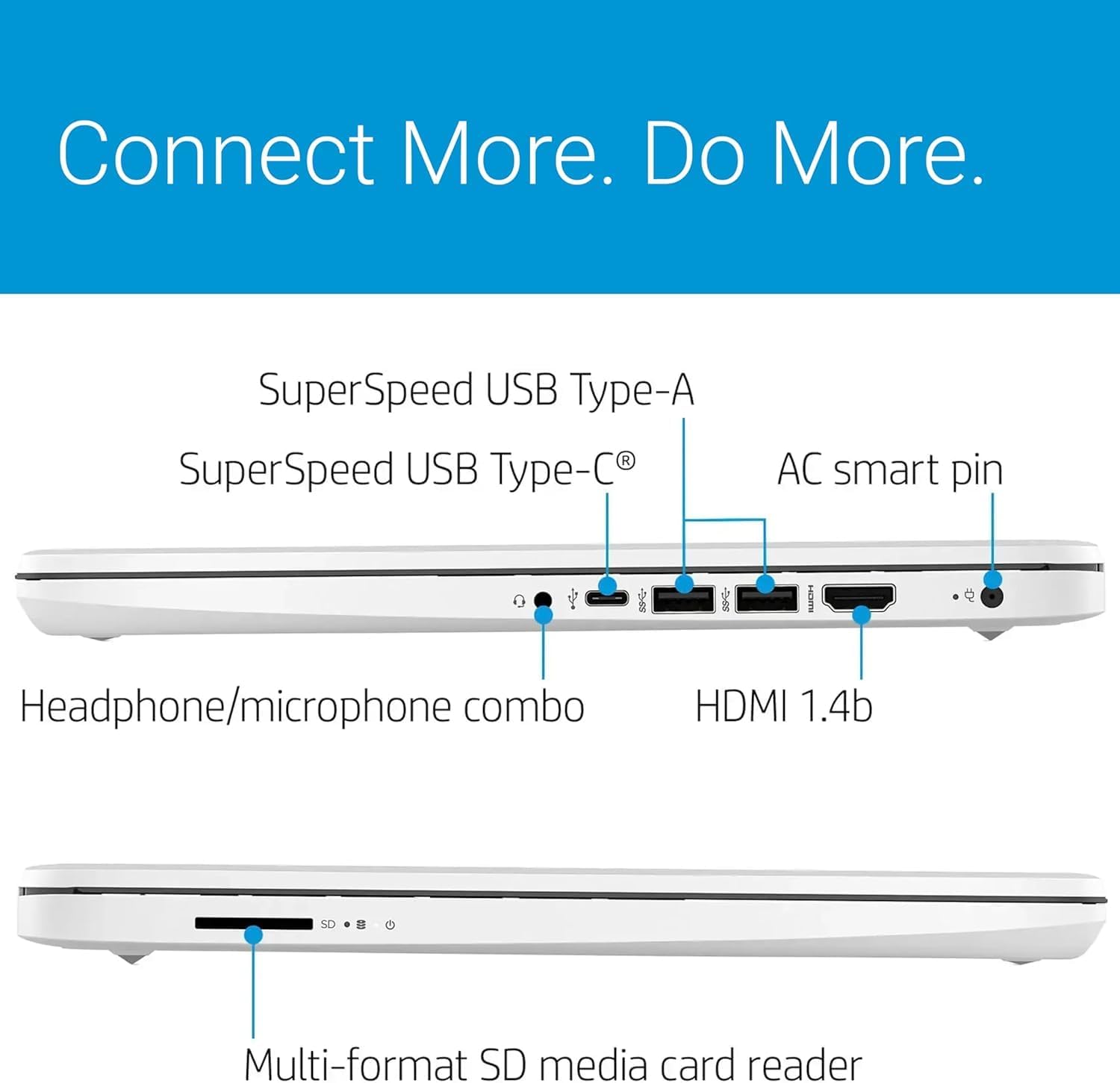
Figure 6.2: Available ports for connectivity on the HP 14 Laptop.

Figure 6.3: The included 128GB SD card for expanded storage.
7. Garanzia e supporto
7.1 Garanzia del prodotto
Your HP 14 Laptop comes with a 1-year manufacturer's warranty covering most components. The expanded 128GB SD card storage, if provided by Issaquah Highlands Tech, includes a separate 3-year warranty. Please retain your proof of purchase for warranty claims.
7.2 Assistenza clienti
For technical assistance, warranty service, or additional information, please visit the official HP support website or contact HP customer service. You can find contact details and support resources on the HP websito specifico per la tua regione.
Le risorse online spesso includono:
- Download di driver e software
- Guide alla risoluzione dei problemi
- Domande frequenti
- Forum della comunità