1. Introduzione
This manual provides detailed instructions for the installation, operation, and maintenance of your CAMECHO 4+64GB Car Stereo. This unit is designed for specific Honda Acura MDX models from 2007-2013 (Low-End Version, without Canbus). Please read this manual thoroughly before installation and use to ensure proper functionality and safety.

Image: CAMECHO Car Stereo main interface in a vehicle dashboard.
2. Compatibilità del veicolo
This CAMECHO car stereo is compatible with Honda Acura MDX models manufactured between 2007 and 2013. It is specifically designed for the Low-End Version without Canbus. Please verify your vehicle's console type before installation.

Image: Visual guide for compatible Honda Acura MDX console types (A and B with AUX) and incompatible types (C, D with HDD, E).
Modelli compatibili: 2007-2013 Honda Acura MDX (Low-End Version, Without Canbus).
Importante: Consoles with HDD (Hard Disk Drive) are not supported. Ensure your vehicle's console matches types A or B shown in the image for proper installation.
3. Cosa c'è nella scatola
Si prega di verificare il contenuto del pacco in base all'elenco sottostante:
- 1 unità principale Android
- 1 telecamera di retromarcia AHD
- 1 x microfono esterno
- 1 x piccolo microfono
- 1 antenna GPS
- 1 x cavo di alimentazione
- 1 x Voice-frequency Adapter
- 1 x Cavo RCA
- 1 cavo USB
- 1 x cavo di ingresso per telecamera posteriore
- 1 x Accessori
- 1 x Strumento di installazione
- 1 x Manuale di istruzioni
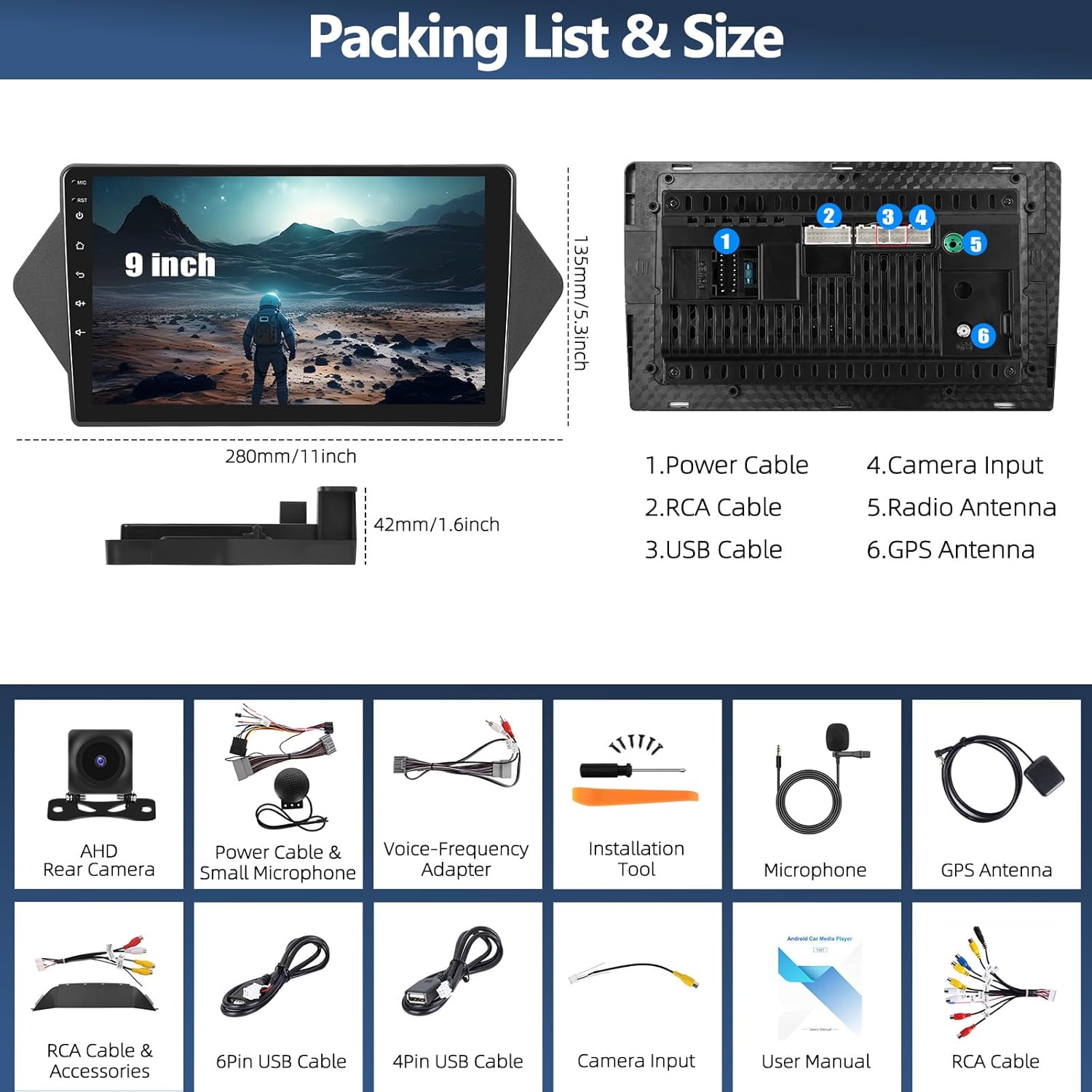
Image: Packing list and size diagram, illustrating the head unit dimensions and all included components.
4. Configurazione e installazione
4.1 Installazione generale
Professional installation is recommended. Ensure the vehicle's power is disconnected before beginning installation. Refer to your vehicle's service manual for specific dashboard removal procedures.
4.2 Installazione della telecamera per la retromarcia
The reversing input must be connected even if the reversing camera is not used, to ensure proper functionality of the head unit.
- Collegare il filo rosso (positivo) della telecamera al polo positivo della luce di retromarcia dell'auto.
- Collegare il filo nero (negativo) della telecamera al polo negativo della luce di retromarcia dell'auto.
- The reversing trigger is controlled by the stereo; therefore, the third wire (trigger wire) does not require a separate connection.
Nota: The white plug from the camera input cable must be connected to the main device for Bluetooth and Wi-Fi signals to function correctly.

Image: Reversing Camera Installation wiring diagram.
4.3 Configurazione del controllo del volante
After connecting the power cable, you need to configure the steering wheel controls. Navigate to the "SWC" application on the head unit. Follow the on-screen instructions to learn and assign the steering wheel buttons. If the learning process fails, repeat the steps.

Image: Steering Wheel Control (SWC) application interface.
5. Istruzioni per l'uso
5.1 Apple CarPlay e Android Auto wireless
The head unit supports both wireless Apple CarPlay and Android Auto, allowing seamless integration with your smartphone for navigation, calls, messages, and music.

Immagine: Interfacce wireless Apple CarPlay e Android Auto.
5.1.1 Connessione wireless Apple CarPlay
- Attiva il Bluetooth sul tuo iPhone e associalo all'autoradio.
- Aprire l'applicazione "Zlink" sull'autoradio.
- Se la connessione fallisce, collega il tuo iPhone all'hotspot dell'autoradio, quindi clicca nuovamente sull'app "Zlink".
Maintain both Bluetooth and hotspot connections for stable CarPlay operation.

Image: Wireless Apple CarPlay in use.
5.1.2 Connessione wireless Android Auto
- Assicurati di aver installato l'app "Android Auto" sul tuo cellulare.
- Attiva il Bluetooth sul tuo telefono Android e associalo all'autoradio.
- Aprire l'applicazione "Zlink" sull'autoradio.

Immagine: Android Auto wireless in uso.
5.2 Navigazione GPS e connessione WiFi
The unit features a built-in GPS module for both online and offline navigation. Connect to a Wi-Fi hotspot to access online maps, download third-party apps, and browse the internet.
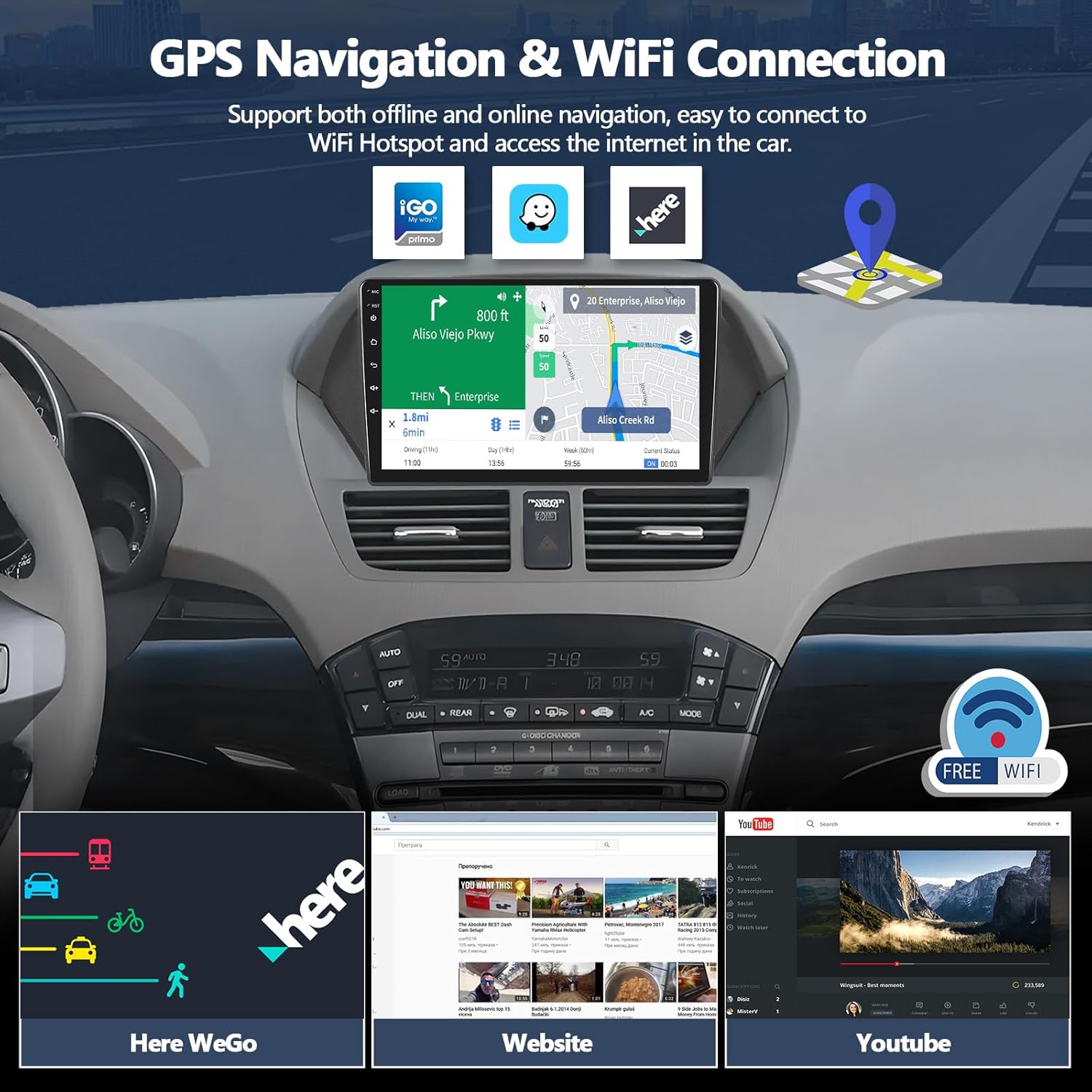
Immagine: funzionalità di navigazione GPS e connettività WiFi.
5.2.1 Navigazione GPS
Run real-time navigation or offline map navigation on the head unit at any time. Various navigation applications are available for download from the Google Play Store.

Immagine: Interfaccia di navigazione GPS.
5.2.2 Connessione Wi-Fi
Connect to Wi-Fi or a mobile hotspot to download applications, stream videos, access offline maps, and more.

Image: WiFi Connection capabilities and app exampmeno.
Radio Bluetooth 5.3, 5.0 e FM RDS
Enjoy hands-free calls and wireless audio streaming via Bluetooth 5.0. The built-in FM/RDS radio offers 18-station presets for live broadcasting.

Image: Bluetooth and FM RDS Radio interfaces.
5.3.1Bluetooth 5.0
Connect your phone for hands-free calls and wireless audio streaming from services like Spotify or Pandora.

Image: Bluetooth 5.0 features.
Radio FM RDS 5.3.2
Listen to real-time radio broadcasts with RDS information.

Image: FM RDS Radio features.
5.4 Equalizzatore a 16 bande (EQ)
Customize your audio experience with the built-in 16-band equalizer. Adjust sound fields for strong bass, soft midrange, and bright treble to achieve your preferred audio quality.

Immagine: interfaccia dell'equalizzatore a 16 bande.
5.4.1 Equalizzatore a 32 bande
The system also features a 32-band equalizer for more precise audio tuning, ideal for various musical styles.

Immagine: interfaccia dell'equalizzatore a 32 bande.
5.5 Visualizzazione facoltativa della home page dell'APP
Customize your home page by selecting and rearranging the application icons you want to display. This allows for a personalized and efficient user experience.

Image: Optional Home Page APP customization.
5.6 Funzionalità schermo diviso
La funzione schermo diviso consente di eseguire due applicazioni contemporaneamente, come la navigazione e la riproduzione musicale, migliorando le capacità multitasking.

Immagine: funzionalità Split Screen.
5.7 Funzione Mirror Link
Synchronize your iOS or Android phone screen to the head unit. Android supports two-way operation, while iOS supports one-way operation (display only).

Image: iOS/Android Mirror Link feature.
6. Manutenzione
Per garantire la longevità e le prestazioni ottimali dell'autoradio, seguire queste linee guida per la manutenzione:
- Pulizia dello schermo: Utilizzare un panno morbido e privo di lanugine per pulire delicatamente il touch screen. Per le macchie ostinate, pulire leggermenteampPulisci il panno con acqua o un detergente per schermi. Evita prodotti chimici aggressivi o materiali abrasivi.
- Pulizia generale: Mantenere l'unità libera da polvere e detriti. Utilizzare una spazzola morbida o aria compressa per pulire le prese d'aria e le aree dei pulsanti.
- Aggiornamenti software: Periodically check for available software updates to ensure you have the latest features and bug fixes. Refer to the manufacturer's websito o le impostazioni dell'unità per le procedure di aggiornamento.
- Evitare temperature estreme: Non esporre l'unità a temperature estreme per periodi prolungati, poiché ciò potrebbe danneggiarne i componenti elettronici.
7. Risoluzione Dei Problemi
7.1 Nessuna uscita audio
If you experience no audio from the car stereo, check the following connections:
- Ensure the AUX IN R/L on the Voice-Frequency Adapter is correctly connected to the Audio Out R/L on the RCA cable (red to red, white to white).
- Verify that the small speaker (included in the package) is connected to the power cable.

Image: Solutions for no audio output.
7.2 I comandi al volante non rispondono
If your steering wheel controls are not functioning, ensure they have been properly configured. Refer to section 4.3 "Steering Wheel Control Setup" for detailed instructions. Re-learn the buttons if necessary.
7.3 Problemi con il segnale GPS
Ensure the GPS antenna is properly installed and has a clear line of sight to the sky. Obstructions or poor placement can affect signal reception.
7.4 Problemi di connettività Wi-Fi/Bluetooth
Check that the white plug from the camera input cable is securely connected to the main device, as this connection is crucial for Wi-Fi and Bluetooth signals.
8. Specifiche
| Caratteristica | Dettaglio |
|---|---|
| Numero di modello | A8039A3662H1MI2 |
| Sistema operativo | Androide 15 |
| Memoria RAM | 4 GB |
| ROM | 64 GB |
| Dimensioni dello schermo | 9 pollici |
| Tecnologia di connettività | Bluetooth 5.0, Wi-Fi, GPS |
| Caratteristiche speciali | Wireless Apple CarPlay, Android Auto, 16-Band EQ, FM RDS Radio, HD Backup Camera Support, Split Screen, Mirror Link |
| Dispositivi compatibili | Honda Acura MDX 2007-2013 (Low-End Version, Without Canbus) |
| Dimensioni del prodotto | 1.6 x 11 x 5.3 pollici |
| Peso dell'articolo | 2.86 libbre |
| Modalità di uscita audio | Stereo |
| Configurazione del canale audio surround | 5.1 |
| Codifica video | H.264, H.265/HEVC |
9. Informazioni sulla garanzia
For specific warranty details regarding your CAMECHO car stereo, please refer to the warranty card included in your product packaging or contact the seller directly. Protection plans may be available for purchase separately to extend coverage.
10. Assistenza clienti
If you require further assistance, have questions about installation, or encounter any issues not covered in this manual, please contact CAMECHO customer support.
E-mail: CAMECHOVIP@126.com

Image: CAMECHO Customer Support contact information.


