1. Introduzione
Thank you for choosing the EPOMAKER Aula F108 Wireless Gaming Keyboard. This full-size mechanical keyboard is designed for versatility and performance, featuring tri-mode connectivity, hot-swappable switches, programmable keys, and vibrant RGB backlighting. This manual provides detailed instructions for setup, operation, maintenance, and troubleshooting to ensure optimal use of your new keyboard.
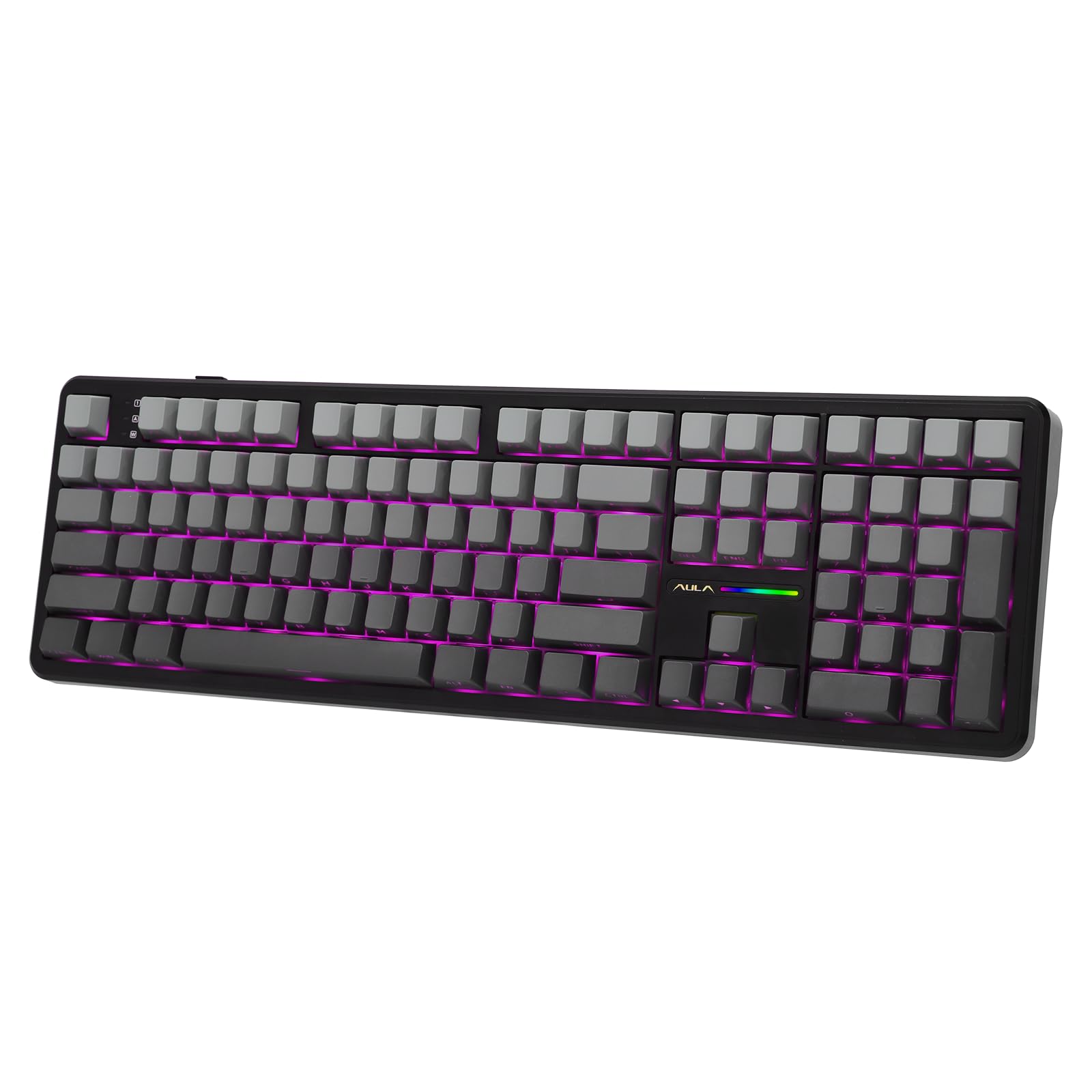
Image: EPOMAKER Aula F108 Wireless Gaming Keyboard in Shadow Black. This image shows the full 108-key layout of the keyboard with its gray and black keycaps and subtle RGB lighting.
2. Impostazione
2.1 Contenuto della confezione
Prima di iniziare, assicurati che tutti gli articoli siano presenti nel pacco:
- EPOMAKER Aula F108 Wireless Gaming Keyboard
- Estrattore per tasti e interruttori
- Manuale dell'utente (questo documento)
- Cavo USB-C a USB-A staccabile
- Extra Mechanical Switches (4 pieces)
2.2 Carica iniziale
For optimal performance, fully charge the keyboard before first use. Connect the provided USB-C cable to the keyboard's Type-C port and the USB-A end to a power source (e.g., computer USB port, USB wall adapter). The keyboard features a 4000mAh battery.
2.3 Modalità di connettività
The F108 keyboard supports three connection modes: 2.4GHz Wireless, Bluetooth 5.0, and USB-C Wired.
2.3.1 Connessione wireless a 2.4 GHz
- Locate the 2.4GHz USB dongle stored in the slot on the back of the keyboard.
- Switch the mode selector on the back of the keyboard to "2.4G".
- Collega il dongle USB a una porta USB-A disponibile sul tuo computer.
- La tastiera dovrebbe connettersi automaticamente.

Image: EPOMAKER Aula F108 Wireless Gaming Keyboard demonstrating its tri-mode connectivity options: 2.4G wireless, wired USB-C, and Bluetooth. The image highlights the switch on the back of the keyboard for selecting the desired mode.
2.3.2 Connessione Bluetooth
The keyboard can pair with up to three Bluetooth devices (BT1, BT2, BT3).
- Switch the mode selector on the back of the keyboard to "BT".
- Premere e tenere premuto NV + 1 (per BT1), NV + 2 (per BT2), oppure NV + 3 (for BT3) for 3-5 seconds until the backlight flashes rapidly, indicating pairing mode.
- On your device (PC, Mac, Android, iOS), search for "AULA F108" in your Bluetooth settings and connect.
- Once connected, the backlight will turn off after 2 seconds.
2.3.3 Connessione cablata USB-C
- Collegare il cavo USB-C in dotazione alla porta Type-C della tastiera.
- Connect the USB-A end to your computer's USB port.
- Switch the mode selector on the back of the keyboard to "Wired".
- La tastiera funzionerà come un dispositivo cablato e si caricherà contemporaneamente.
Video: EPOMAKER AULA F108 Unboxing Video. This video demonstrates the unboxing process of the keyboard, showing the contents and initial setup steps, including connecting the cable and locating the dongle.
3. Istruzioni per l'uso
3.1 Funzioni di base della tastiera
The F108 is a full-size 108-key keyboard with standard layout. All keys are anti-ghosting for accurate input.

Image: EPOMAKER Aula F108 Wireless Gaming Keyboard highlighting its anti-ghosting feature, showing multiple key presses registered simultaneously. This ensures accuracy during fast typing or gaming.
3.2 Retroilluminazione RGB
The keyboard features per-key RGB backlighting with south-facing LEDs and RGB side lights. You can customize lighting effects, colors, saturation, brightness, and dynamic patterns using the dedicated software or directly via keyboard shortcuts.

Image: EPOMAKER Aula F108 Wireless Gaming Keyboard showcasing its vibrant RGB backlighting, illuminating the keycaps and creating a dynamic visual effect.
Video: EPOMAKER AULA F108 Product Show. This video highlights various features of the keyboard, including its RGB lighting effects and overall design.
3.3 Programmable Keys & Software
The F108 keyboard features programmable keys, allowing for key remapping, macro assignment, and sensitivity adjustments. Download the official EPOMAKER software for full customization options. (Note: Mac software availability may vary).

Image: EPOMAKER Aula F108 Wireless Gaming Keyboard displaying its programming software interface, showing options for key assignment, macro recording, and lighting customization.
3.4 Switch sostituibili a caldo
The keyboard supports 3/5-pin mechanical switches, allowing you to easily change switches without soldering. This enables customization of typing feel and acoustic feedback.

Image: EPOMAKER Aula F108 Wireless Gaming Keyboard with a keycap and switch being removed using a puller tool, illustrating the hot-swappable feature. This allows users to easily change mechanical switches.
Video: EPOMAKER Aula F108 Typing ASMR. This video provides an auditory experience of typing on the keyboard, showcasing the sound profile of its mechanical switches.
4. Manutenzione
4.1 Pulizia della tastiera
Per pulire la tastiera, scollegarla da tutte le fonti di alimentazione. Utilizzare un panno morbido e privo di lanugine leggermente dampened with water or a mild cleaning solution. Avoid harsh chemicals or abrasive materials. For cleaning between keycaps, use a can of compressed air or the provided keycap puller to remove keycaps and clean the switches and plate.
4.2 Sostituzione di interruttori e tasti
Use the included keycap and switch puller tool to safely remove and replace switches or keycaps. Gently pull keycaps straight up to avoid damaging the switch stem. For switches, align the puller with the two clips on the switch housing and pull upwards. When inserting new switches, ensure the pins are straight and align correctly with the hot-swap sockets before pressing down firmly.
5. Risoluzione Dei Problemi
5.1 La tastiera non risponde
- Modalità cablata: Ensure the USB-C cable is securely connected to both the keyboard and the computer, and the mode switch is set to "Wired".
- Wireless a 2.4 GHz: Verify the USB dongle is plugged in and the mode switch is set to "2.4G". Try plugging the dongle into a different USB port.
- Modalità Bluetooth: Check if the keyboard is paired correctly (FN + 1/2/3). Ensure Bluetooth is enabled on your device and the keyboard is within range. Try re-pairing the device.
- Batteria: The battery might be depleted. Connect the keyboard via USB-C cable to charge.
5.2 RGB Lights Not Working/Incorrect
- Check keyboard brightness settings via the software or onboard controls.
- Ensure the lighting mode is not set to "LED Off".
- Update the keyboard firmware and software to the latest version.
5.3 Tasti digitati due volte o non registrati
- This could indicate a faulty switch. Use the provided switch puller to replace the problematic switch with one of the extra switches.
- Ensure the switch is fully seated in the hot-swap sockets.
6. Specifiche
| Caratteristica | Dettaglio |
|---|---|
| Modello | F108 |
| Disposizione | 108 tasti full size |
| Connettività | Wireless a 2.4 GHz, Bluetooth 5.0, USB-C cablato |
| Capacità della batteria | 4000mAh |
| Hot-Swap | Yes (3/5-pin switches) |
| keycaps | PBT Plastic, Cherry Profile |
| Retroilluminazione | RGB (LED rivolti a sud) |
| Dimensioni | 5.3 x 17.4 x 1.6 pollici |
| Peso | 3.48 libbre |
| Dispositivi compatibili | PC, Mac, Android, iOS, Gaming Console |

Image: EPOMAKER Aula F108 Wireless Gaming Keyboard showing its physical dimensions (length, width, height) and weight, indicating its full-size form factor.
7. Garanzia e supporto
EPOMAKER products typically come with a standard manufacturer's warranty. Please refer to the warranty card included in your package or visit the official EPOMAKER websito per termini e condizioni di garanzia dettagliati.
For technical support, troubleshooting assistance, or any inquiries regarding your EPOMAKER Aula F108 keyboard, please contact EPOMAKER customer service through their official websito o le informazioni di contatto fornite nella documentazione del prodotto.
You can also find additional resources and FAQs on the EPOMAKER brand store on Amazon: Negozio EPOMAKER


