1. Introduzione
Thank you for choosing the GAMEMAX Starlight 2 AB Mid Tower ATX PC Case. This manual provides essential information for the proper installation, operation, and maintenance of your new PC case. Please read this manual thoroughly before beginning the assembly process to ensure optimal performance and longevity of your system components.
2. Informazioni sulla sicurezza
- Scollegare sempre l'alimentatore dalla presa a muro prima di installare o rimuovere qualsiasi componente.
- Maneggiare tutti i componenti con cura per evitare danni.
- Indossare un braccialetto antistatico per evitare danni causati dalle scariche elettrostatiche (ESD) ai componenti sensibili.
- Keep the case away from direct sunlight, high temperatures, and moisture.
- Assicurare una corretta ventilazione attorno al case per evitare il surriscaldamento.
- Do not attempt to modify the case or its components, as this may void your warranty and pose a safety risk.
3. Contenuto della confezione
Si prega di verificare che tutti gli articoli siano presenti nel pacco:
- GAMEMAX Starlight 2 AB Mid Tower ATX PC Case
- Scatola degli accessori (contenente viti, distanziatori, fascette, ecc.)
- Manuale dell'utente (questo documento)
4. Prodotto finitoview
The GAMEMAX Starlight 2 AB is a Mid Tower ATX PC case designed for efficient cooling and versatile configurations. It features a tempered glass side panel, pre-installed ARGB fans, and comprehensive hardware compatibility.
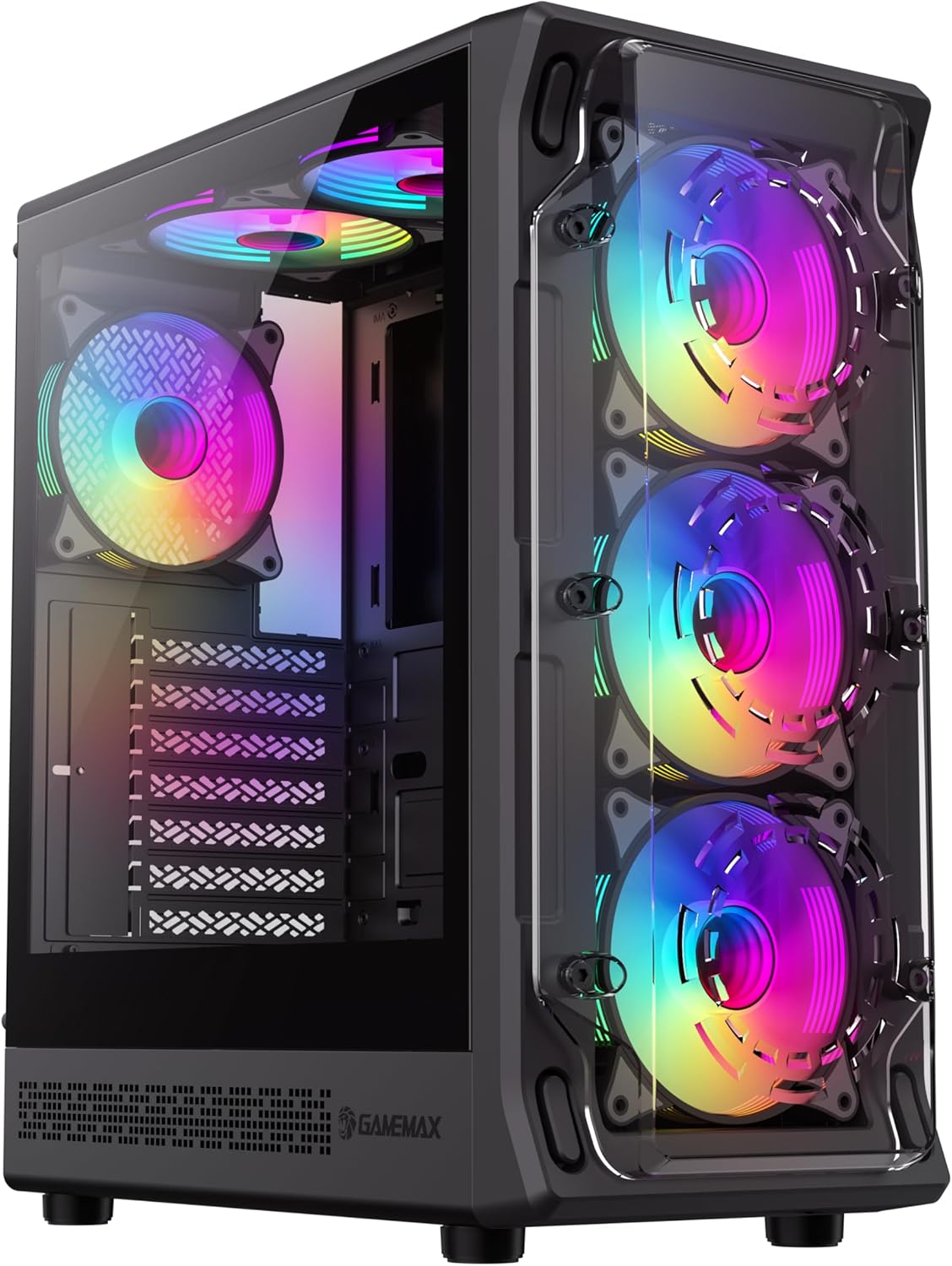
Figura 4.1: Anteriore sinistro view of the GAMEMAX Starlight 2 AB PC Case, showcasing the tempered glass side panel and the vibrant ARGB lighting of the pre-installed fans.

Figura 4.2: Fronte diretto view highlighting the three 120mm ARGB fans, visible through the clear front panel, designed for optimal airflow.
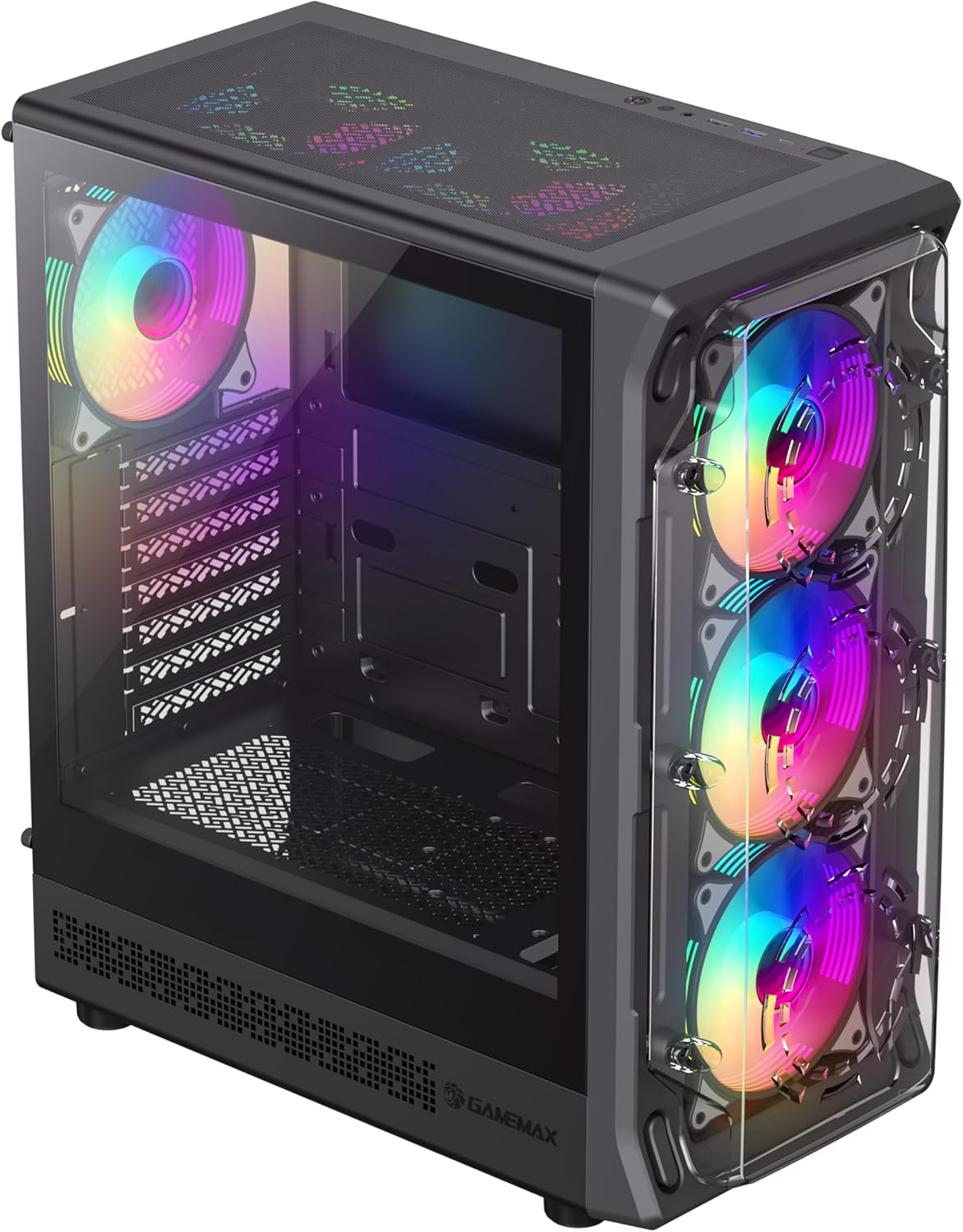
Figura 4.3: Top-front perspective showing the top-mounted I/O panel, including USB ports and audio jacks, along with the mesh top panel for additional cooling.

Figura 4.4: Posteriore view of the PC case, illustrating the rear exhaust fan, expansion slots, and the power supply mounting area at the bottom.

Figura 4.5: Interno view of the main chamber, showing the motherboard tray, fan mounts, and ample space for component installation.
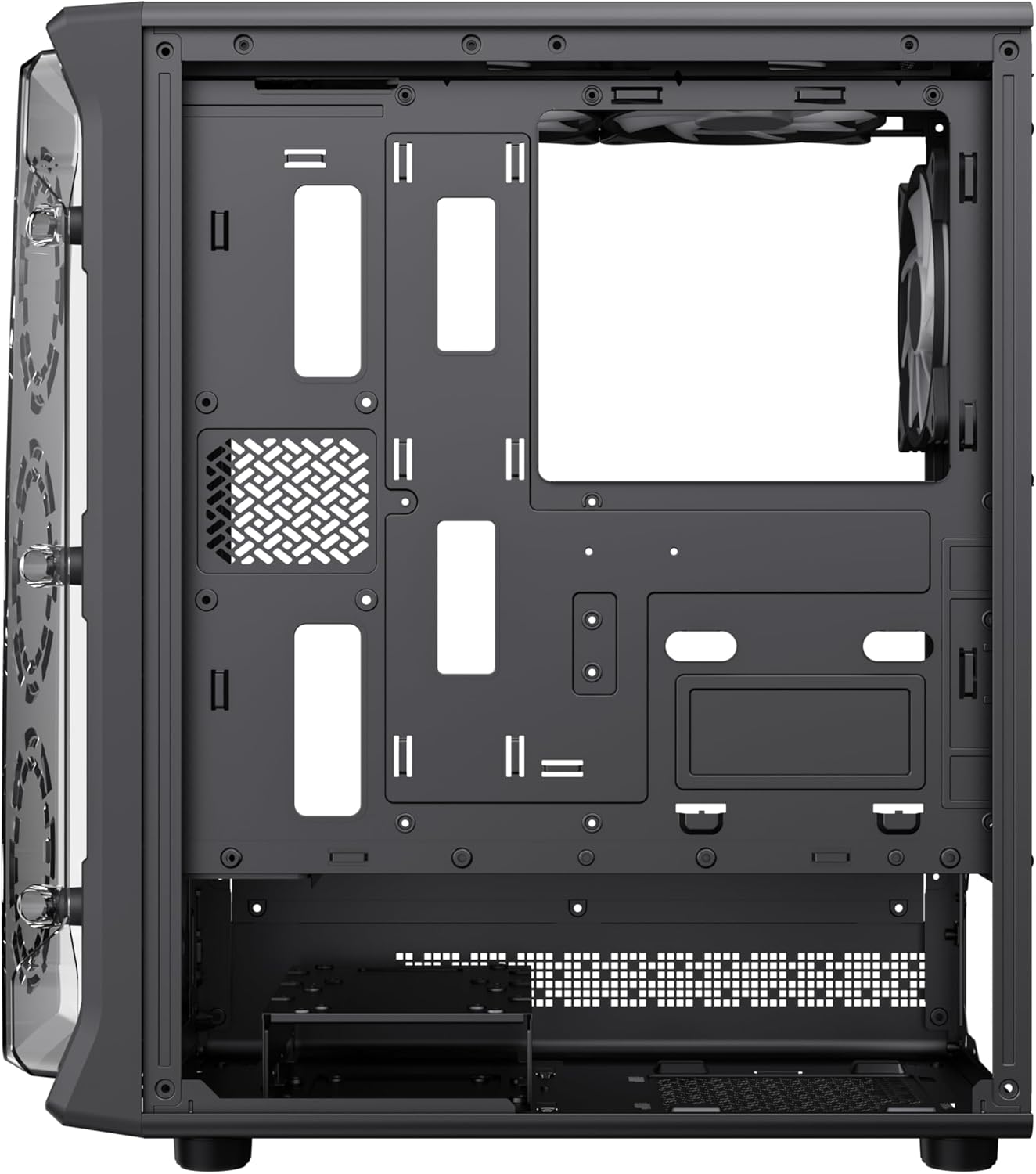
Figura 4.6: View behind the motherboard tray, revealing cable routing cutouts and mounting points for storage drives, facilitating clean cable management.
5. Specifiche
| Caratteristica | Descrizione |
|---|---|
| Modello | Starlight 2 AB |
| Tipo di caso | Mid Tower |
| Compatibilità della scheda madre | ATX, Micro ATX, Mini ITX |
| Dimensioni (L x P x A) | Dimensioni: 34 x 20 x 43.6 cm |
| Peso | 4.55 kg |
| Materiale | Metallo, vetro temperato |
| Ventole preinstallate | 6 x 120mm ARGB Fans (3 front, 2 top, 1 rear) |
| Supporto radiatore | 120mm, 240mm, 360mm |
| Liquidazione GPU | Fino a 330 mm |
| Altezza del dispositivo di raffreddamento della CPU | Fino a 155 mm |
| Porte I/O | USB 3.0, USB 2.0, Type-C, Audio |
| Caratteristiche speciali | Built-In Fan, Dust Filter, RGB Lighting |
6. Configurazione e installazione
6.1 Preparazione del caso
- Posizionare la custodia su una superficie piana e stabile.
- Carefully remove the tempered glass side panel by unscrewing the thumb screws and sliding it open. Set it aside in a safe place.
- Remove the solid right side panel to access the cable management area.
6.2 Installazione della scheda madre
- Installare la schermatura I/O nell'apertura posteriore del case.
- Align your motherboard with the standoffs inside the case. Ensure the standoffs match your motherboard's form factor (ATX, Micro ATX, Mini ITX).
- Fissare la scheda madre con le viti fornite.
6.3 Installazione dell'unità di alimentazione (PSU).
- Montare l'alimentatore nell'apposito vano nella parte inferiore posteriore del case.
- Fissare l'alimentatore con le viti dalla parte posteriore del case.
6.4 Storage Device Installation (HDD/SSD)
- Locate the drive bays or mounting points for 3.5" HDDs and 2.5" SSDs.
- Install your storage devices using the appropriate screws.
6.5 Graphics Card (GPU) and Expansion Card Installation
- Rimuovere le coperture degli slot di espansione necessari dalla parte posteriore del case.
- Inserisci la scheda grafica o altre schede di espansione negli slot PCIe della scheda madre.
- Fissare le schede con le viti.
6.6 Collegamento dei cavi I/O anteriori
Connect the following cables from the case's front I/O panel to the corresponding headers on your motherboard:
- Intestazione 3.0 USB
- Intestazione 2.0 USB
- Type-C Header (if applicable)
- Intestazione audio HD
- Power Switch, Reset Switch, Power LED, HDD LED headers
6.7 Gestione dei cavi
Utilizzate i fori per il passaggio dei cavi e i punti di fissaggio dietro il vassoio della scheda madre per organizzare e fissare i cavi. Questo migliora il flusso d'aria e l'estetica.
7. Istruzioni per l'uso
7.1 Accensione
After all components are installed and cables are connected, replace both side panels. Connect your power cable to the PSU and a wall outlet, then press the power button on the case's front I/O panel to start your system.
7.2 Controllo della ventola ARGB
The pre-installed ARGB fans can be controlled via your motherboard's ARGB software (e.g., ASUS Aura Sync, MSI Mystic Light Sync, Gigabyte RGB Fusion, ASRock Polychrome Sync) if your motherboard supports a 3-pin 5V ARGB header. Connect the ARGB cable from the case's fan hub to the motherboard's ARGB header. Refer to your motherboard manual for specific instructions on ARGB software usage.
8. Manutenzione
8.1 Pulizia dei filtri antipolvere
The case includes integrated removable dust filters. Regularly clean these filters to maintain optimal airflow and prevent dust buildup inside your system. Gently slide out the filters, clean them with a soft brush or rinse with water (ensure they are completely dry before reinstallation), and then reinsert them.
8.2 General Case Cleaning
Utilizzare un morbido, damp cloth to wipe down the exterior surfaces of the case. For the tempered glass panel, use a glass cleaner and a microfiber cloth to avoid streaks. Avoid using harsh chemicals or abrasive materials.
9. Risoluzione Dei Problemi
- Il sistema non si accende: Ensure all power cables (24-pin ATX, 8-pin CPU, GPU power) are securely connected. Verify the PSU switch is in the 'ON' position. Check front panel power switch connection to the motherboard.
- Fans are not spinning or ARGB not working: Check fan power connections to the motherboard or fan hub. Ensure ARGB cables are correctly connected to a 3-pin 5V ARGB header on the motherboard. Verify ARGB software settings.
- Nessuna uscita di visualizzazione: Confirm the graphics card is properly seated in its PCIe slot and power cables are connected. Ensure the monitor cable is connected to the graphics card, not the motherboard's integrated graphics port (unless using integrated graphics).
- Surriscaldamento: Ensure all fans are spinning correctly and are oriented for proper airflow (intake/exhaust). Clean dust filters regularly. Verify CPU cooler installation.
10. Garanzia e supporto
For warranty information or technical support, please refer to the GAMEMAX official webo contattare il rivenditore locale. Conservare la prova d'acquisto per eventuali reclami in garanzia.
11. Informazioni sullo smaltimento
Please dispose of this product in accordance with local environmental regulations. Do not dispose of electronic waste with general household waste.


