1. Introduzione
Thank you for choosing the VENTION 15-in-1 Laptop Docking Station. This device is designed to expand the connectivity of your laptop, providing a comprehensive solution for multiple peripherals, external displays, network access, and power delivery through a single USB-C connection. Please read this manual carefully to ensure proper installation and operation.
2. Prodotto finitoview
The VENTION 15-in-1 Docking Station offers a wide array of ports to enhance your workstation. Its rotatable design allows for flexible placement on your desk.
2.1. Docking Station Features
- Connettività 15 in 1: Comprehensive port selection for various devices.
- Dual/Triple Display Output: Supports up to three external monitors via 2 HDMI and 1 DisplayPort.
- Erogazione di potenza (PD 100W): Charges your laptop while connected.
- Trasferimento dati ad alta velocità: USB 3.2 Gen 2 ports offer up to 10Gbps.
- Gigabit: Fornisce una connessione di rete cablata stabile e veloce.
- Lettore di schede: Integrated SD/TF card slots for quick data access.
- Jack audio: 3.5mm TRRS port for headphones or microphones.
- Design girevole: Allows for optimal positioning and cable management.
- Costruzione durevole: Aluminum alloy shell for optimal heat dissipation.
2.2. Disposizione delle porte
Familiarizza con le porte della docking station:

Immagine: Fronte e retro view of the VENTION 15-in-1 Docking Station, showcasing its compact design and port arrangement.

Image: A detailed diagram illustrating all 15 ports on the docking station, including their types and functions.
- Porte anteriori: SD/TF Card Slot, USB 3.0 (5Gbps), 2x USB 3.2 Gen 2 Type-A (10Gbps), USB 3.2 Gen 2 Type-C (10Gbps), USB 3.2 Gen 1 Type-C (5Gbps), 3.5mm TRRS Audio Jack.
- Porte posteriori: PD (Power Delivery 100W Max Input), PC HOST (USB-C connection to laptop), 2x USB 2.0 Type-A (480Mbps), 2x HDMI (4K@60Hz), 1x DisplayPort (4K@60Hz), RJ45 Gigabit Ethernet.
3. Guida all'installazione
Per configurare la docking station, segui questi passaggi:
- Disimballare il dispositivo: Carefully remove the docking station and included accessories from the packaging.
- Posizionare il supporto: The docking station features a detachable and rotatable U-shaped stand. Attach the stand to the base of the docking station for vertical placement, ensuring stability. The anti-slip pads on the stand provide protection and grip.
- Collegamento dell'alimentazione (facoltativo ma consigliato): For optimal performance and laptop charging, connect a USB-C power adapter (not included) to the PD (Power Delivery) port on the rear of the docking station. The docking station supports up to 100W power input.
- Connetti al laptop: Use the provided USB-C to USB-C cable to connect your laptop to the PC HOST port on the rear of the docking station. Ensure your laptop's USB-C port is a full-featured port or Thunderbolt 3/4 compatible for full functionality.

Image: Visual guide to identify compatible Thunderbolt or full-featured USB-C ports on your laptop, essential for the docking station's functionality.
Once connected, your laptop should automatically detect the docking station and its connected peripherals. Drivers are typically installed automatically by your operating system.
4. Istruzioni per l'uso
4.1. Collegamento dello schermo
The docking station supports single, dual, or triple external displays. Connect your monitors to the HDMI and DisplayPort outputs on the rear of the docking station.

Image: A laptop connected to a single external 4K monitor through the docking station, demonstrating high-resolution display capabilities.
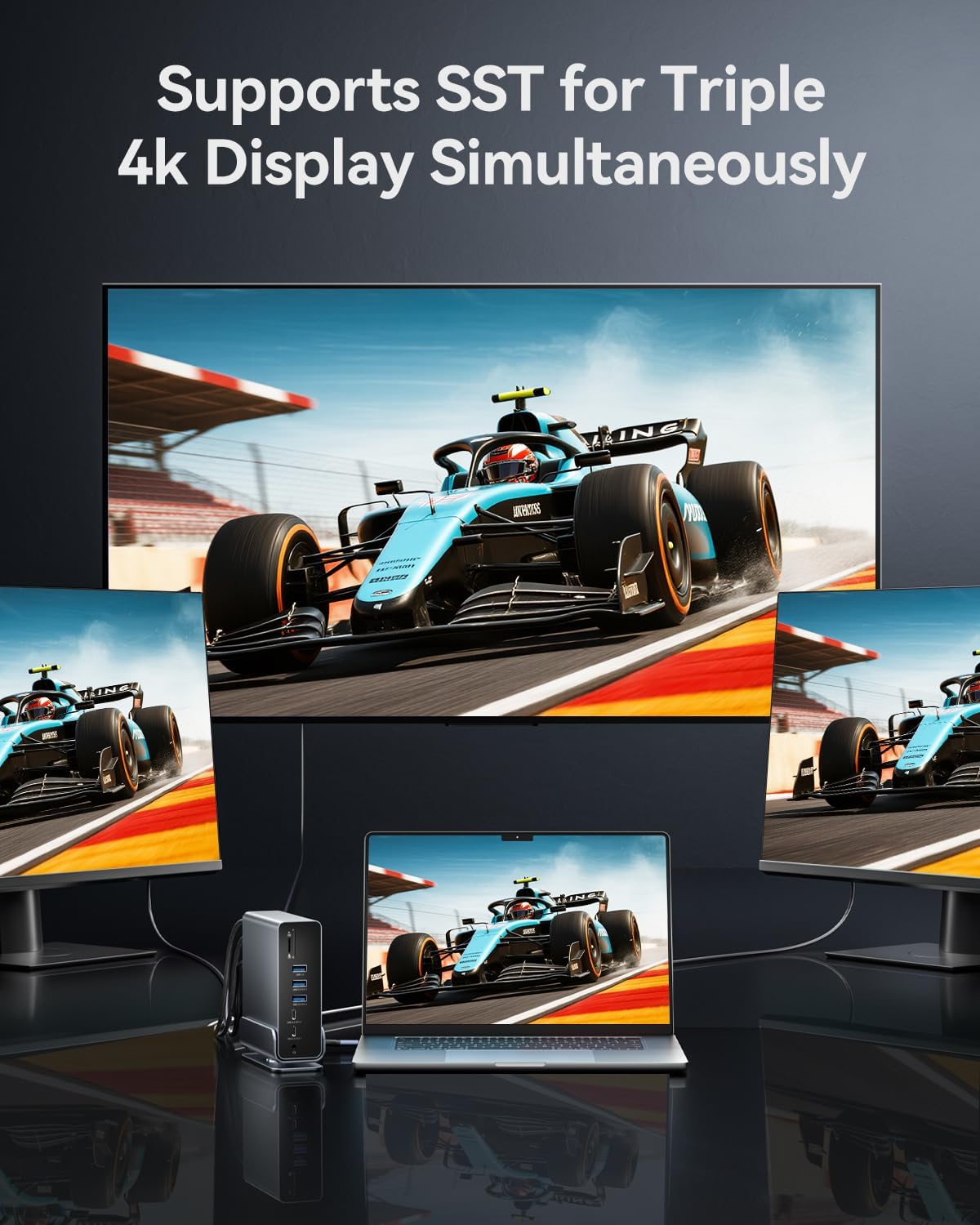
Image: A laptop connected to three external 4K monitors simultaneously, showcasing the triple display support of the docking station.
Modalità di visualizzazione:
- Modalità specchio: Duplicates your laptop's screen on external monitors.
- Modalità estesa: Estendi il desktop su più schermi, consentendo di avere più spazio di lavoro.
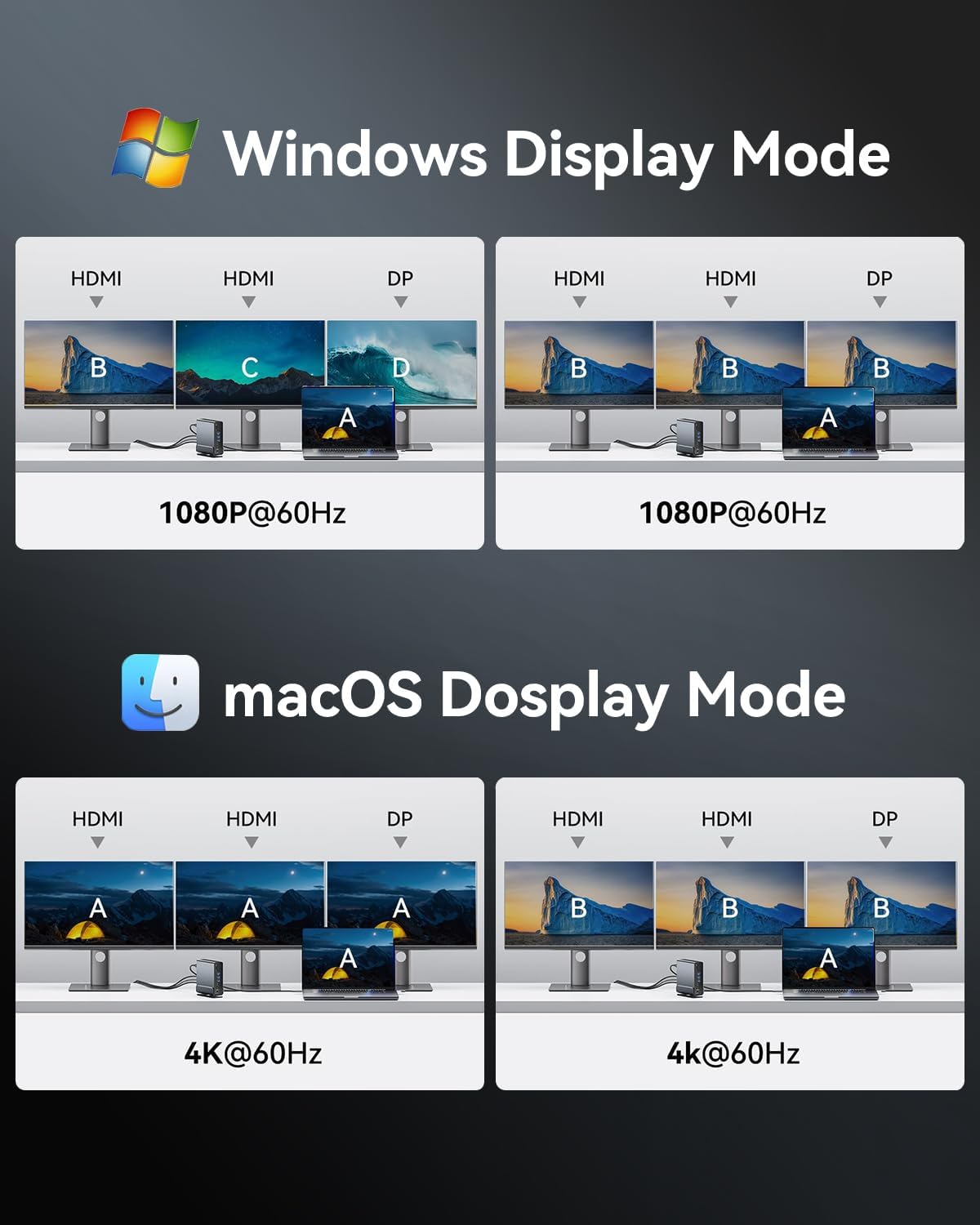
Image: Visual representations of various display configurations for Windows and macOS, including mirror and extend modes across multiple screens.

Image: A table detailing the highest supported resolutions and display modes for single, dual, and triple monitor setups on both Windows and macOS.
4.2. Erogazione di potenza
Connect your laptop's power adapter to the PD port on the docking station to charge your laptop while using the dock. The docking station supports up to 100W power input, delivering up to 85W to your laptop.

Image: A laptop receiving power through the docking station's 100W Power Delivery port, illustrating the charging function.
4.3. Trasferimento dei dati
Connect your USB devices (external hard drives, flash drives, keyboards, mice, etc.) to the available USB ports. The docking station features a mix of USB 3.2 Gen 2 (10Gbps), USB 3.0 (5Gbps), and USB 2.0 (480Mbps) ports.

Image: An illustration detailing the data transfer speeds of different USB ports (Type-A and Type-C) and SD/TF card slots on the docking station.
Insert SD or TF cards into the dedicated slots on the front of the docking station for quick access to photos and files. Both slots can be used simultaneously.

Image: A laptop connected to the docking station, demonstrating easy access to SD and TF memory cards for data transfer and backup.
4.4. Connessione di rete
For a stable and fast internet connection, connect an Ethernet cable from your router or modem to the RJ45 Gigabit Ethernet port on the rear of the docking station.

Image: A laptop connected to the docking station, which is then connected to a network via the Gigabit Ethernet port, ensuring a fast and stable internet connection.
4.5. Collegamento audio
Connect your headphones, speakers, or microphone to the 3.5mm TRRS audio jack on the front of the docking station.

Image: A laptop connected to the docking station, with headphones plugged into the 3.5mm audio and microphone jack, facilitating audio input and output.
5. Compatibilità
The VENTION 15-in-1 Docking Station is compatible with a wide range of devices and operating systems, provided your laptop has a full-featured USB-C port or Thunderbolt 3/4 interface.
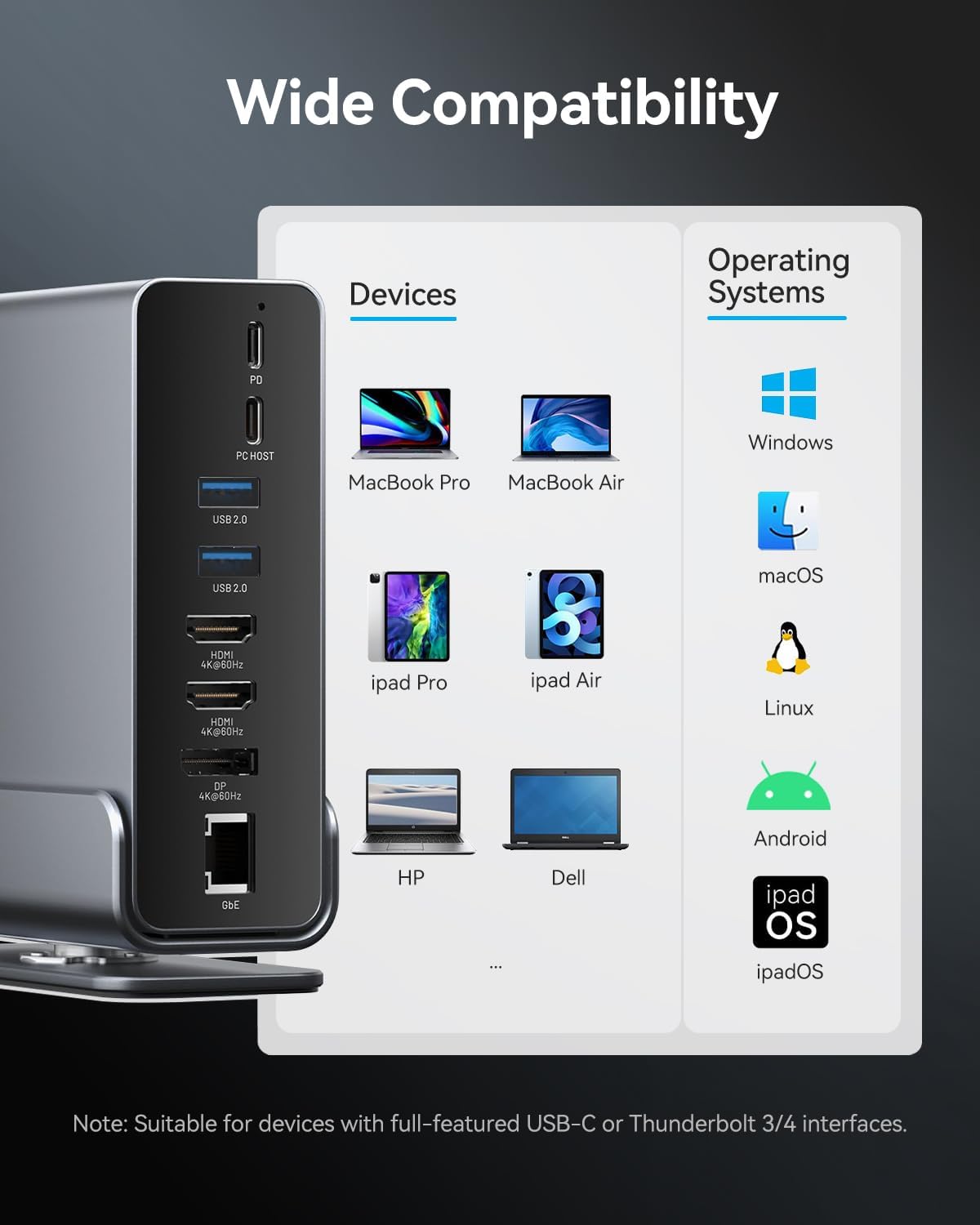
Image: A chart illustrating the wide compatibility of the docking station with various devices such as MacBook Pro/Air, iPad Pro/Air, HP, Dell, Surface, and operating systems including Windows, macOS, Linux, Android, and iPadOS.
Sistemi operativi supportati:
- Finestre
- sistema operativo macOS
- Linux
- Android
- iPadOS
Nota: Full functionality, especially for multiple displays and power delivery, requires a USB-C port that supports DisplayPort Alternate Mode (Alt Mode) and Power Delivery. Thunderbolt 3/4 ports are fully compatible.
6. Manutenzione
Per garantire la longevità e le prestazioni ottimali della tua docking station, segui queste linee guida per la manutenzione:
- Pulizia: Utilizzare un panno morbido e asciutto per pulire l'esterno della docking station. Evitare l'uso di detergenti liquidi o materiali abrasivi.
- Magazzinaggio: Conservare la docking station in un luogo fresco e asciutto, lontano dalla luce solare diretta e da temperature estreme.
- Gestione: Evitare di far cadere o sottoporre il dispositivo a forti impatti.
- Ventilazione: Ensure the docking station has adequate ventilation to prevent overheating. The aluminum alloy shell is designed for optimal heat dissipation.
7. Risoluzione Dei Problemi
Se riscontri problemi con la docking station, fai riferimento alle seguenti soluzioni comuni:
- Nessuna uscita di visualizzazione:
- Assicurati che la porta USB-C del tuo laptop supporti la modalità DisplayPort Alt.
- Controllare tutti i collegamenti dei cavi (USB-C al laptop, HDMI/DP ai monitor).
- Verificare che le impostazioni di input del monitor siano corrette.
- Prova ad aggiornare i driver grafici del tuo portatile.
- Riavvia il tuo laptop e ricollega la docking station.
- Il portatile non si carica:
- Ensure a compatible USB-C power adapter is connected to the PD port.
- Verificare che l'adattatore di alimentazione fornisca una potenza sufficientetage (fino a 100 W consigliati).
- Check the connection between the power adapter and the docking station.
- Dispositivi USB non riconosciuti:
- Ensure the USB device is properly inserted into the port.
- Try connecting the device to a different USB port on the docking station or directly to your laptop.
- Riavvia il tuo computer portatile.
- Connessioni intermittenti:
- Assicurarsi che tutti i cavi siano collegati saldamente.
- Avoid excessive bending or strain on the USB-C cable connecting to your laptop.
- Ensure the docking station is placed on a stable surface and not subject to movement.
- Ethernet non funzionante:
- Controllare la connessione del cavo Ethernet sia alla docking station che al router/modem.
- Verifica le impostazioni di rete sul tuo laptop.
- Riavvia il router/modem.
If the issue persists, please contact VENTION customer support for further assistance.
8. Specifiche
| Caratteristica | Specificazione |
|---|---|
| Modello | B0F5PTZTCP |
| Porti | 15 (2x HDMI, 1x DP, 1x RJ45, 1x PD, 1x PC Host, 2x USB 3.2 Gen 2 Type-A, 1x USB 3.0 Type-A, 2x USB 2.0 Type-A, 1x USB 3.2 Gen 2 Type-C, 1x USB 3.2 Gen 1 Type-C, 1x SD, 1x TF, 1x 3.5mm Audio) |
| Uscita video | 2x HDMI (4K a 60 Hz), 1x DisplayPort (4K a 60 Hz) |
| Erogazione di potenza | PD 100W Input (Max), 85W Output to Host (Max) |
| Trasferimento dati USB | USB 3.2 Gen 2: 10Gbps, USB 3.0: 5Gbps, USB 2.0: 480Mbps |
| Etereo | Gigabit Ethernet (10/100/1000 Mbps) |
| Lettore di schede | SD/TF (Read & Write 2 cards simultaneously) |
| Audio | 3.5mm TRRS Audio/Microphone Jack |
| Materiale | Lega di alluminio |
| Dimensioni | 7.9 x 6.7 x 2.34 pollici |
| Peso | 1.76 libbre (0.8 kg) |
9. Cosa c'è nella scatola
Il pacchetto include i seguenti articoli:
- VENTION 15-in-1 Laptop Docking Station
- Cavo USB-C a USB-C da 1.5 piedi
- Manuale dell'utente (questo documento)

Image: An illustration showing the contents included in the product package: the docking station, a USB-C cable, and the user manual.
10. Garanzia e supporto
VENTION products are designed for reliability and performance. For warranty information or technical support, please refer to the contact details provided on the product packaging or visit the official VENTION websito. Conservare la ricevuta d'acquisto come prova d'acquisto per eventuali reclami in garanzia.


