Introduzione
Welcome to the PRT MT610 Pro Thermal Printer user manual. This document provides essential information for setting up, operating, and maintaining your portable thermal printer. The MT610 Pro is a compact, inkless, wireless thermal printer designed for convenience and efficiency, ideal for travel, office, and school use. It supports both Bluetooth and USB connectivity for versatile printing options.
The accompanying carrying case is made of durable, high-quality EVA material, offering excellent shock resistance to protect your printer from bumps and scratches during transport.
Caratteristiche del prodotto
- Design portatile: Weighs only 1.1 pounds, making it easy to carry in a schoolbag or backpack.
- Stampa termica senza inchiostro: Utilizza la tecnologia termica, eliminando la necessità di cartucce d'inchiostro.
- Connettività wireless: Supports Bluetooth connection for iOS and Android devices via the HerePrint mobile app.
- Connettività USB: Allows printing from computers via USB (driver download required).
- Custodia per il trasporto resistente: Lightweight, shock-resistant EVA material protects the printer.
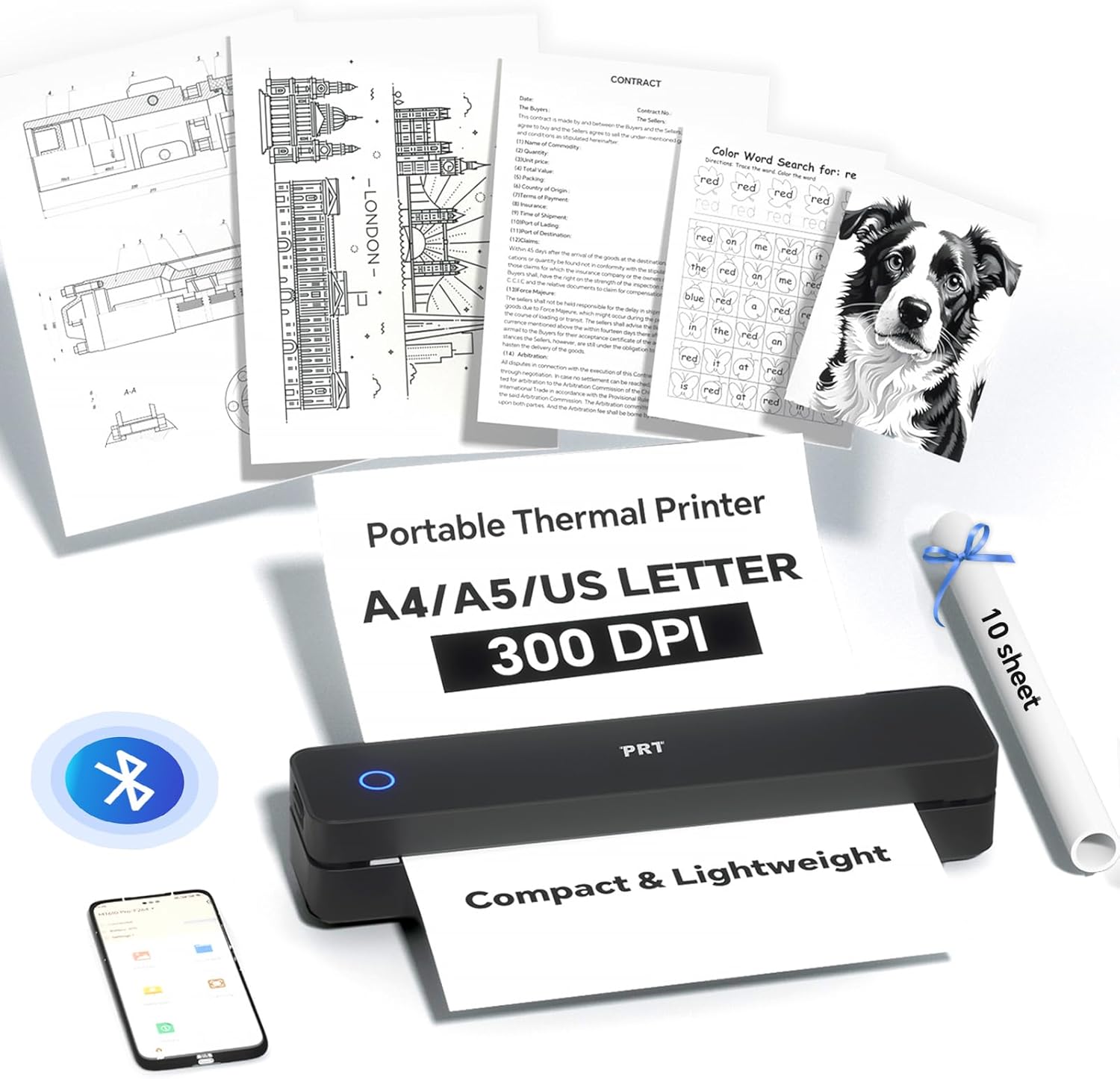
Image: The PRT MT610 Pro Thermal Printer shown with various documents it can print, including text, images, and forms. A roll of thermal paper and a carrying case are also visible, highlighting its versatility and portability.

Image: A close-up of the sleek black carrying case for the PRT MT610 Pro Thermal Printer, featuring a textured exterior and a branded logo.

Image: The PRT MT610 Pro Thermal Printer neatly placed inside its custom-fit carrying case, alongside accessories like charging cables and extra paper rolls.

Immagine: Un dettaglio view of the carrying case's interior, highlighting its anti-scratch lining, easy organization compartments, and durable construction.

Image: The compact and lightweight carrying case for the PRT MT610 Pro Thermal Printer is shown being easily placed into a backpack, demonstrating its portability.
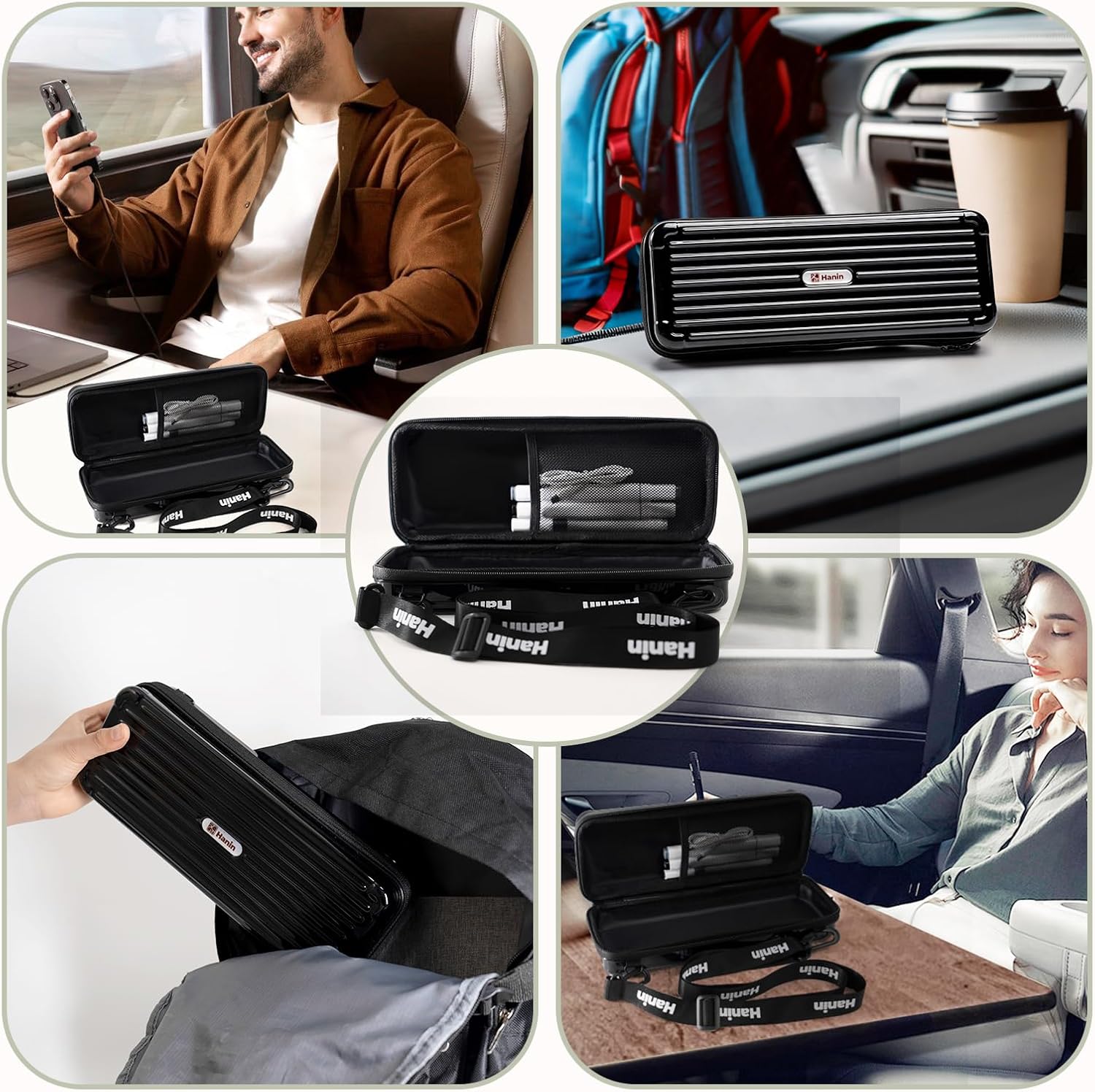
Image: A collage showing the PRT MT610 Pro Thermal Printer being used in different settings: on a train, in a car, at a desk, and being stored in a bag, emphasizing its versatility for mobile printing.

Image: The dimensions of the PRT MT610 Pro Thermal Printer carrying case are displayed, showing it measures 11.2 inches (28.5cm) in length, 4.3 inches (11cm) in width, and 2.7 inches (7cm) in height.

Image: The PRT MT610 Pro Thermal Printer is shown with illustrations of phone printing via Bluetooth (Android/iOS app) and computer printing via USB, along with QR codes for the HerePrint mobile app and driver downloads.
Impostare
Follow these steps to set up your PRT MT610 Pro Thermal Printer for first-time use.
- Check Accessory List: Verificare che tutti i componenti siano presenti nella confezione.
- Familiarize with Printer: Identify the power button, indicator light, cover open buttons, paper output slot, reset hole, and Type-C charger port.
- Remove Protective Paper: If your printer contains disposable protective paper, press the cover open buttons and remove it in the direction of the arrow. Close the cover securely until it clicks.
- Turn On Printer: Press and hold the power button for 3 seconds. The indicator light will turn red if no paper is loaded, or green if paper is loaded.
- Connetti alimentazione: Use the original USB cable for charging and data transmission. The printer's light will turn on when successfully connected to a power source.
- Alimentazione carta: The printer requires specialized thermal paper. Place the non-printing side of the paper facing downwards. Insert the paper into the paper guide slot until the printer automatically pulls it in and the indicator light turns green.
- Scarica l'app: Download the "HerePrint" app from Google Play or the App Store.
- Connect Printer to App: Open the HerePrint app and follow the on-screen instructions to connect your printer via Bluetooth.
Video: This quick start guide video demonstrates the unboxing, identification of printer components, removal of protective paper, powering on, connecting the power cable, loading thermal paper, and connecting the printer to the mobile app for printing.
Istruzioni per l'uso
Once your PRT MT610 Pro Thermal Printer is set up, you can begin printing documents and images.
- Printing via Bluetooth (Mobile App):
- Ensure your printer is connected to the "HerePrint" app via Bluetooth.
- All'interno dell'app, seleziona il documento o l'immagine che desideri stampare.
- Adjust print settings such as density, paper size, and number of copies.
- Tap "Print" to send the job to your printer.
- Printing via USB (Computer):
- Download the necessary printer drivers from the official PRT website (refer to the QR code on the printer or in the app for the link).
- Connect your printer to your computer using the provided USB-C cable.
- Open the document or image on your computer and select the PRT MT610 Pro as your printer.
- Regolare le impostazioni di stampa secondo necessità e avviare la stampa.
Manutenzione
To ensure optimal performance and longevity of your PRT MT610 Pro Thermal Printer, follow these maintenance guidelines:
- Pulizia della testina di stampa: Pulire regolarmente la testina di stampa termica con un panno morbido e privo di lanugine leggermente dampcon alcol isopropilico. Assicurarsi che la stampante sia spenta e raffreddata prima di pulirla.
- Gestione della carta: Always use high-quality thermal paper recommended for the MT610 Pro. Store thermal paper in a cool, dry place away from direct sunlight or excessive heat to prevent premature discoloration.
- Cura della batteria: Caricare regolarmente la stampante, anche se non la si usa frequentemente, per preservare la salute della batteria. Evitare di scaricare completamente la batteria per periodi prolungati.
- Magazzinaggio: When not in use, store the printer in its protective carrying case to prevent dust accumulation and physical damage.
Risoluzione dei problemi
If you encounter issues with your PRT MT610 Pro Thermal Printer, refer to the following common troubleshooting tips:
- La stampante non si connette:
- Assicurati che il Bluetooth sia abilitato sul tuo dispositivo e che la stampante sia accesa.
- Riavviare sia la stampante che il dispositivo.
- Elimina il dispositivo dalle impostazioni Bluetooth e riassocialo.
- Verify the HerePrint app is up to date.
- Scarsa qualità di stampa:
- Check if the thermal paper is loaded correctly with the non-printing side facing the print head.
- Pulire la testina di stampa come descritto nella sezione Manutenzione.
- Assicurarsi che la carta termica non sia vecchia o danneggiata.
- Adjust print density settings in the app or computer driver.
- Inceppamenti della carta:
- Turn off the printer. Open the top cover and carefully remove any jammed paper.
- Ensure the paper is inserted straight and aligned with the paper guides.
- Use only recommended thermal paper.
- La stampante non si accende:
- Ensure the battery is charged. Connect the printer to a power source using the provided USB cable.
- If the issue persists, try resetting the printer using the reset hole (refer to printer diagram).
Per ulteriore assistenza, contattare l'assistenza clienti.
Specifiche
| Attributo | Dettaglio |
|---|---|
| Marca | PRT |
| Modello | MT610 Pro |
| Tecnologia di stampa | Termica (senza inchiostro) |
| Connettività | Bluetooth, USB tipo C |
| Peso | 1.1 libbre |
| ASIN | B0F83JQKWW |
| Data prima disponibilità | 18 marzo 2025 |
Garanzia e supporto
Your PRT MT610 Pro Thermal Printer comes with a standard manufacturer's warranty. Please refer to the product packaging or the official PRT websito per termini e condizioni di garanzia specifici.
For technical support, troubleshooting, or warranty claims, please contact PRT customer service:
- E-mail: support@phomemo.com
- WhatsApp: +86 15338193665
- Orari di ufficio: Lun-ven 9:5-XNUMX:XNUMX (EST)


