1. Prodotto finitoview
The Xprinter XP-420B is a high-speed direct thermal label printer designed for various applications, including shipping labels. It offers a maximum print speed of 152 mm/s (6 inches/second) and a resolution of 203 DPI, ensuring clear and precise prints. Its robust double-walled clamshell design enhances durability, and the intelligent print head temperature control system ensures stable output. This printer is compatible with both Windows and Mac operating systems, making it a versatile solution for your labeling needs.
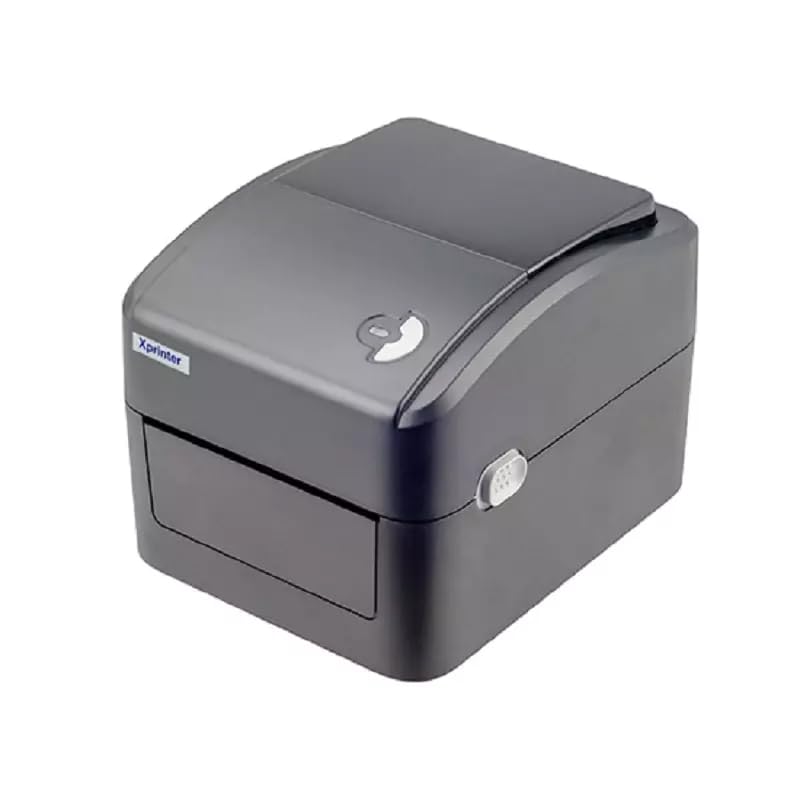
Figura 1: Fronte view of the Xprinter XP-420B thermal label printer.
2. Guida all'installazione
2.1 Disimballaggio e ispezione iniziale
- Estrarre con cautela la stampante e tutti gli accessori dalla confezione.
- Verify that all components are present: printer unit, power adapter, USB cable, and user manual.
- Inspect the printer for any visible damage that may have occurred during transit.
2.2 Collegamento della stampante
- Collegare l'adattatore di alimentazione alla porta di alimentazione della stampante e quindi collegarlo a una presa di corrente.
- Connect one end of the provided USB cable to the printer's USB port and the other end to an available USB port on your computer.
- Power on the printer using the power switch, usually located on the side or rear.

Figure 2: Xprinter XP-420B showing USB connectivity.
2.3 Caricamento delle etichette
- Aprire il coperchio superiore della stampante premendo i fermi di rilascio su entrambi i lati.
- Place the roll of thermal labels onto the label spindle, ensuring the labels feed from the bottom of the roll.
- Feed the leading edge of the labels through the label guide until it extends slightly past the print head.
- Adjust the movable label guides to fit the width of your labels snugly, without pinching them.
- Close the top cover firmly until it latches securely.
- The printer will automatically calibrate and detect the label size.
2.4 Installazione del driver
Before printing, you must install the appropriate printer drivers on your computer. Drivers are typically provided on a CD included with the printer or can be downloaded from the official Xprinter website. The XP-420B supports both Windows and Mac operating systems.
- Per Windows: Run the setup executable from the driver CD or downloaded file e seguire le istruzioni sullo schermo.
- Per Mac: Download the Mac driver from the Xprinter website and follow the installation prompts.
3. Istruzioni per l'uso
3.1 Stampa di base
- Assicurarsi che la stampante sia accesa e collegata al computer.
- Open the document or application from which you wish to print (e.g., shipping software, word processor).
- Selezionare "Stampa" dal menu dell'applicazione.
- Choose "Xprinter XP-420B" as your printer.
- In the printer settings or preferences, ensure the correct label size is selected. The printer supports adjustable label sizes.
- Fare clic su "Stampa" per inviare il lavoro alla stampante.
3.2 Adjusting Label Size
The XP-420B allows for adjustable label sizes. This adjustment is primarily done through the printer driver settings on your computer and by physically adjusting the label guides within the printer.
- Regolazione del software: In your printing application or printer driver settings, navigate to the "Page Setup" or "Paper Size" options. Select or define the custom dimensions for your labels (e.g., 4x6 inches for shipping labels).
- Physical Adjustment: As described in Section 2.3, ensure the internal label guides are set correctly to the width of your loaded labels.
4. Manutenzione
4.1 Pulizia della testina di stampa
Regular cleaning of the print head is crucial for maintaining print quality and extending the printer's lifespan. It is recommended to clean the print head after every roll of labels or if print quality degrades.
- Spegnere la stampante e scollegare il cavo di alimentazione.
- Aprire il coperchio superiore della stampante.
- Se la stampante è stata utilizzata di recente, attendere qualche minuto affinché la testina di stampa si raffreddi.
- Gently wipe the print head surface with an alcohol swab or a lint-free cloth lightly damparricchito con alcol isopropilico.
- Lasciare asciugare completamente la testina di stampa prima di chiudere il coperchio e ricollegare l'alimentazione.
4.2 Pulizia generale
- Use a soft, dry cloth to wipe the exterior of the printer.
- Remove any dust or label debris from the inside of the printer using a soft brush or compressed air.
- Non utilizzare detergenti abrasivi o solventi.
5. Risoluzione Dei Problemi
| Problema | Possibile causa | Soluzione |
|---|---|---|
| La stampante non risponde | Power off; USB cable disconnected; Driver issue. | Ensure power is on and connected. Check USB cable. Reinstall printer driver. |
| Scarsa qualità di stampa (sbiadita, linee) | Testina di stampa sporca; Tipo di etichetta errato; Bassa densità di stampa impostata. | Clean the print head (Section 4.1). Ensure you are using direct thermal labels. Adjust print density in driver settings. |
| Le etichette non vengono alimentate correttamente | Labels improperly loaded; Label guides not adjusted; Sensor obstruction. | Reload labels correctly. Adjust label guides. Clean any dust or debris from sensors. |
| La stampante stampa etichette vuote | Labels loaded upside down; Not a direct thermal label. | Ensure labels are loaded with the printable side facing up. Verify labels are direct thermal. |
6. Specifiche del prodotto
| Caratteristica | Dettaglio |
|---|---|
| Marca | Stampante X |
| Nome del modello | XP-420B |
| Tecnologia di connettività | USB |
| Tecnologia di stampa | Termico diretto |
| Risoluzione | 203 DPI |
| Max Velocità di stampa | 152 mm/s (6 pollici/secondo) |
| Memoria | SDRAM da 8 MB, Flash da 8 MB |
| Uscita della stampante | Monocromo |
| Peso dell'articolo | 3 chilogrammi |
| Dimensioni del prodotto | 20D x 6W x 10H centimetri |
| Compatibilità | Finestre, Mac |
7. Garanzia e supporto
7.1 Informazioni sulla garanzia
La Xprinter XP-420B è dotata di un Garanzia di 1 anno dalla data di acquisto. La presente garanzia copre difetti di fabbricazione e malfunzionamenti in condizioni di normale utilizzo. Si prega di conservare la prova d'acquisto per eventuali reclami in garanzia.
7.2 Assistenza clienti
For technical assistance, troubleshooting beyond this manual, or warranty service, please contact Xprinter customer support. Refer to the contact information provided with your product packaging or visit the official Xprinter websito per i dettagli di supporto più aggiornati.


