Introduzione
This manual provides comprehensive instructions for the setup, operation, and maintenance of your OWC 11-Port Thunderbolt 5 Docking Station. Designed to expand the connectivity of your computer, this docking station offers a wide array of ports for peripherals, displays, and network connections through a single Thunderbolt cable.

The OWC 11-Port Thunderbolt 5 Docking Station, a compact and powerful device designed to expand your computer's connectivity.
Caratteristiche principali
- 11 Ports via Single Cable: Expand your computer's functionality by connecting it to this dock with the included Thunderbolt cable.
- Prestazioni ottimizzate: Maximize bandwidth from three Thunderbolt 5 ports for high-speed data transfer.
- Compatibilità universale: Works with Thunderbolt 5/4/3, USB4, and USB-C devices.
- Faster Networking: Features a 2.5GbE Ethernet port for improved network connections.
- Easier Media Offloads: Includes microSD and SD 4.0 UHS-II reader slots for quick photo and video transfers.
- Multiple Device Daisy Chains: Create three separate daisy chains for devices, including bus-powered ones, without affecting other chains.
- Potenza erogata: Provides up to 140 watts of power to keep your notebook charged.
- Enhanced Visual Clarity: Supports connection of up to three 8K displays for sharper details.
- Funzionamento silenzioso: Fanless aluminum enclosure ensures quiet and cool performance.
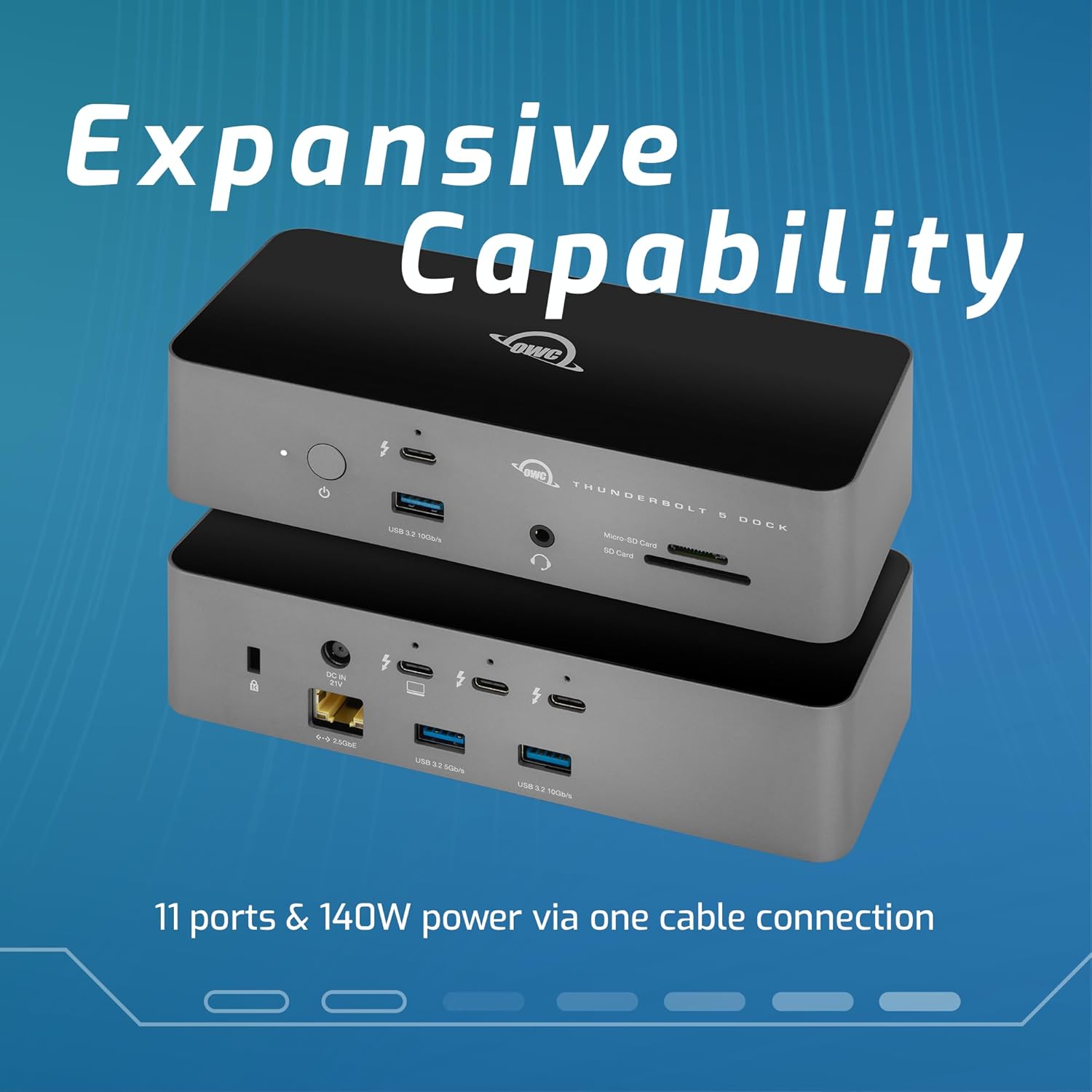
The OWC Thunderbolt 5 Dock offers extensive connectivity with 11 ports, including Thunderbolt 5, USB-A, Ethernet, and card readers, providing 140W power delivery through a single cable connection.
Contenuto della confezione
Verifica che tutti gli articoli siano presenti nel tuo pacco:
- OWC 11-Port Thunderbolt 5 Docking Station
- Adattatore di alimentazione esterno (180 W)
- Cavo di alimentazione
- Thunderbolt 4/USB-C Cable (0.7 meter / 27.6 inch)
Istruzioni di installazione
- Connetti alimentazione: Connect the power cable to the external power adapter, then connect the adapter to the DC IN port on the rear of the docking station. Plug the power cable into a wall outlet.
- Connetti al computer host: Use the included Thunderbolt 4/USB-C cable to connect the docking station to a Thunderbolt 5, Thunderbolt 4, Thunderbolt 3, USB4, or USB-C port on your computer. Ensure you connect to the Thunderbolt port on the dock indicated for host connection (often marked with a computer icon or a lightning bolt with an arrow).
- Connetti le periferiche:
- Visualizza: Connect your monitors to the available Thunderbolt 5 ports on the rear of the dock. The dock supports up to three 8K displays.
- Dispositivi USB: Connect USB devices (e.g., keyboard, mouse, external drives) to the USB 3.2 Type-A ports (10Gb/s and 5Gb/s) on the front and rear of the dock.
- Collegamento Ethernet: For a stable and fast network connection, connect an Ethernet cable from your router or modem to the 2.5GbE port on the rear of the dock.
- Audio: Plug headphones or a microphone into the 3.5mm audio in/out jack on the front.
- Schede di memoria: Insert SD or MicroSD cards into the dedicated slots on the front for quick data transfer.
- Accensione: Press the power button on the front of the docking station. The power indicator light will illuminate.
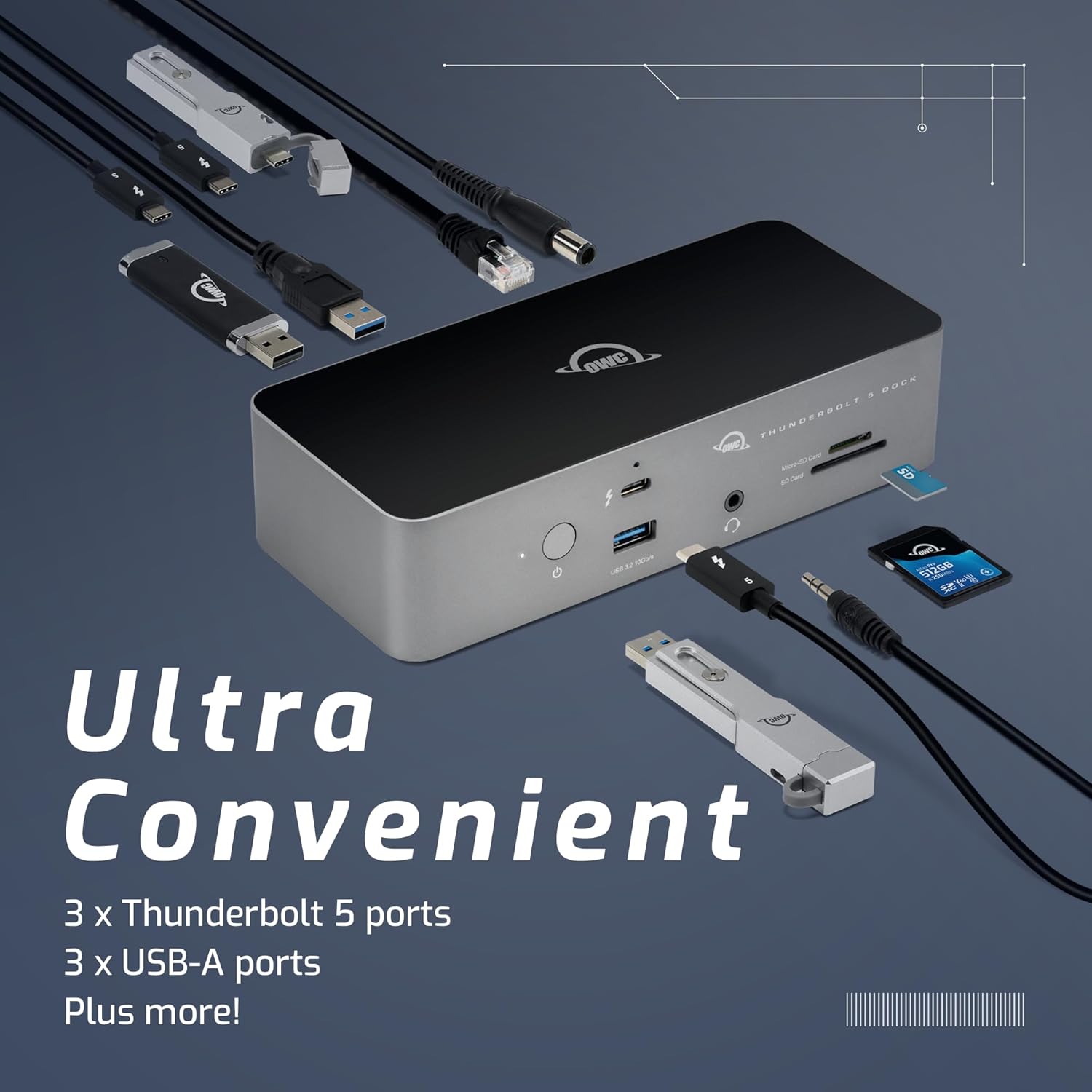
The OWC Thunderbolt 5 Dock provides ultra-convenient connectivity with multiple Thunderbolt 5 ports, USB-A ports, and other essential connections for a streamlined workspace.
Istruzioni per l'uso
Once connected, your OWC Thunderbolt 5 Docking Station operates seamlessly with your computer. Most connected devices will be recognized automatically by your operating system.
- Gestione dello schermo:
Your computer's display settings will allow you to configure external monitors connected to the dock. You can extend your desktop across multiple screens or mirror your primary display. Refer to your operating system's display settings for detailed configuration options.

Enhance productivity by connecting up to three 8K displays for a comprehensive visual workspace.
- Trasferimento dati:
Utilize the high-speed Thunderbolt 5 and USB 3.2 ports for rapid data transfer with external storage devices. The SD and MicroSD card readers provide convenient access to media from cameras and other devices.
- Potenza erogata:
The dock provides up to 140W of power delivery to your connected laptop, ensuring it remains charged during use. This eliminates the need for a separate power adapter for your laptop.
Manutenzione
To ensure the longevity and optimal performance of your OWC Thunderbolt 5 Docking Station, follow these maintenance guidelines:
- Mantenere pulito il dispositivo pulendolo con un panno morbido e asciutto. Evitare l'uso di prodotti chimici aggressivi o materiali abrasivi.
- Ensure proper ventilation around the dock. Do not block the vents or place the device in an enclosed space.
- Avoid exposing the dock to extreme temperatures, humidity, or direct sunlight.
- Disconnect all cables before moving the docking station.
Risoluzione dei problemi
If you encounter issues with your OWC Thunderbolt 5 Docking Station, try the following steps:
| Problema | Soluzione |
|---|---|
| Dock is not powering on. |
|
| External displays are not detected. |
|
| I dispositivi USB non vengono riconosciuti. |
|
| Problemi di connessione di rete. |
|
Specifiche
| Caratteristica | Dettaglio |
|---|---|
| Marca | OWC |
| Numero di modello | OWCTB5DOCK11P |
| Dimensioni del prodotto | 7.01 x 3.07 x 1.65 pollici |
| Peso dell'articolo | 1.17 libbre (530 grammi) |
| Colore | Nero |
| Interfaccia Hardware | Fulmine |
| Dispositivi compatibili | Laptops (Thunderbolt 5/4/3, USB4, USB-C) |
| Porte USB totali | 7 |
| Numero di porte | 11 |
| Erogazione di potenza | Fino a 140 Watt |
| Etereo | 2.5GbE |
| Lettori di schede | SD 4.0 UHS-II, MicroSD |
| Supporto di visualizzazione | Up to three 8K displays |
Garanzia e supporto
Your OWC 11-Port Thunderbolt 5 Docking Station comes with a 2 anno di garanzia limitata OWC, garantendo tranquillità in merito alla qualità e all'affidabilità del prodotto.
For technical support, troubleshooting assistance, or warranty claims, please visit the official OWC support websito o contattare il servizio clienti. Conservare la ricevuta d'acquisto per la convalida della garanzia.
Note: Specific contact details and support hours may vary. Refer to the OWC websito per le informazioni più aggiornate.


