1. Introduzione
Il Neroview Tab20WIFI is a 10.1-inch Android 15 tablet designed for versatile use, from entertainment to productivity. It features a vibrant HD+ IPS display, a powerful quad-core processor, and ample storage with expansion capabilities. This manual provides essential information for setting up, operating, maintaining, and troubleshooting your device.

Il Neroview Tab20WIFI tablet offers a 10.1-inch display, WiFi 5 connectivity, Android 15, 12GB RAM + 64GB storage, a 6600mAh battery, and Widevine L1 support.
2. Impostazione
2.1 Contenuto della confezione
Prima di iniziare, assicurati che tutti gli articoli siano presenti nella confezione:
- Neroview Tab20WIFI Tablet
- Cavo USB Type-C
- 10W Adattatore di alimentazione
- Pellicola protettiva per lo schermo (pre-applicata o inclusa)
- Custodia protettiva
- Manuale d'uso
2.2 Carica iniziale
It is recommended to fully charge the tablet before first use. Connect the provided Type-C USB cable to the tablet's charging port and the 10W power adapter to a wall outlet. The charging indicator will show the battery status.
2.3 Accensione/spegnimento
- Per accendere: Press and hold the Power Button located on the side of the tablet until the Blackview il logo appare sullo schermo.
- Per spegnere: Press and hold the Power Button until the power options menu appears. Select "Power Off" and confirm.
- Ricominciare: Press and hold the Power Button until the power options menu appears. Select "Restart" and confirm.
2.4 Configurazione iniziale
Alla prima accensione, segui le istruzioni sullo schermo per configurare il tablet:
- Seleziona la lingua preferita.
- Connettersi a una rete Wi-Fi.
- Accedi con il tuo account Google o creane uno nuovo.
- Review e accettare i termini e le condizioni.
- Imposta il blocco schermo (PIN, sequenza, password o sblocco facciale).
2.5 Espansione dello storage
The tablet supports up to 1TB TF (microSD) card expansion. To insert a TF card:
- Locate the Micro SD slot on the side of the tablet.
- Inserire delicatamente la scheda TF nello slot finché non scatta in posizione.
- Il tablet rileverà il nuovo spazio di archiviazione. Potrebbe essere richiesto di formattarlo per utilizzarlo come memoria portatile o interna.

The tablet features 12GB RAM (4GB physical + 8GB virtual) and 64GB internal storage, expandable up to 1TB with a TF card (not included).
3. Utilizzo del tablet
3.1 Interazione tra display e tocco
The tablet features a 10.1-inch HD+ IPS display with an 800x1280 resolution and 149 PPI, offering clear visuals. It supports 10-point multi-touch and a 120Hz sampvelocità di risposta per un'interazione reattiva.
3.2 Navigazione e interfaccia
Your tablet runs on Android 15. Navigate using gestures or on-screen buttons:
- Schermata iniziale: Scorri verso sinistra o verso destra per accedere alle diverse schermate iniziali.
- Cassetto delle applicazioni: Scorri verso l'alto dalla parte inferiore dello schermo per view tutte le applicazioni installate.
- Notifiche e impostazioni rapide: Scorri verso il basso dalla parte superiore dello schermo per accedere alle notifiche e alle impostazioni rapide (Wi-Fi, Bluetooth, luminosità, ecc.).
3.3 Connettività
Il tablet supporta Wi-Fi 5G e Bluetooth 5.0 per le connessioni wireless.
- Wifi: Vai a Impostazioni > Rete e Internet > Wi-Fi per connettersi alle reti disponibili.
- Bluetooth: Vai a Impostazioni > Dispositivi connessi > Bluetooth to pair with Bluetooth devices like headphones, keyboards, or mice.

Bluetooth 5.0 allows connection to various external devices such as keyboards, mice, styluses, USB drives, headsets, and speakers.
3.4 Telecamere
The tablet is equipped with an 8MP rear camera and a 5MP front camera. Open the Camera app to capture photos and videos.
- Tocca il pulsante di scatto per scattare una foto.
- Passa dalla fotocamera anteriore a quella posteriore tramite l'icona della fotocamera.
- Esplora diverse modalità, come video, ritratto o panorama, se disponibili.
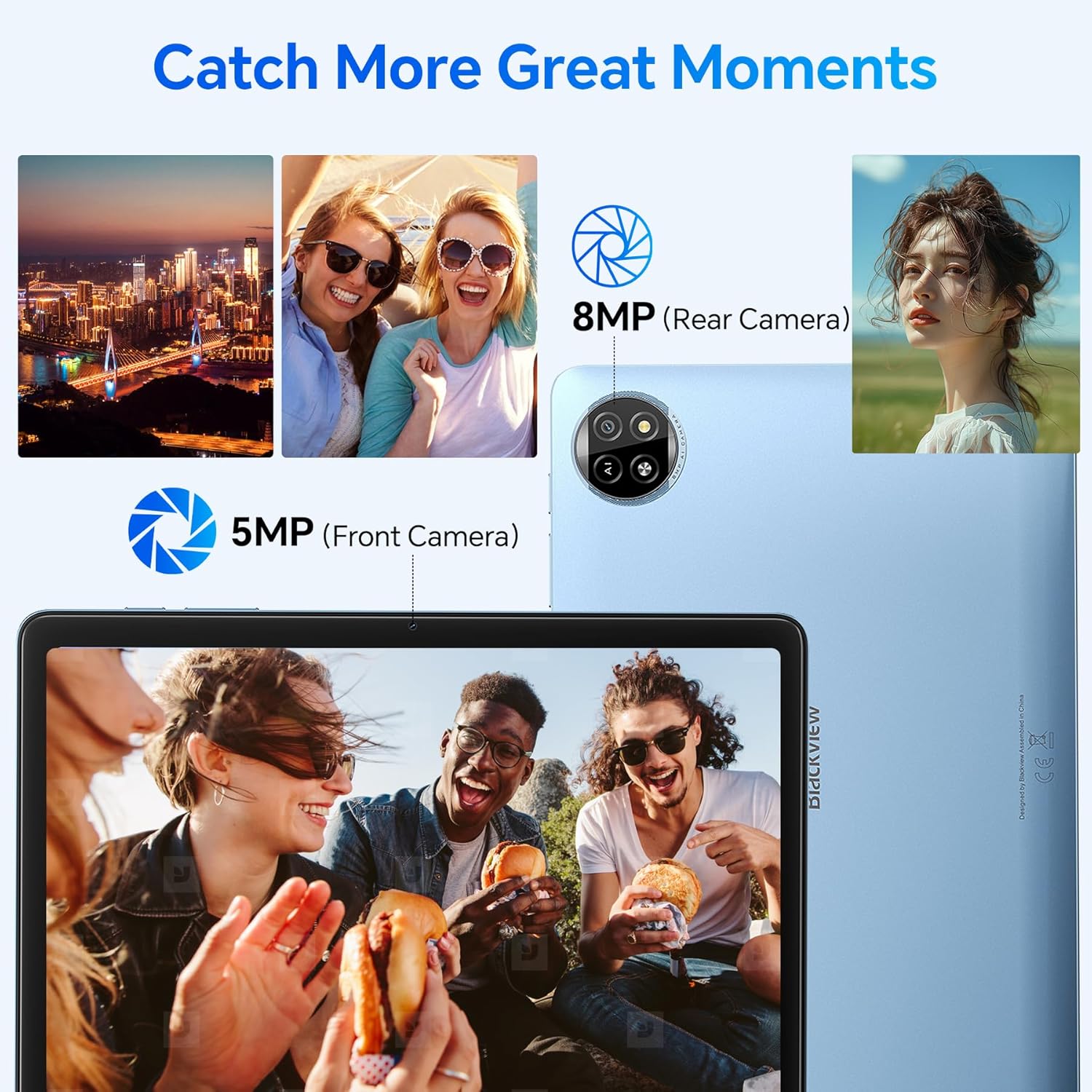
The tablet features an 8MP rear camera and a 5MP front camera for capturing moments.
3.5 Sblocco col sorriso
Imposta Face Unlock per un accesso comodo e sicuro al tuo tablet.
- Vai a Impostazioni > Sicurezza e privacy > Sblocco dispositivo > Sblocco facciale.
- Segui le istruzioni visualizzate sullo schermo per registrare il tuo volto.
- Una volta effettuata la configurazione, ti basterà guardare la fotocamera frontale per sbloccare il dispositivo.
3.6 Apps and Features
- Installazione di app: Scarica e installa le applicazioni dal Google Play Store.
- Funzione schermo diviso: To use two apps simultaneously, open one app, then swipe up from the bottom of the screen and hold to access recent apps. Drag one app to the top or side of the screen, then select another app for the remaining space.

The split-screen function allows you to boost productivity by using two applications simultaneously.
- Casting Screen: Share your tablet's screen to a compatible smart TV or display. Go to Impostazioni > Dispositivi connessi > Preferenze di connessione > Trasmetti and select your desired device.

Utilize the casting screen feature to display your tablet's content on a larger screen.
- Supporto Widevine L1: Enjoy high-quality streaming from platforms like Netflix, YouTube, HBO, and Prime Video due to Widevine L1 certification.

Widevine L1 support ensures high-quality streaming experiences for various media platforms.
- Doke AI: The tablet integrates Doke AI, powered by advanced AI models, to provide intelligent services such as smart assistance, content generation, and image processing.

Doke AI offers intelligent services through applications like Hi Doki, Soundle, VidGen, and ImageX.
4. Manutenzione
4.1 Cura della batteria
The tablet is equipped with a 6600mAh Lithium Polymer battery. To maximize battery life:
- Evitare temperature estreme.
- Non lasciare che la batteria si scarichi completamente regolarmente.
- Per una ricarica ottimale, utilizzare il caricabatterie e il cavo forniti.
- Chiudere le applicazioni non utilizzate in esecuzione in background.
- Regolare la luminosità dello schermo a un livello confortevole.

The 6600mAh battery provides approximately 7 hours of web browsing, 6 hours of video playback, 6 hours of gaming, 22 hours of audio playback, and 6 days of standby time.
4.2 Pulizia
Per pulire il tablet:
- Utilizzare un panno morbido e privo di pelucchi.
- Per macchie ostinate, leggermente dampPulire il panno con acqua o con un detergente per schermi specifico per dispositivi elettronici.
- Evitare prodotti chimici aggressivi, materiali abrasivi o umidità eccessiva.
4.3 Aggiornamenti software
Controlla e installa regolarmente gli aggiornamenti software per garantire prestazioni ottimali, sicurezza e accesso alle nuove funzionalità. Vai a Impostazioni > Sistema > Aggiornamento di sistema.
5. Risoluzione Dei Problemi
Ecco le soluzioni per i problemi più comuni che potresti riscontrare:
| Problema | Possibile soluzione |
|---|---|
| Il tablet non si accende | Assicurarsi che la batteria sia carica. Collegare il caricabatterie e attendere qualche minuto prima di riprovare ad accendere il dispositivo. Se il dispositivo non risponde, tenere premuto il pulsante di accensione per 10-15 secondi per forzare il riavvio. |
| Problemi di connessione Wi-Fi | Check if Wi-Fi is enabled in Quick Settings or Settings. Restart your Wi-Fi router. Forget the network and reconnect. Ensure you are within range of the Wi-Fi signal. |
| Prestazioni lente o crash delle app | Close unused background apps. Clear cache for problematic apps (Settings > Apps > [App Name] > Storage & cache > Clear cache). Restart the tablet. Ensure sufficient storage space is available. |
| Lo schermo non risponde | Restart the tablet. Ensure the screen is clean and free of debris. If the issue persists, a factory reset might be necessary (back up data first). |
| La batteria si scarica rapidamente | Reduce screen brightness. Disable Wi-Fi/Bluetooth when not in use. Close power-intensive apps. Check battery usage in Settings to identify draining apps. |
If these solutions do not resolve your issue, please refer to the Warranty & Support section for further assistance.
6. Specifiche
Specifiche tecniche dettagliate per il Blackview Tab20WIFI tablet:
| Caratteristica | Dettaglio |
|---|---|
| Nome del modello | Tab20WIFI |
| Numero modello articolo | T310 |
| Sistema operativo | Androide 15 |
| Dimensioni dello schermo | 10.16 pollici |
| Risoluzione massima dello schermo | 800x1280 pixel |
| Memoria RAM | 4GB (expandable with 8GB virtual RAM) |
| Dimensione della memoria flash (ROM) | 64 GB |
| Archiviazione espandibile | Fino a 1 TB tramite scheda TF |
| Tipo senza fili | 802.11ax (5G WiFi), Bluetooth 5.0 |
| Tipo di batteria | Polimero di litio da 6600 mAh |
| Durata media della batteria | 8 hours (average use) |
| Peso dell'articolo | 2.57 libbre |
| Dimensioni del prodotto | 12 x 6 x 0.5 pollici |
| Colore | Grigio |

fisico finitoview del Neroview Tab20WIFI, detailing component locations.
7. Garanzia e supporto
7.1 Neroview Two-Year Warranty Support
Neroview products undergo strict quality control from design to production. The Blackview Tab20WIFI tablet comes with a 24-month free repair warranty and lifetime technician support.

Neroview provides a two-year warranty and lifetime technical support for its products.
7.2 Contatta l'assistenza
Per assistenza tecnica, reclami in garanzia o qualsiasi domanda relativa al prodotto, contattare Blackview customer support through their official channels. Refer to the packaging or the official Blackview websito per le informazioni di contatto.


