1. Introduzione
The Thunderobot L1 Computer Monitor Lamp is designed to provide optimal lighting for your workspace, focusing on eye comfort and visual clarity. It features an asymmetric light source, high color rendering (Ra≥95), flicker-free illumination, low blue light protection, and adjustable color temperature and brightness levels.
2. Informazioni sulla sicurezza
- Assicurare lamp is securely placed on the monitor to prevent accidental falls.
- Non esporre lamp all'acqua o all'umidità eccessiva.
- Avoid disassembling the product. Contact support for repairs.
- Per l'alimentazione utilizzare solo il cavo USB fornito.
- Tenere fuori dalla portata dei bambini.
3. Contenuto della confezione
Verificare che tutti gli articoli siano presenti nel pacco:
- Thunderobot L1 Computer Monitor Lamp
- Cavo di alimentazione USB
- Manuale d'uso
4. Istruzioni per l'installazione
- Posizionamento della Lamp: Gently place the Thunderobot L1 Monitor Lamp on top of your computer monitor. The gravity-activated clamping mechanism and silicone anti-slip stabilizers will help secure it in place. Adjust the lamp's angle using the dual-pivot adjustment system to direct light onto your workspace without screen glare.
- Collegamento dell'alimentazione: Connect the provided USB cable to the USB-C port on the lamp and plug the other end into an available USB port on your computer or a USB power adapter (not included). The lamp will power on.

Image: The Thunderobot L1 lamp features a gravity-activated clamp, silicone stabilizers, and a dual-pivot adjustment system for secure and flexible positioning.
Video: This video demonstrates the assembly and installation of the Thunderobot L1 Computer Monitor Lamp, showing how to attach it to a monitor and connect the power cable.
5. Istruzioni per l'uso
The Thunderobot L1 Monitor Lamp features intuitive touch controls located on the top surface of the lamp.
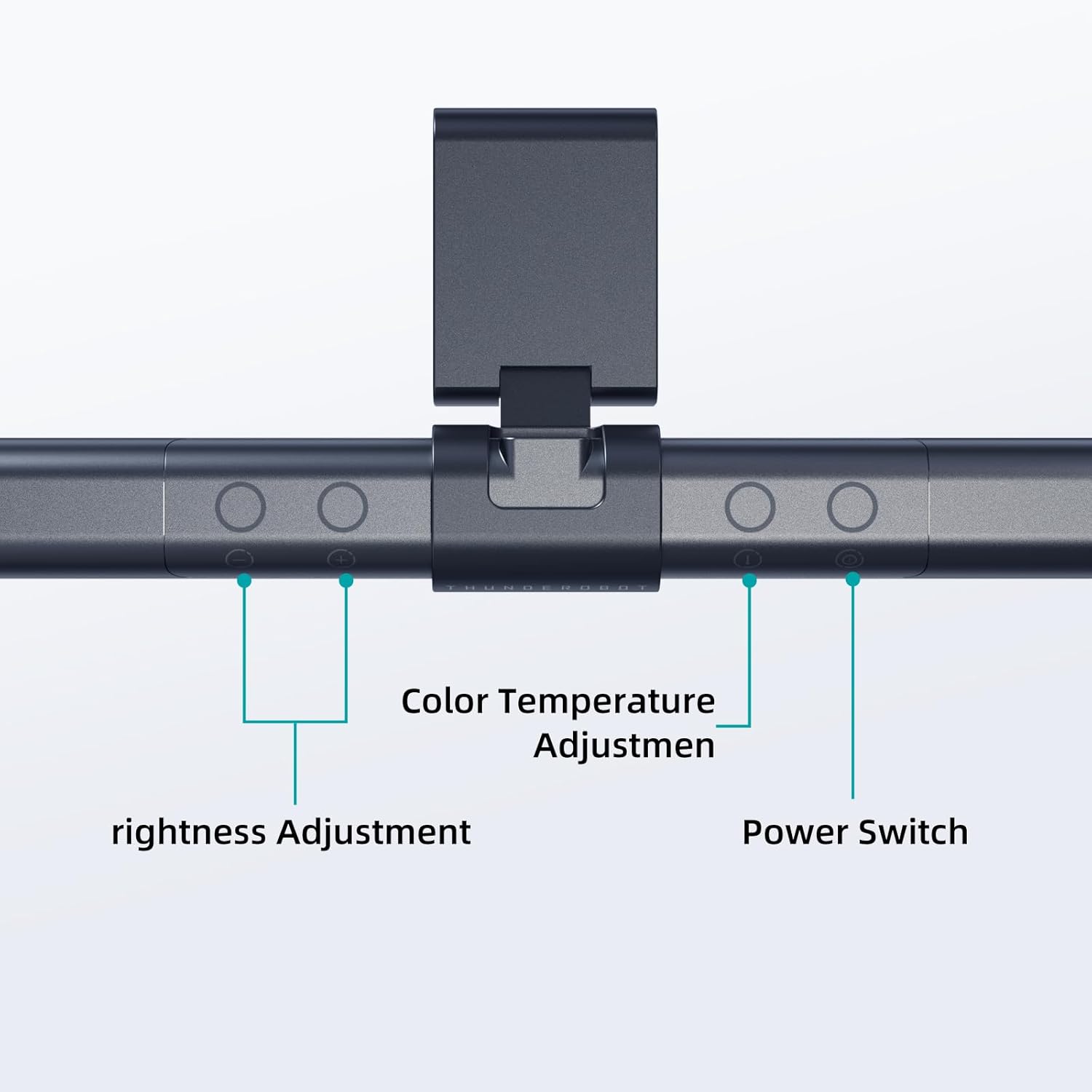
Image: The touch controls include buttons for brightness adjustment, color temperature adjustment, and power.
- Accensione/spegnimento: Premere il pulsante di accensione (O) per girare la lamp acceso o spento.
- Regolazione della luminosità: Use the brightness adjustment buttons (+ E -) to cycle through ten levels of brightness.
- Regolazione della temperatura del colore: Premere il pulsante della temperatura del colore (i) to switch between six different color temperature settings.

Immagine: La lamp offers six adjustable color temperatures, ranging from 3000K (Warm Light) to 6000K (Cool White Light), suitable for various activities like movie viewing, reading, studying, and working.
6. Caratteristiche principali
- Asymmetric Light Source: The advanced asymmetric light design ensures uniform light distribution across the workspace, eliminating screen glare and shadows. This optimizes the light path for comfortable, prolonged use.
- Ra≥95 High Color Rendering: With a color rendering index of Ra≥95, the lamp accurately reproduces colors, providing a vivid and true-to-life visual experience for various tasks.
- Illuminazione senza sfarfallio: Equipped with flicker-free technology, this lamp provides constant, stable illumination, reducing eye strain and headaches associated with traditional lighting.
- Low Blue Light Protection: Advanced low blue light technology reduces harmful blue wavelengths, alleviating eye strain, dryness, and fatigue, especially during extended screen time.
- Six Color Temperatures: Offers a versatile range of six color temperature options, from warm white to cool white, allowing users to customize the lighting atmosphere for different scenarios and preferences.
- Ten-Level Dimming: Provides ten adjustable brightness levels for precise control over illumination intensity.

Image: The Ra≥95 High CRI ensures colors are displayed accurately and vibrantly, as demonstrated by the fruit comparison.

Immagine: La lamp provides low blue light protection, reducing harmful blue light exposure for eye comfort.
7. Specifiche
| Caratteristica | Dettaglio |
|---|---|
| Dimensioni del prodotto | 3.5"P x 17.7"L x 3.85"A |
| Peso dell'articolo | 16 once |
| Lamp Tipo | Scrivania Lamp |
| Colore dell'ombra | Nero |
| Materiale dell'ombra | Poliestere |
| Tipo di interruttore | Premere il pulsante |
| Tecnologia di connettività | USB (per alimentazione) |
| Voltage | 12 Volt |
| Colore | Nero |
| Forma | Piatto |
| Tipo di materiale | Policarbonato |
| Numero di modello | TH-L1-B2 |
8. Manutenzione
- Pulizia: Scollegare l'alimentazione prima della pulizia. Utilizzare un panno morbido e asciutto per pulire l'apparecchio.amp. Non utilizzare detergenti o solventi abrasivi.
- Magazzinaggio: Quando non viene utilizzato per lunghi periodi, conservare lamp in un luogo fresco e asciutto.
9. Risoluzione Dei Problemi
- Lamp non si accende:
- Assicurarsi che il cavo USB sia collegato saldamente sia a lamp e la fonte di alimentazione.
- Verify that the power source (USB port or adapter) is functional.
- La luce tremola:
- Controllare il collegamento elettrico.
- Se lo sfarfallio persiste, contattare l'assistenza clienti.
- I comandi non rispondono:
- Disconnect and reconnect the power cable to reset the lamp.
- Quando si utilizzano i comandi touch, assicurarsi che le dita siano pulite e asciutte.
10. Garanzia e supporto
Thunderobot provides 1-year product quality support for the L1 Computer Monitor Lamp. For warranty claims or technical assistance, please contact Thunderobot customer service.


