1. Introduzione
The Brother HL-L1242W is a compact monochrome laser printer designed for efficient printing in home or small office environments. This manual provides essential information for setting up, operating, and maintaining your printer to ensure optimal performance.
Le caratteristiche principali includono:
- Design compatto per piccoli spazi.
- Print speeds up to 20 pages per minute.
- Versatile connectivity with Wi-Fi (5 GHz) and USB.
- Support for printing from PCs and mobile applications.
- 150-sheet paper input tray.
- Includes a starter toner cartridge for up to 450 pages.
2. Configurazione iniziale
2.1 Disimballaggio della stampante
Estrarre con cautela la stampante dall'imballaggio. Assicurarsi che tutti i nastri protettivi e i materiali di imballaggio siano rimossi dall'esterno e dall'interno della stampante.
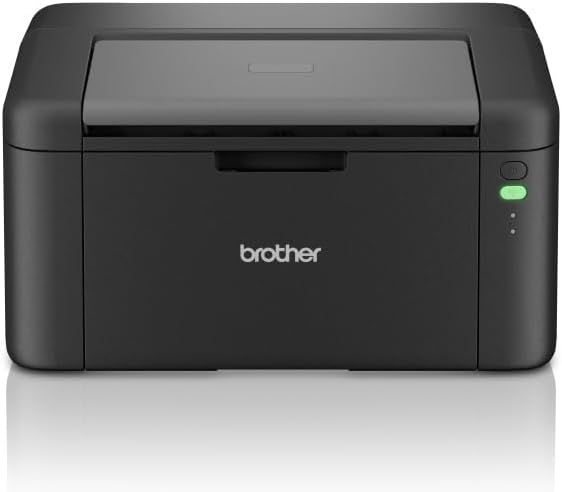
Figura 1: Fronte view of the Brother HL-L1242W printer, showing its compact design and control panel on the right side.
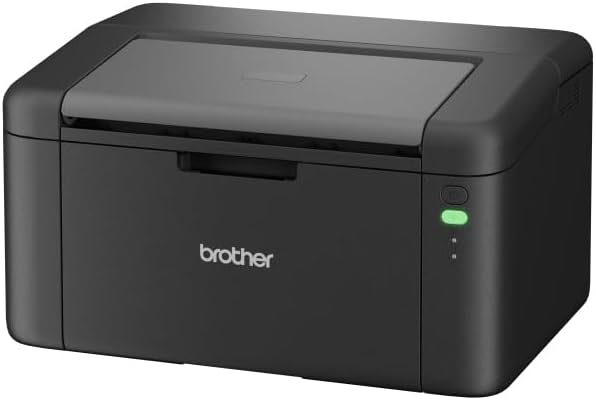
Figura 2: Fronte angolato view of the Brother HL-L1242W printer, highlighting its sleek, black finish and output tray.
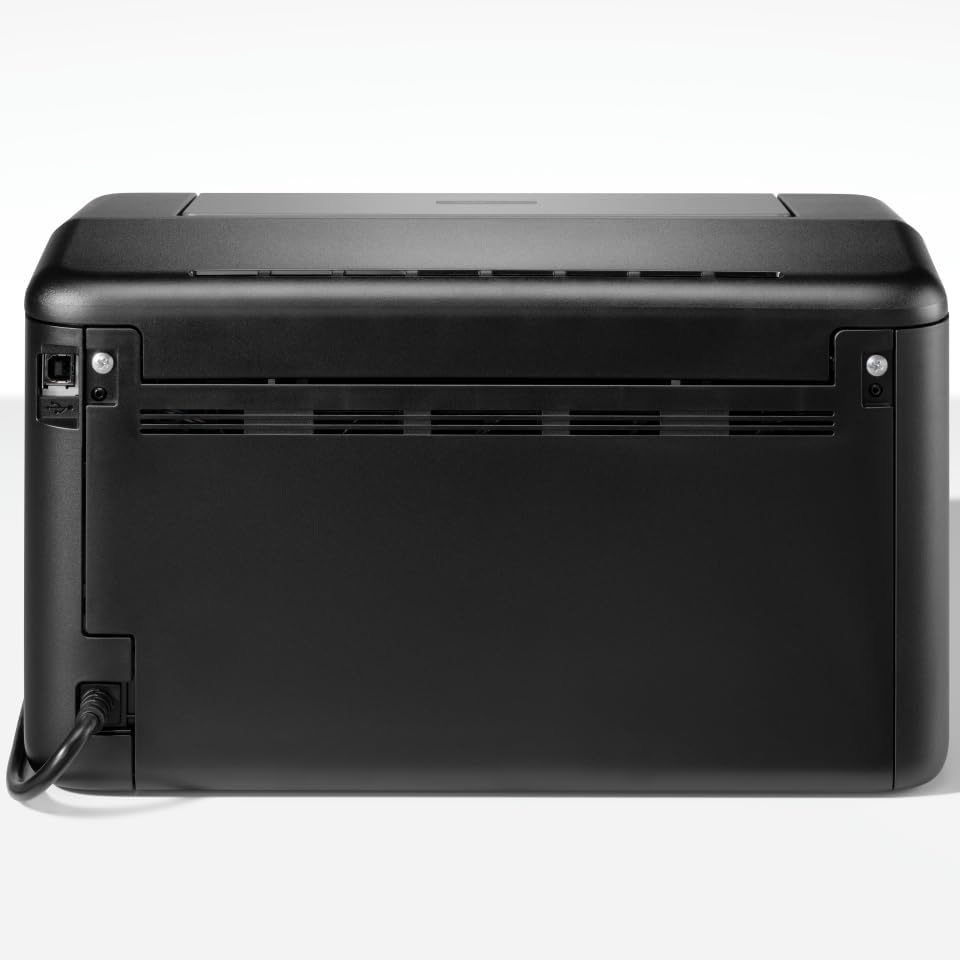
Figura 3: Posteriore view of the Brother HL-L1242W printer, displaying the power input and USB port.
2.2 Installazione della cartuccia del toner
- Open the front cover of the printer to access the toner compartment.
- Locate the orange protective paper inside the compartment. This paper is attached to the toner support.
- Gently remove the toner support to detach the orange paper.
- Unpack the new toner cartridge from its sealed bag. Remove any orange plastic protective pieces from the toner cartridge.
- Insert the toner cartridge into the drum unit. Ensure it clicks into place.
- Slide the combined toner and drum unit back into the printer until it locks securely.
- Chiudere il coperchio anteriore.
2.3 Collegamento di alimentazione
Connect the AC power cable to the printer and then to a power outlet. Press the power button to turn on the printer.
2.4 Connectivity and Driver Installation
Your Brother HL-L1242W printer supports both USB and Wi-Fi connectivity.
Connessione USB:
- Collegare la stampante al computer tramite un cavo USB (non incluso).
- Install the printer drivers from the official Brother support websito. Seguire le istruzioni sullo schermo.
Connessione Wi-Fi:
- Download the Brother iPrint&Scan app on your mobile device or visit the Brother support website for PC/Mac setup.
- Follow the instructions provided by the app or website to connect your printer to your wireless network. This process typically involves selecting your Wi-Fi network and entering the password.
- Ensure your printer and device are on the same network for successful wireless printing.
3. Funzionamento
3.1 Caricamento della carta
Open the paper tray and load up to 150 sheets of plain or recycled A4 paper. Adjust the paper guides to fit the paper size.

Figure 4: A user loading paper into the front paper tray of the Brother HL-L1242W printer.
3.2 Stampa dei documenti
Once the printer is connected and drivers are installed, you can print from your computer or mobile device.
- Apri il documento o l'immagine che desideri stampare.
- Seleziona l'opzione "Stampa" dal menu della tua applicazione (ad esempio, File > Stampa).
- Choose your Brother HL-L1242W printer from the list of available printers.
- Adjust print settings as needed (e.g., number of copies, paper size).
- Fare clic su "Stampa".
3.3 Duplex (Two-Sided) Printing
The HL-L1242W supports manual duplex printing.
- Nelle impostazioni di stampa, seleziona l'opzione per la stampa fronte-retro manuale.
- The printer will first print all odd-numbered pages.
- Once the first side is printed, a prompt will appear on your computer screen instructing you to reinsert the printed pages into the paper tray. Follow the on-screen instructions carefully regarding paper orientation.
- Confirm the reinsertion, and the printer will then print the even-numbered pages on the reverse side.
4. Manutenzione
4.1 Sostituzione della cartuccia del toner
When the toner cartridge is low or empty, the printer's status indicator will alert you. Replace the toner cartridge with a genuine Brother TN-1150 toner cartridge for optimal print quality and printer longevity.
- Assicurarsi che la stampante sia accesa.
- Aprire il coperchio anteriore.
- Rimuovere la vecchia cartuccia del toner e il gruppo tamburo.
- Separate the old toner cartridge from the drum unit. Dispose of the old toner cartridge according to local regulations.
- Unpack the new toner cartridge and install it into the drum unit until it locks.
- Reinsert the toner and drum unit assembly into the printer.
- Chiudere il coperchio anteriore.
The included starter toner cartridge is rated for approximately 450 pages. Actual yield may vary based on usage.
4.2 Pulizia della stampante
Una pulizia regolare aiuta a mantenere la qualità di stampa e prolunga la durata della stampante.
- Esterno: Pulire l'esterno della stampante con un panno morbido e privo di lanugine. Non utilizzare detergenti abrasivi o solventi.
- Interno: Periodically open the front cover and gently wipe away any loose toner dust with a dry, lint-free cloth. Avoid touching the drum unit's surface directly.
5. Risoluzione Dei Problemi
This section addresses common issues you might encounter with your Brother HL-L1242W printer.
5.1 La stampante non risponde
- Assicurarsi che la stampante sia accesa e che il cavo di alimentazione sia collegato saldamente.
- Check USB cable connections if using a wired connection.
- For Wi-Fi, verify that the printer is connected to your network and that your computer/mobile device is on the same network. Restarting the printer and your router may resolve connectivity issues.
- Confirm that the correct printer driver is installed and selected on your computer.
5.2 Scarsa qualità di stampa
- Check the toner level. Replace the toner cartridge if it is low or empty.
- Assicuratevi di utilizzare carta adatta alla stampa laser.
- Clean the drum unit and other internal components as described in the maintenance section.
5.3 Inceppamenti della carta
- Spegnere la stampante e scollegarla dalla presa di corrente.
- Carefully open all covers and gently remove any jammed paper. Avoid tearing the paper, as small pieces can cause further issues.
- Ensure the paper is loaded correctly in the paper tray and that the paper guides are adjusted properly.
- Close all covers, plug in the printer, and turn it back on.
For more detailed troubleshooting, refer to the Brother support websito o contattare il servizio clienti.
6. Specifiche
| Caratteristica | Specificazione |
|---|---|
| Nome del modello | HL-L1242W |
| Tipo di stampante | Laser monocromatico |
| Velocità di stampa massima (monocromatica) | Fino a 20 pagine al minuto |
| Massima risoluzione di stampa | 2400 x 600 dpi |
| Stampa fronte-retro | Manuale |
| Connettività | Wi-Fi (5 GHz), USB |
| Capacità di alimentazione carta | Fino a 150 fogli |
| Dimensione massima del supporto | A4 (210 x 297 mm) |
| Tipi di media supportati | Plain paper, Recycled paper |
| Consumo energetico | 380 Watt (stampa) |
| Dimensioni (P x L x A) | Dimensioni: 23.8 cm x 34 cm x 18.9 cm |
| Peso | 4764 grammi |
| Componenti inclusi | Brother HL-L1242W Printer, Starter Toner Cartridge(s), AC Power Cable, Warranty Card |
7. Garanzia e supporto
7.1 Garanzia del prodotto
The Brother HL-L1242W printer comes with a standard manufacturer's warranty. Please refer to the warranty card included in your product packaging for specific terms, conditions, and duration of coverage.
7.2 Assistenza clienti
For technical assistance, driver downloads, FAQs, and additional support resources, please visit the official Brother support website. You can also contact Brother customer service for personalized help.


