1. Introduzione
This manual provides comprehensive instructions for the setup, operation, and maintenance of your ASprink A64M Bluetooth Shipping Label Printer. The A64M is designed for efficient thermal label printing, featuring a compact design and versatile connectivity options for various label sizes.
2. Cosa c'è nella scatola
- ASprink A64M Bluetooth Shipping Label Printer
- 100 Thermal Labels (4x6 inches)
- Adattatore di alimentazione
- Cavo USB
- Manuale dell'utente (questo documento)
3. Impostazione
3.1. Caricamento delle etichette
The A64M printer features an innovative built-in label bin that can accommodate up to 250 4x6 inch roll labels internally. Alternatively, folded labels can be loaded via the rear slot.
- Aprire il coperchio della stampante: Gently lift the top cover of the printer.
- Inserire il rotolo di etichette: Place the label roll into the internal bin. Ensure the labels feed from the bottom of the roll and the print side is facing up.
- Adjust Guide Rails: Slide the adjustable guide rails to fit the width of your labels snugly, preventing misalignment during printing.
- Feed Labels: Pull the leading edge of the labels through the printer's output slot until it extends slightly past the cutter.
- Chiudi copertina: Chiudere saldamente il coperchio della stampante.

Image: Internal label bin with adjustable components for label loading.
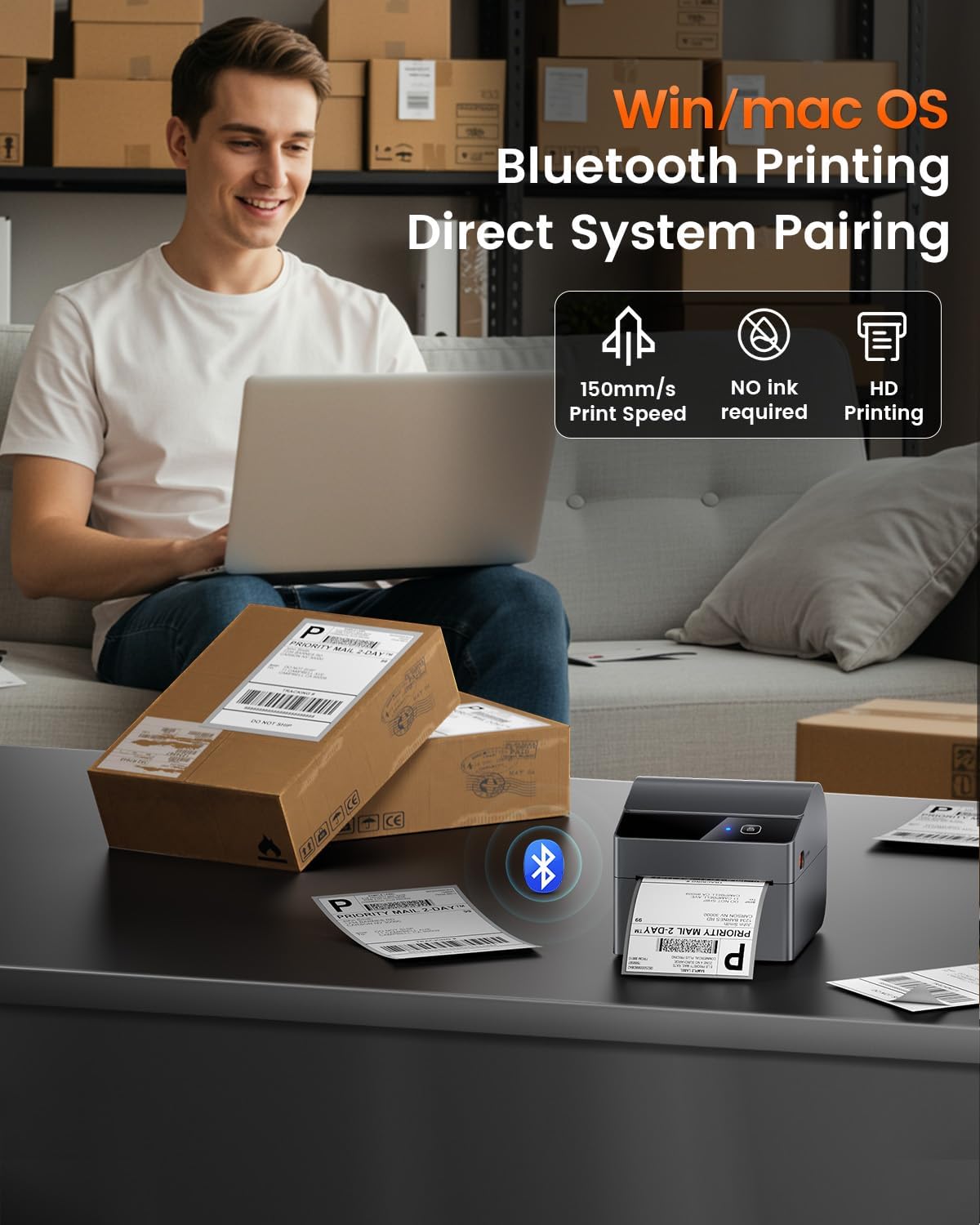
Image: Detail of label roll insertion and guide adjustment.
3.2. Connettività
The A64M printer offers both Bluetooth and USB connectivity.
- Connessione Bluetooth:
The printer supports Bluetooth 5.0 for wireless printing from Android, iOS, Windows, and macOS devices. Ensure Bluetooth is enabled on your device and pair with the A64M printer.

Immagine: Connettività Bluetooth con vari dispositivi.
- Connessione USB:
For a wired connection, use the provided USB cable to connect the printer to your computer. The printer is compatible with all major computer systems via USB.
3.3. Calibrazione iniziale
After loading labels and connecting the printer, it is recommended to perform an initial calibration to ensure accurate label detection and printing.
- Accensione: Accendere la stampante.
- Calibrazione automatica: The printer typically performs an automatic calibration when powered on with labels loaded. If not, refer to the printer's specific button sequence for manual calibration (usually involves holding a feed button).
4. Funzionamento
4.1. Processo di stampa
Once connected and calibrated, you can initiate printing from your device. Ensure your label design matches the physical label size for optimal results.

Image: ASprink A64M printer in operation.
4.2. Supported Label Sizes
The A64M printer supports a wide range of thermal label widths from 1 inch to 4 inches. This includes standard 4x6 inch shipping labels, as well as smaller labels for various applications.

Immagine: Examples of supported label sizes.
4.3. High-Definition Printing
The printer delivers clear and sharp prints with a maximum black and white print resolution of 300 dpi, ensuring barcodes and text are easily scannable and readable.
4.4. Compatibilità della piattaforma
The ASprink A64M is compatible with major shipping and e-commerce platforms, facilitating seamless integration into your workflow.

Image: Compatible platforms for the A64M printer.
5. Manutenzione
5.1. Assistenza generale
- Keep the printer clean and free from dust. Use a soft, dry cloth for external cleaning.
- Evitare di esporre la stampante a temperature estreme o alla luce solare diretta.
- Assicurare una ventilazione adeguata attorno alla stampante durante il funzionamento.
5.2. Label Care
The included thermal labels are designed for durability and clarity:
- Resistente allo sbiadimento: Labels are designed to resist fading over time.
- Resistente ai graffi: The label surface is resistant to minor scratches.
- Resistente all'olio: Labels maintain integrity when exposed to oils.
Store thermal labels in a cool, dry place away from direct light to preserve their quality.
6. Risoluzione Dei Problemi
This section addresses common issues you might encounter with your ASprink A64M printer. For more detailed troubleshooting, please refer to the official support resources.
- La stampante non risponde:
- Check if the printer is powered on and properly connected via USB or Bluetooth.
- Riavviare la stampante e il dispositivo collegato.
- Ensure printer drivers are correctly installed for USB connections.
- Scarsa qualità di stampa:
- Verify that you are using thermal labels designed for thermal printers.
- Clean the print head if smudges or lines appear (refer to manufacturer guidelines for cleaning).
- Ensure the label roll is loaded correctly and the guide rails are adjusted.
- Labels Not Feeding Correctly:
- Controllare che non vi siano ostruzioni nel percorso dell'etichetta.
- Ensure the label roll is not jammed and is properly seated in the internal bin or rear slot.
- Perform a label calibration.
- Problemi di connessione Bluetooth:
- Ensure Bluetooth is enabled on both the printer and your device.
- Unpair and re-pair the printer with your device.
- Move the printer closer to your device to ensure a strong signal.
7. Specifiche
| Caratteristica | Dettaglio |
|---|---|
| Nome del modello | A64M |
| Marca | ASpruzzare |
| Tecnologia di stampa | Termico |
| Tecnologia di connettività | USB, Bluetooth |
| Capacità massima del foglio di input | 250 (for 4x6 inch rolls) |
| Formati dei supporti supportati | 1" - 4" width, including 4x6 inches |
| Risoluzione massima di stampa in bianco e nero | 300 dpi |
| Uscita della stampante | Monocromo |
| Caratteristica speciale | Network Ready, Portable |
| Componenti inclusi | 100 Thermal Labels |
| Colore | Nero |
| Usi specifici per il prodotto | Shipping labels, Barcode printing, Retail pricing, Inventory management, E-commerce logistics, Warehouse organization, Retail tagging, Home decluttering |
8. Supporto e garanzia
For technical support, warranty information, or further assistance, please visit the official ASprink website or contact their customer service. Details can typically be found on the product packaging or the ASprink brand store.
ASprink Brand Store: Visit ASprink Store on Amazon
9. Video del prodotto
Video: Un video ufficiale del prodotto mostraasing the ASprink A64M Label Printer for small businesses, highlighting its features and functionality.


