1. Introduzione
This manual provides essential information for setting up, operating, maintaining, and troubleshooting your HP G9 Laptop Computer. The HP G9 is designed for reliable performance, featuring an Intel Celeron Quad Core N4120 processor, 8GB RAM, 256GB PCIe SSD, and Windows 11 Pro operating system. Please read this manual thoroughly to ensure optimal use of your device.
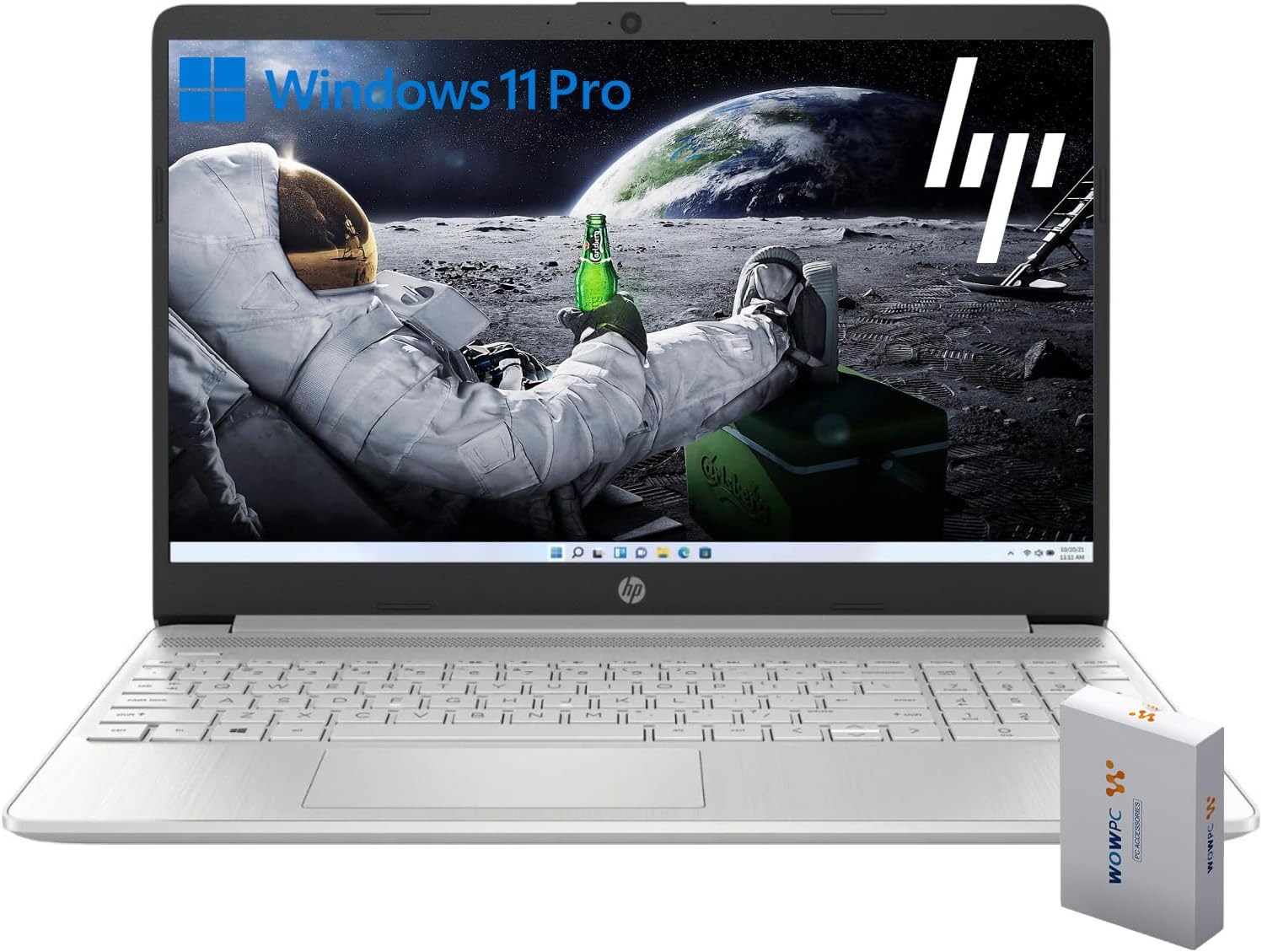
Image 1.1: HP G9 Laptop Computer. This image shows the laptop with its screen displaying the Windows 11 Pro desktop, featuring an astronaut on the moon background. A WOWPC Recovery USB is visible next to the laptop.
2. Contenuto della confezione
Verificare che tutti gli articoli siano presenti nella confezione del prodotto:
- HP G9 Laptop Computer
- Adattatore di alimentazione e cavo
- USB di ripristino WOWPC
- Guida rapida (se inclusa)
3. Prodotto finitoview
3.1 Caratteristiche principali
- Processore: Intel Celeron Quad Core N4120 (4 Cores, 4 Threads, up to 2.6 GHz Turbo Speed)
- Sistema operativo: Windows 11 Pro a 64 bit
- Memoria (RAM): 8 GB DDR4
- Magazzinaggio: 256GB PCIe-NVMe SSD
- Grafica: Intel grafica integrata
- Display: 15.6-inch HD (1366 x 768) anti-glare panel
- Connettività wireless: Wi-Fi 6, Bluetooth 5.2
- Audio: Doppi altoparlanti stereo, microfoni dual array
- Tastiera: Full-size with numeric keypad
- WebCamera: Built-in HD 720p

Immagine 3.1: Caratteristiche principaliview. This graphic highlights the Intel Quad-Core N4120 Processor, Windows 11 Pro, Storage options, RAM, WOWPC Recovery USB, USB 3.2, Wi-Fi 6, Bluetooth 5.2, RJ-45, and Ergonomic Design.
3.2 Porte e connettori
Prendi familiarità con le varie porte del tuo laptop:
- Lato sinistro: Power Connector, USB Type-A (5Gbps signaling rate)
- Lato destro: Multi-format SD media card reader, Headphone/microphone combo, USB-C (5Gbps signaling rate), HDMI 1.4b Output, RJ-45 (Ethernet)

Image 3.2: Laptop Port Layout. This image illustrates the location of the Power Connector, USB Type-A port on the left side, and the Multi-format SD media card reader, Headphone/Microphone Combo jack, USB-C port, and HDMI 1.4b port on the right side.
4. Configurazione iniziale
4.1 Collegamento dell'alimentazione
- Connect the power adapter to the power connector on the laptop.
- Collegare il cavo di alimentazione a una presa elettrica.
- Lasciare caricare la batteria per alcuni minuti prima del primo utilizzo.
4.2 First Boot and Windows 11 Pro Setup
- Aprire il coperchio del portatile e premere il pulsante di accensione.
- Follow the on-screen instructions to complete the Windows 11 Pro initial setup, including language selection, region, keyboard layout, and network connection.
- Create a user account and set up a password or PIN.
4.3 Connessione a una rete
During the initial setup, you will be prompted to connect to a Wi-Fi network. If you skip this step, you can connect later:
- Fare clic sul Rete icon (Wi-Fi or Ethernet) in the taskbar.
- Select your desired Wi-Fi network from the list and click Collegare.
- Se richiesto, immettere la chiave di sicurezza della rete (password).
5. Utilizzo del laptop
5.1 Navigazione di base
- Touchpad: Use gestures for scrolling, zooming, and switching applications. Refer to Windows settings for touchpad customization.
- Tastiera: The full-size keyboard includes a numeric keypad for efficient data entry. Function keys (F1-F12) provide quick access to system controls.
5.2 Funzionalità di Windows 11 Pro
Windows 11 Pro offers enhanced security, productivity tools, and performance:
- Layout e gruppi a scatto: Organize your open windows efficiently for improved multitasking.
- Sicurezza avanzata: Features like Windows Hello, BitLocker, and Windows Security protect your data and device.
- Integrazione con Microsoft Teams: Stay connected with colleagues and friends directly from the taskbar.

Image 5.1: Windows 11 Pro Features. This image highlights the benefits of Windows 11 Pro, including advanced security features and optimized productivity tools for business and professional users.
5.3 Using the WOWPC Recovery USB
The included WOWPC Recovery USB is designed to assist with system recovery in case of software issues. Keep it in a safe place.
- To use, insert the USB into an available port.
- Restart your laptop and access the boot menu (often by pressing F9, F10, or F12 during startup, consult your laptop's specific boot key).
- Select the WOWPC Recovery USB as the boot device and follow the on-screen instructions for recovery options.
6. Manutenzione e cura
6.1 Pulizia del computer portatile
- Utilizzare un panno morbido e privo di lanugine leggermente dampcon acqua o con un detergente per schermi specifico per il display.
- Per la tastiera e lo chassis, utilizzare un panno morbido. Evitare prodotti chimici aggressivi.
- Prima di pulirlo, assicurarsi che il computer portatile sia spento e scollegato.
6.2 Aggiornamenti software
Aggiorna regolarmente il sistema operativo Windows e i driver per garantire prestazioni e sicurezza ottimali:
- Vai a Impostazioni > Windows Update per verificare e installare gli aggiornamenti.
- Allow updates to complete without interrupting the process.
6.3 Cura della batteria
- Evitare temperature estreme.
- For long-term storage, charge the battery to approximately 50% and store the laptop in a cool, dry place.
- Periodically discharge and recharge the battery to maintain its health.
7. Risoluzione Dei Problemi
Questa sezione affronta i problemi più comuni che potresti incontrare.
7.1 Il laptop non si accende
- Assicurarsi che l'adattatore di alimentazione sia collegato saldamente sia al computer portatile sia a una presa elettrica funzionante.
- Verificare che la presa di corrente funzioni collegandovi un altro dispositivo.
- Se la batteria è completamente scarica, lasciarla in carica per almeno 30 minuti prima di provare ad accenderla.
7.2 Nessuna connessione Wi-Fi
- Check if Wi-Fi is enabled in Windows settings (Impostazioni > Rete e Internet > Wi-Fi).
- Riavvia il router e il modem.
- Assicurati di essere nel raggio di azione della tua rete Wi-Fi.
- Prova a dimenticare la rete e a riconnetterti.
7.3 Prestazioni lente
- Chiudere le applicazioni non necessarie in esecuzione in background.
- Controlla e installa eventuali aggiornamenti di Windows in sospeso.
- Eseguire una pulizia del disco per liberare spazio di archiviazione.
- Scan for malware using Windows Security.
8. Specifiche
| Caratteristica | Dettaglio |
|---|---|
| Nome del modello | HP G9 |
| Sistema operativo | Windows 11 Pro |
| Processore | Intel Celeron Quad Core N4120 (1.1 GHz base, up to 2.6 GHz turbo) |
| Memoria RAM | 8 GB DDR4 |
| Magazzinaggio | 256GB PCIe-NVMe SSD |
| Grafica | Intel grafica integrata |
| Display | 15.6-inch HD (1366 x 768 pixels), anti-glare |
| Connettività wireless | Wi-Fi 6, Bluetooth 5.2 |
| Porti | 1x SuperSpeed USB-C 10Gbps, 2x SuperSpeed USB-A 10Gbps, 1x Headphone/microphone combo, 1x HDMI 1.4 Output, 1x RJ-45, 1x Audio-out, SD-Reader |
| Webcamma | Risoluzione HD 720p |
| Dimensioni (L x P x A) | 14.09 x 9.53 x 0.78 pollici |
| Peso | 4 libbre |
9. Garanzia e supporto
9.1 Garanzia del prodotto
Your HP G9 Laptop Computer comes with a standard manufacturer's warranty. Please refer to the warranty card included in your product packaging or visit the official HP support websito per termini e condizioni di garanzia dettagliati specifici per la tua regione.
9.2 Supporto tecnico
Per assistenza tecnica, download di driver o ulteriori informazioni, visitare il sito ufficiale del supporto HP website. You can typically find support resources by searching for your specific model (HP G9) on their websito.
The included WOWPC Recovery USB is a valuable tool for system recovery and troubleshooting software-related issues. Keep it accessible for future use.