1. Per iniziare
1.1 Disimballaggio e configurazione iniziale
Carefully unpack your new HP 17 Laptop. Ensure all components are present before proceeding with the setup.

Image 1.1: The HP 17 Laptop shown with various accessories including a mouse, webcam cover, and dust plugs.
1.1.1 Cosa c'è nella scatola
- 1*HP 17.3" FHD Laptop
- 1*Adattatore di alimentazione
- 1 * Manuale di istruzioni
1.1.2 Prima accensione
- Collegare l'adattatore di alimentazione alla porta smart pin CA del laptop e quindi a una presa di corrente.
- Aprire il coperchio del laptop. Il laptop potrebbe accendersi automaticamente oppure potrebbe essere necessario premere il pulsante di accensione.
- Seguire le istruzioni visualizzate sullo schermo per completare la configurazione di Windows 11 Pro, inclusa la selezione della lingua, la connessione di rete e la creazione dell'account utente.
2. Operating Your HP 17 Laptop
2.1 Gestione dell'alimentazione
Your HP 17 Laptop is equipped with a 3-cell, 41 Wh Li-ion battery and supports HP Fast Charge technology.
- Accensione/spegnimento: Press the power button to turn the laptop on. To turn off, click the Start button, then Power > Shut down.
- Modalità risparmio: Chiudere il coperchio o selezionare Sospensione dal menu Alimentazione per accedere alla modalità di sospensione.
- Carica rapida HP: This feature allows you to charge your battery up to 50% in approximately 45 minutes when the laptop is off.

Image 2.1: Illustration of HP Fast Charge, indicating a 0 to 50% charge in approximately 45 minutes, alongside the Microsoft Copilot logo.
2.2 Utilizzo della tastiera e del touchpad
The laptop features a full-size, soft grey keyboard with a dedicated numeric keypad for enhanced productivity. It also includes a Copilot AI Key.
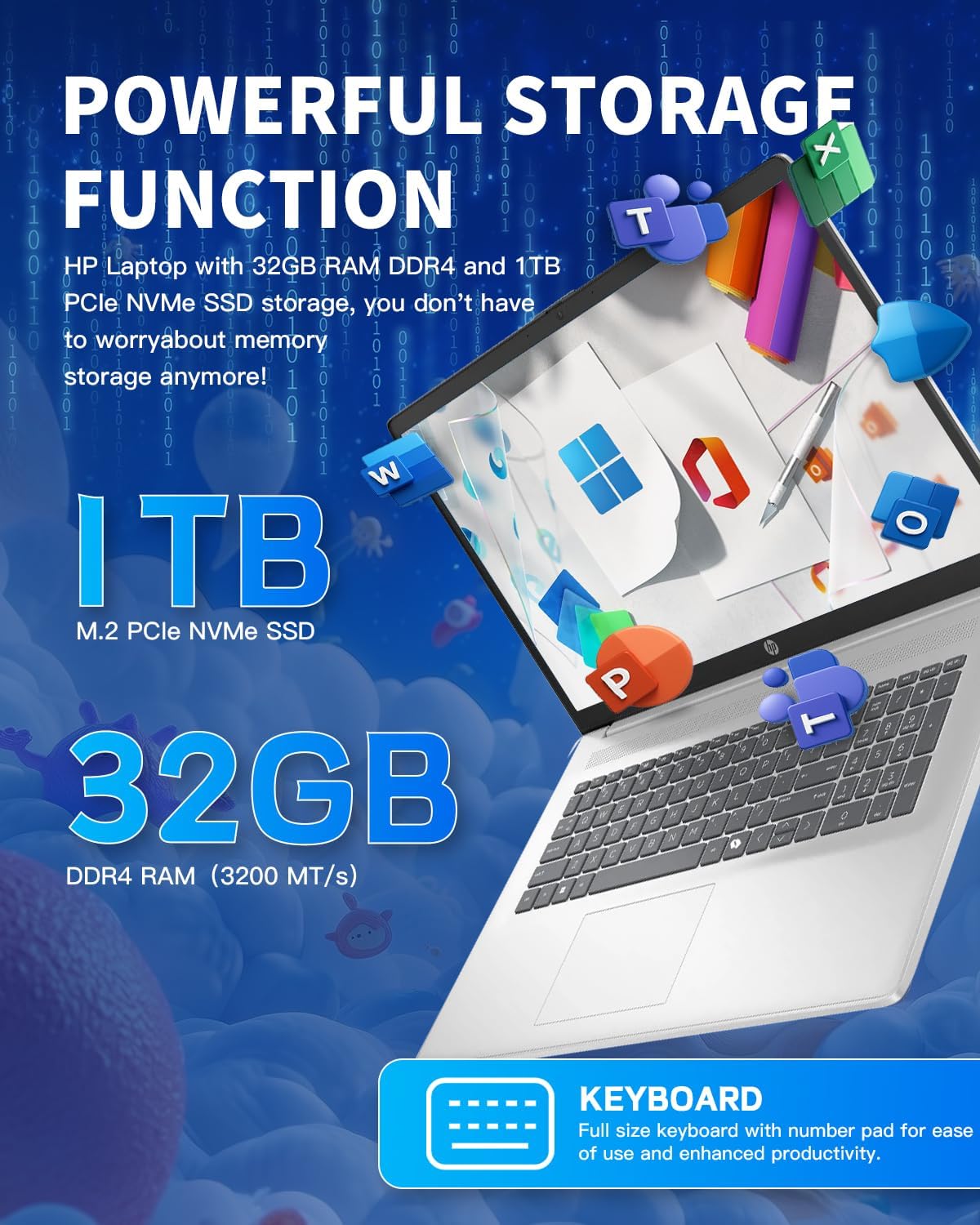
Immagine 2.2: Primo piano view of the HP 17 Laptop's full-size keyboard, showcasing the numeric keypad and the Microsoft Copilot key.
2.3 Funzionalità di visualizzazione
The 17.3-inch HD+ (1600 x 900) anti-glare display provides clear visuals with 250 nits brightness and 60% NTSC color gamut. The anti-glare coating helps reduce reflections for comfortable viewing.

Image 2.3: The 17.3-inch HD+ display of the HP laptop, emphasizing its anti-glare properties and 1600x900 resolution.
2.4 Connettività
Your laptop supports modern wireless standards for fast and reliable connections.
- Wi-Fi 6 (2x2): Provides faster wireless speeds and improved performance in dense environments.
- Bluetooth 5.3: For connecting wireless peripherals such as mice, keyboards, and headphones.

Image 2.4: The HP 17 Laptop highlighting Wi-Fi 6 and Bluetooth 5.3 capabilities, along with a camera shutter for privacy during video calls.
2.5 Porte e connessioni
The HP 17 Laptop offers a variety of ports for connecting external devices.
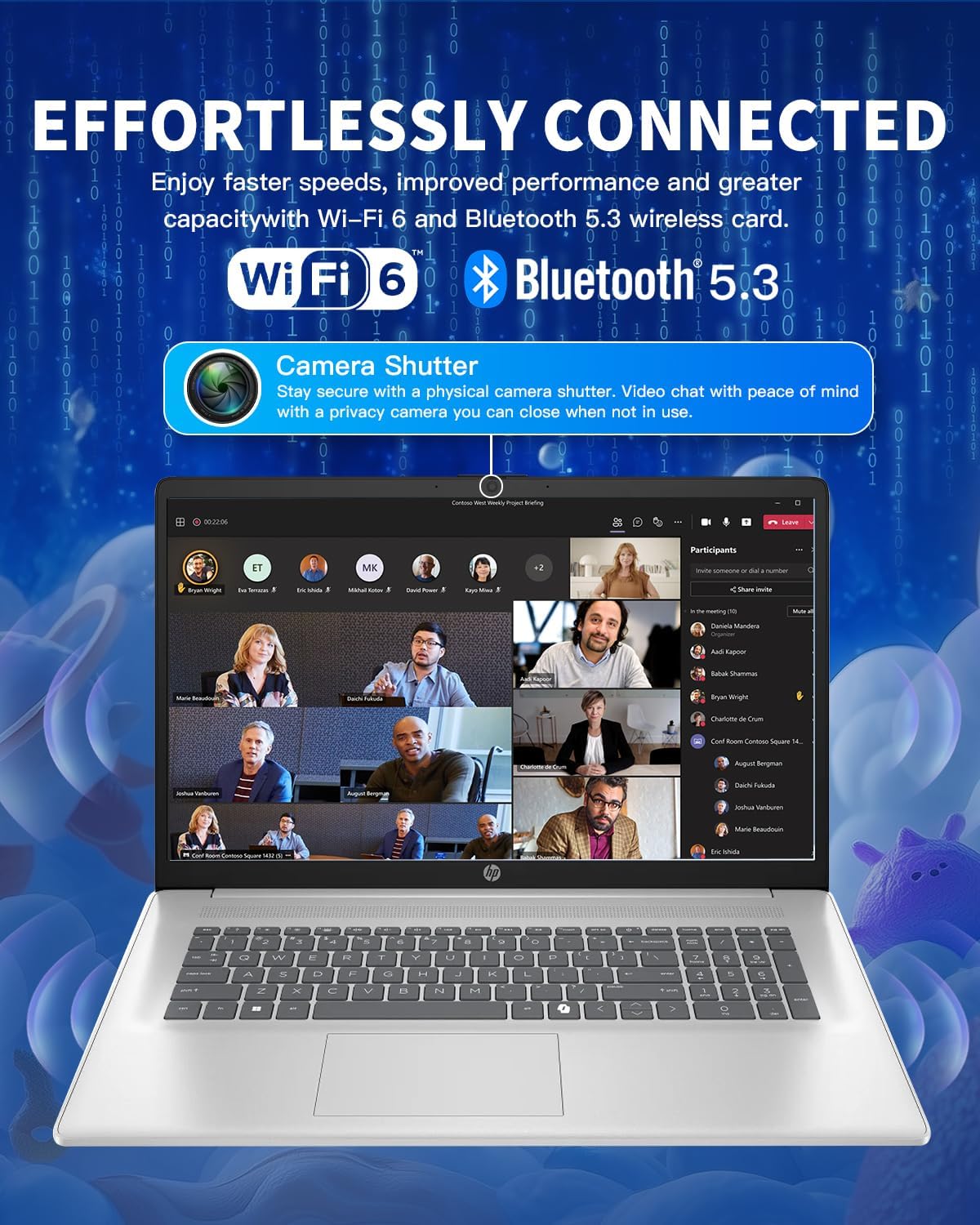
Image 2.5: Diagram illustrating the various ports on the HP 17 Laptop, including USB Type-C, USB Type-A, HDMI 1.4b, AC smart pin, and a headphone/microphone combo jack.
- 1 USB Type-C 5Gbps signaling rate: Supporta solo il trasferimento dati. Non supporta la ricarica o monitor esterni.
- 2 USB Type-A 5Gbps signaling rate: Per collegare dispositivi USB standard.
- 1 Headphone/microphone combo: Per l'ingresso e l'uscita audio.
- 1 AC smart pin: Per collegare l'adattatore di alimentazione.
- 1 HDMI 1.4b: Per il collegamento a display esterni.
2.6 Using Microsoft Copilot
The dedicated Copilot AI Key provides instant access to your built-in AI assistant, streamlining tasks and enhancing productivity.
Video 2.1: Un overview of the HP 17 Laptop, demonstrating its features including the Microsoft Copilot AI assistant and camera shutter for privacy.
Image 2.6: A user interacting with the Microsoft Copilot AI companion on the HP laptop, illustrating its role in boosting productivity and creativity.
3. Manutenzione e cura
3.1 Pulizia del portatile
- Utilizzare un panno morbido e privo di lanugine leggermente dampcon acqua o un detergente per schermi per pulire il display.
- Per la tastiera e lo chassis, utilizzare un panno morbido. Evitare prodotti chimici aggressivi o materiali abrasivi.
- Regularly clean dust from vents to ensure proper airflow.
3.2 Cura della batteria
- Evitare di scaricare completamente la batteria frequentemente.
- Quando non lo si utilizza per lunghi periodi, conservare il computer portatile in un luogo fresco e asciutto.
- Se si conserva la batteria per un lungo periodo, assicurarsi che sia carica al 50% circa.
3.3 Aggiornamenti software
Regularly update your Windows operating system and drivers to ensure optimal performance and security. Windows Update can be accessed via Settings > Windows Update.
4. Risoluzione Dei Problemi
4.1 Problemi di alimentazione
- Il portatile non si accende: Ensure the power adapter is securely connected and the outlet is functional. Try a different power outlet.
- La batteria non si carica: Verify the power adapter connection. Check for any damage to the adapter or charging port.
4.2 Problemi di visualizzazione
- Nessuna visualizzazione: Collegare un monitor esterno tramite HDMI per verificare se il problema riguarda il display interno del laptop.
- Schermo tremolante: Aggiorna i driver della scheda grafica. Regola la frequenza di aggiornamento dello schermo nelle impostazioni di Windows.
4.3 Problemi di connettività
- Wi-Fi non connesso: Restart your router and laptop. Check Wi-Fi settings and ensure the correct network is selected.
- Dispositivo Bluetooth non associato: Assicurati che il dispositivo Bluetooth sia in modalità di associazione e nel raggio d'azione. Controlla le impostazioni Bluetooth sul tuo laptop.
4.4 Problemi di prestazioni
- Prestazioni lente: Close unnecessary applications. Check Task Manager for resource-intensive processes. Ensure sufficient free space on the SSD.
- Surriscaldamento: Ensure vents are clear of obstructions. Use the laptop on a hard, flat surface.
5. Specifiche
| Caratteristica | Dettaglio |
|---|---|
| Sistema operativo | Windows 11 Pro |
| Processore | Intel Core i3-N305 (8-Core), up to 3.8 GHz |
| Cache del processore | 6 L3 MB di cache |
| Memoria (RAM) | 32 GB DDR4-3200 MT/s |
| Grafica | Grafica Intel UHD (integrata) |
| Memoria interna | SSD PCIe NVMe M.2 da 1 TB |
| Display | 17.3-inch diagonal, HD+ (1600 x 900), anti-glare, 250 nits, 60% NTSC |
| Connettività wireless | Wi-Fi 6 (2x2) e Bluetooth 5.3 |
| Porti | 1 USB Type-C 5Gbps, 2 USB Type-A 5Gbps, 1 Headphone/microphone combo, 1 AC smart pin, 1 HDMI 1.4b |
| Telecamera | HP True Vision 720p HD camera with temporal noise reduction and integrated dual array digital microphones, privacy shutter |
| Audio | HD Audio with stereo speakers |
| Tastiera | Full-size, soft grey keyboard with numeric keypad |
| Batteria | 3-cell, 41 Wh Li-ion battery |
| Adattatore di alimentazione | Adattatore di alimentazione CA da 45 W |
| Dimensioni (L x P x A) | 15.78 pollici x 10.15 pollici x 0.78 pollici |
| Peso | 4.60 libbre |
6. Garanzia e supporto
6.1 Informazioni sulla garanzia
Your HP 17 Laptop comes with a standard manufacturer's warranty. Please refer to the warranty card included in your product packaging for specific terms and conditions, including coverage duration and limitations. Keep your proof of purchase for warranty claims.
6.2 Contattare l'assistenza
Per assistenza tecnica, risoluzione dei problemi oltre a quelli descritti in questo manuale o assistenza in garanzia, visitare il sito ufficiale dell'assistenza HP website or contact HP customer service. You will typically need your product's serial number, which can be found on a label on the bottom of your laptop or in the system information within Windows.
Per ulteriori risorse, puoi visitare il Negozio HP su Amazon.