1. Introduzione
This manual provides essential instructions for the setup, operation, and maintenance of your Blackview MP60 Mini PC. Please read this guide thoroughly before using the device to ensure optimal performance and longevity. The Blackview MP60 is a compact desktop computer designed for various applications, including home office, business, education, and multimedia entertainment.

Immagine: Frontale view del Neroview MP60 Mini PC, highlighting its compact design and Intel N150 processor branding.
2. Cosa c'è nella scatola
Verificare che tutti gli articoli siano presenti nel pacco:
- 1 x Neroview Mini PC MP60
- 1 x Adattatore di alimentazione
- 1 x cavo HDMI
- 1 x Manuale utente (questo documento)
- 1 x supporto VESA con viti
3. Prodotto finitoview
3.1 Caratteristiche principali
- Processore: Intel N150 (4 Cores, 4 Threads, up to 3.6GHz)
- Memoria: 16GB DDR4 RAM (Dual Channel SODIMM DDR4, Max 32GB Expansion Support)
- Magazzinaggio: 512GB PCIe SSD (Max 2TB expansion via M.2 SSD or 2.5" SATA HDD/SSD)
- Sistema operativo: Windows 11 Pro preinstallato
- Grafica: Intel UHD Graphics, supporting Dual 4K@60Hz display output
- Connettività: Wi-Fi 5 (802.11ac), Gigabit Ethernet, Bluetooth 4.2
- Porte: 2x USB 3.0, 2x USB 2.0, 2x HDMI, 1x RJ45 LAN, 1x DC Jack, 1x 3.5mm Audio Jack
- Progetto: Ultra-compact (5" × 5" × 2", 0.86 lbs), VESA mount compatible
- Raffreddamento: Efficient cooling system with a whisper-quiet fan (<38dB under demanding tasks)

Image: An infographic detailing the Blackview MP60's core specifications: Intel N150 processor, 16GB DDR4 RAM, 512GB SSD, Windows 11, multi-port design, ultra-compact size, silent operation, and efficient heat dissipation.
3.2 Porte e indicatori
Familiarize yourself with the available ports and indicators on your Mini PC:
- Pannello frontale: Power button, 2x USB 3.0 ports, 2x USB 2.0 ports, 3.5mm Audio Jack (Headphone/Microphone combo)
- Pannello posteriore: DC Power Input, 2x HDMI ports, 1x RJ45 Gigabit Ethernet port
- Indicatore LED: Blue for power-on, Red for sleep mode.

Immagine: una rappresentazione visiva del Neroview MP60's front and rear ports, including USB, HDMI, LAN, DC power, and audio jack.
4. Guida all'installazione
4.1 Connessione iniziale
- Connetti Display: Use the provided HDMI cable to connect the Mini PC to your monitor or TV. The MP60 supports dual displays; connect a second monitor if desired.
- Connetti le periferiche: Plug in your USB keyboard and mouse to the available USB ports.
- Connetti alimentazione: Collegare l'adattatore di alimentazione alla porta di ingresso CC del Mini PC, quindi collegare l'adattatore a una presa di corrente.
- Connessione di rete (facoltativa): For a wired internet connection, connect an Ethernet cable to the RJ45 LAN port. For wireless, Wi-Fi will be configured during the initial Windows setup.
4.2 Primo avvio e configurazione di Windows
- Press the power button on the front of the Mini PC. The LED indicator will turn blue.
- Follow the on-screen instructions to complete the Windows 11 Pro initial setup. This includes selecting your region, keyboard layout, connecting to a Wi-Fi network (if not using Ethernet), and creating a user account.
- Once setup is complete, your Blackview MP60 Mini PC is ready for use.
4.3 Installazione con montaggio VESA (opzionale)
The included VESA mount allows you to attach the Mini PC to the back of a compatible monitor or to a wall mount.
- Attach the VESA bracket to the back of your monitor using the provided screws. Ensure the monitor has standard VESA mounting holes.
- Fai scorrere il neroview MP60 Mini PC onto the mounted bracket until it clicks securely into place.

Immagine: Il Neroview MP60 Mini PC demonstrating its small form factor and how it can be discreetly mounted behind a monitor using the VESA bracket.
5. Istruzioni per l'uso
5.1 Accensione/spegnimento e modalità di sospensione
- Accensione: Press the power button. The LED will turn blue.
- Modalità risparmio: Briefly press the power button or select 'Sleep' from the Windows Start menu. The LED will turn red.
- Fermare: Selezionare "Arresta il sistema" dal menu Start di Windows.
- Arresto forzato: If the system is unresponsive, press and hold the power button for approximately 5-10 seconds until the device powers off. Use this only as a last resort.
5.2 Collegamento delle periferiche
Utilize the various ports to connect your devices:
- Dispositivi USB: Connect external hard drives, USB flash drives, printers, or other USB accessories to the USB 3.0 or USB 2.0 ports.
- Dispositivi audio: Collegare le cuffie o gli altoparlanti esterni al jack audio da 3.5 mm.
- Dispositivi Bluetooth: Pair Bluetooth-enabled keyboards, mice, headphones, or other devices via Windows Bluetooth settings.
5.3 Configurazione del doppio display
Il Neroview MP60 supports two 4K displays simultaneously via its two HDMI ports, enhancing productivity for tasks like financial analysis, creative design, or coding.
- Collegare entrambi i monitor alle porte HDMI del Mini PC.
- In Windows, fare clic con il pulsante destro del mouse sul desktop e selezionare "Impostazioni schermo".
- Configure your display preferences (e.g., extend desktop, duplicate displays) as needed.

Image: A workstation featuring two 4K monitors connected to the Blackview MP60, illustrating its dual display capability for enhanced multitasking.
5.4 Espansione dello storage
Il Neroview MP60 allows for easy storage expansion:
- The device supports an additional 2.5-inch SATA HDD/SSD (256GB/512GB/up to 2TB).
- To install, carefully remove the bottom cover of the Mini PC.
- Connect the 2.5-inch drive to the SATA connector and secure it in the designated bay.
- Riposizionare il coperchio inferiore.

Immagine: Un esploso view illustrating the removable storage base and the process of installing an additional 2.5-inch SATA HDD/SSD into the Blackview Mini PC MP60.
6. Manutenzione
6.1 Pulizia
- Pulire regolarmente l'esterno del Mini PC con un panno morbido e asciutto.
- Use compressed air to gently clear dust from ventilation openings to maintain optimal airflow and cooling efficiency.
- Non utilizzare detergenti liquidi o solventi direttamente sul dispositivo.
6.2 Aggiornamenti software
- Keep your Windows 11 Pro operating system updated to ensure security and performance. Access Windows Update through 'Settings > Windows Update'.
- Regularly update device drivers (e.g., graphics, chipset) from the Blackview supporto websito o tramite Windows Update.
6.3 Dissipazione del calore
Il Neroview MP60 features an efficient cooling system. To ensure proper heat dissipation:
- Assicurarsi che il Mini PC sia posizionato in un'area ben ventilata.
- Non ostruire le aperture di ventilazione.
- Evitare di posizionare il dispositivo su superfici morbide che potrebbero ostruire il flusso d'aria.
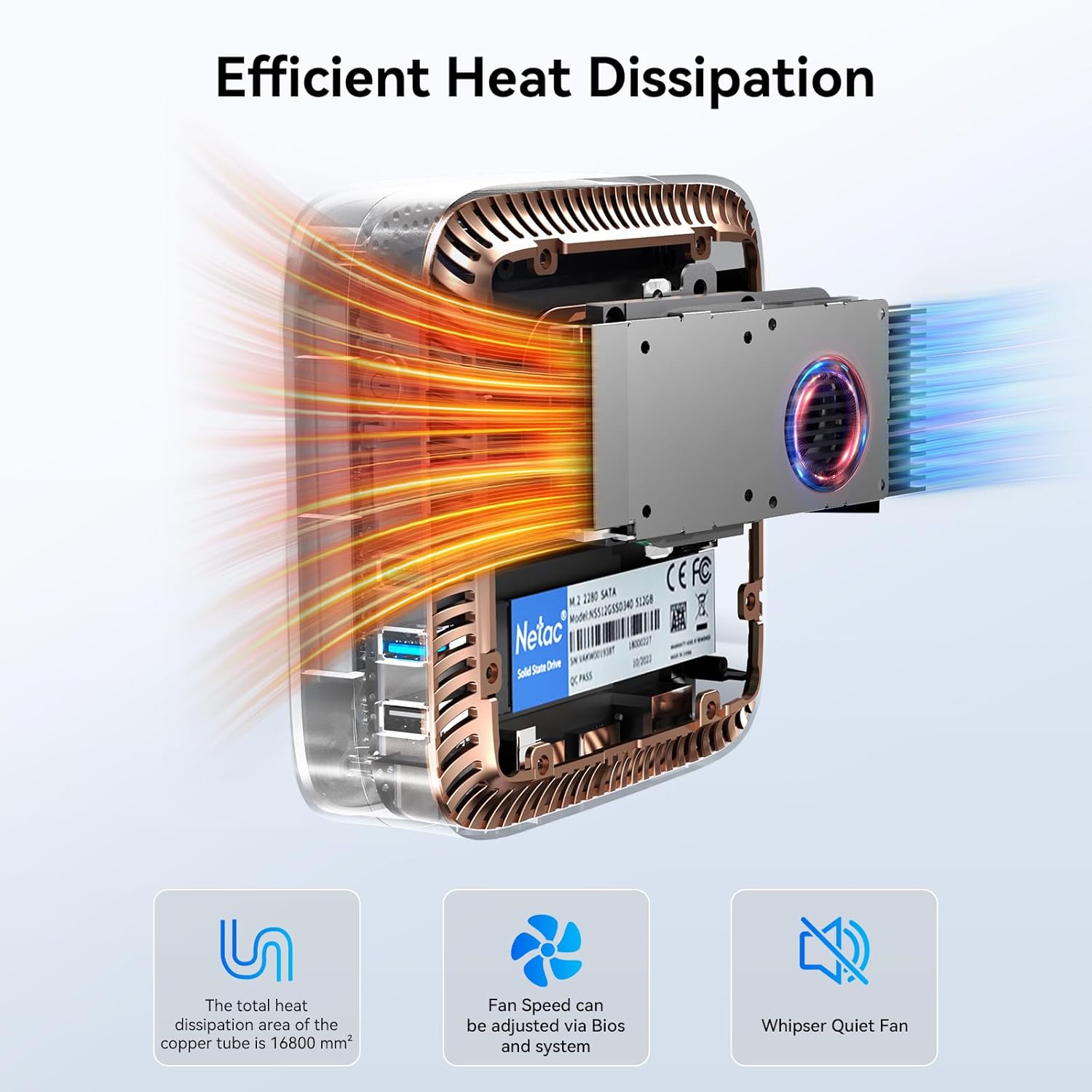
Immagine: Un interno view del Neroview MP60, highlighting its efficient cooling system with a copper tube and fan designed for optimal heat dissipation.
7. Risoluzione Dei Problemi
Questa sezione affronta i problemi comuni che potresti riscontrare con il tuo Blackview Mini PC MP60.
| Problema | Possibile causa | Soluzione |
|---|---|---|
| Nessuna visualizzazione sul monitor | Cavo HDMI allentato, sorgente di ingresso errata sul monitor, problema di alimentazione. | Check HDMI cable connections. Ensure monitor is on and set to the correct input. Verify power adapter is securely connected to both the PC and outlet. |
| Il mini PC non si accende | Nessuna alimentazione, adattatore di alimentazione difettoso. | Ensure power adapter is correctly connected and the power outlet is functional. Try a different power outlet. |
| Nessuna uscita audio | Incorrect audio settings, loose cable, driver issue. | Check audio cable connections. Verify audio output device in Windows Sound settings. Update audio drivers if necessary. |
| Slow Wi-Fi connection | Weak signal, router issues, interference. | Ensure the Mini PC is within range of your Wi-Fi router. Restart your router. Check for other devices causing interference. Consider a wired Ethernet connection for maximum speed. |
| Il sistema si blocca o si arresta in modo anomalo | Overheating, software conflict, insufficient resources. | Ensure proper ventilation. Close unnecessary applications. Check for Windows updates and driver updates. If persistent, consider a system restore or reinstall. |
8. Specifiche
Specifiche tecniche dettagliate per il Blackview Mini PC MP60:
| Caratteristica | Dettaglio |
|---|---|
| Processore | Intel N150 (3.6 GHz Celeron) |
| Memoria RAM | 16 GB di memoria DDR4 SDRAM |
| Magazzinaggio | SSD da 512 GB (espandibile fino a 2 TB) |
| Coprocessore grafico | Intel Processor N150 (Integrated) |
| Sistema operativo | Windows 11 Pro |
| Risoluzione massima dello schermo | 4096 x 2160 pixel (4K) |
| Tipo senza fili | Wi-Fi 5 (802.11ac), Bluetooth 4.2 |
| Porte USB | 2x USB 3.0, 2x USB 2.0 |
| Uscita video | 2x HDMI |
| Rete locale | Ethernet Gigabit |
| Peso dell'articolo | 2.38 libbre (circa 1.08 kg) |
| Dimensioni del pacco | 9.76 x 7.63 x 2.59 pollici |
| Colore | Nero |
9. Garanzia e supporto
Neroview provides comprehensive support for your MP60 Mini PC:
- Garanzia senza pensieri di 3 anni: Il tuo neroview MP60 Mini PC is covered by an industry-leading 3-year warranty.
- Supporto tecnico a vita: Access to dedicated technical support for the lifetime of your product.
- USA Support: Dedicated support services available in the USA.
- Assistenza post vendita: For any questions or issues, contact Blackview customer service through your purchase platform's "Account Service" or "Order History." Responses are typically provided within 24 hours.

Image: An infographic detailing Blackview's after-sales support, including 3 years of quality support, 24-hour customer service, and lifetime technical support.