1. Introduzione
This manual provides detailed instructions for the installation, operation, and maintenance of your CAMECHO 4G+64G Car Stereo. This head unit is specifically designed for Ford Fusion models manufactured between 2013 and 2016, offering advanced features such as Wireless CarPlay, Android Auto, GPS navigation, Bluetooth connectivity, and a high-resolution Incell touchscreen.
Si prega di leggere attentamente questo manuale prima dell'installazione e dell'uso per garantire il corretto funzionamento e ottimizzare la propria esperienza di guida.

Image: The CAMECHO car stereo seamlessly integrated into a Ford Fusion dashboard, displaying a navigation map. Below, two images illustrate the dashboard appearance before installation, indicating compatibility for specific Ford Fusion models (2013-2016).
2. Contenuto della confezione
Verifica che tutti i componenti elencati di seguito siano inclusi nella confezione. Se alcuni articoli risultano mancanti o danneggiati, contatta l'assistenza clienti.
- 1 unità principale Android
- 1 telecamera di retromarcia AHD
- 1 x microfono esterno
- 1 x Protocol box (Canbus)
- 1 antenna GPS
- 1 antenna radio
- 1 x cavo di alimentazione
- 1 x Cavo RCA
- 1 x cavo di ingresso per telecamera posteriore
- 2 cavo USB
- 1 x cavo USB originale
- 1 x Accessories (mounting brackets, screws)
- 1 x Strumento di installazione
- 1 x Manuale di istruzioni
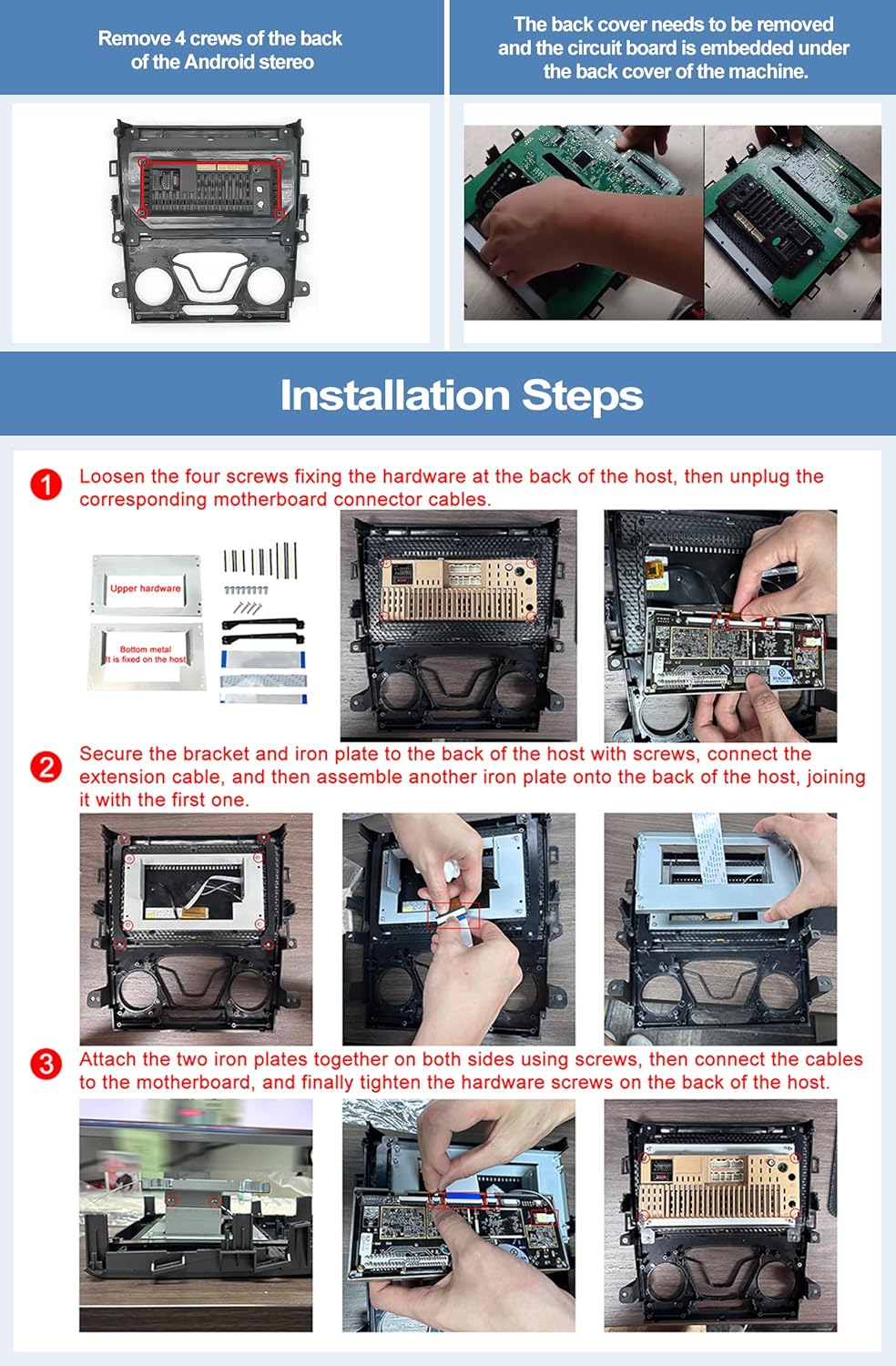
Image: A visual representation of all items included in the package, including the main head unit, AHD rear camera, various cables (power, RCA, USB, GPS, radio), external microphone, Canbus box, installation tools, and accessories.
3. Caratteristiche principali
3.1. Android 15 System & High-Resolution Display
The head unit operates on the Android 15 system, providing a smooth and responsive user experience. It features a 9-inch Incell touchscreen with a 1280*720 high-resolution display, offering clear visuals and quick touch response.

Image: Details on the Android 15 operating system, 4GB RAM and 64GB internal storage, and the Incell touchscreen's specifications including its 1280x720 resolution and light transmittance.
3.2. CarPlay wireless e Android Auto
Enjoy seamless integration with your smartphone via wireless CarPlay and Android Auto. This feature allows for voice control (Google Assistant, Siri), access to phone calls, messages, music, and navigation apps directly from the head unit's screen, enhancing driving safety and convenience.

Image: Illustration of the wireless connectivity for CarPlay, Android Auto, and Mirror Link, demonstrating how a smartphone can interact with the car stereo.
3.3. Bluetooth 5.0 e radio FM/RDS
The built-in Bluetooth 5.0 module supports hands-free calling and wireless audio streaming from your mobile device. The FM/RDS radio allows you to tune into your favorite stations with clear reception and displays station information where available. Multiple EQ sound effects are available for audio customization.

Immagine: Oltreview of the Bluetooth, FM/RDS radio, and equalizer adjustment functions, showing their respective icons and user interfaces.
3.4. Navigazione GPS e connettività WiFi
Equipped with reliable GPS, the head unit supports both online and offline navigation, ensuring you can find your way without relying on your mobile phone's data. Connecting to WiFi enables internet browsing and access to various applications like YouTube and Spotify.

Image: Demonstrates the GPS navigation system with both online and offline map options, alongside the WiFi connectivity feature for accessing various online applications.
3.5. Posteriore View Input della telecamera e controllo del volante
Il sistema supporta una parte posteriore view camera, automatically displaying the camera feed on the screen when the vehicle is in reverse gear. Original steering wheel controls are supported, allowing you to manage functions like volume, track changes, and calls without taking your hands off the wheel. An external microphone is included for clearer voice communication.

Image: Illustrates the backup camera input displaying a clear rear view on the screen, along with the user interface for configuring steering wheel controls.
3.6. Schermo diviso e collegamento mirror
The split-screen function allows two applications to run simultaneously, such as navigation and music playback. Mirror Link functionality supports both Android and iOS smartphones, enabling you to display your phone's screen on the head unit. Android devices support two-way operation, while iOS supports one-way display.
4. Guida all'installazione
Si raccomanda l'installazione da parte di un professionista. Assicurarsi che l'alimentazione del veicolo sia scollegata prima di iniziare l'installazione.
4.1. Head Unit Assembly
- Loosen the four screws fixing the hardware at the back of the host, then unplug the corresponding motherboard connector cables.
- Secure the bracket and iron plate to the back of the host with screws, connect the extension cable, and then assemble another iron plate onto the back of the host, joining it with the first one.
- Attach the two iron plates together on both sides using screws, then connect the cables to the motherboard, and finally tighten the hardware screws on the back of the host.
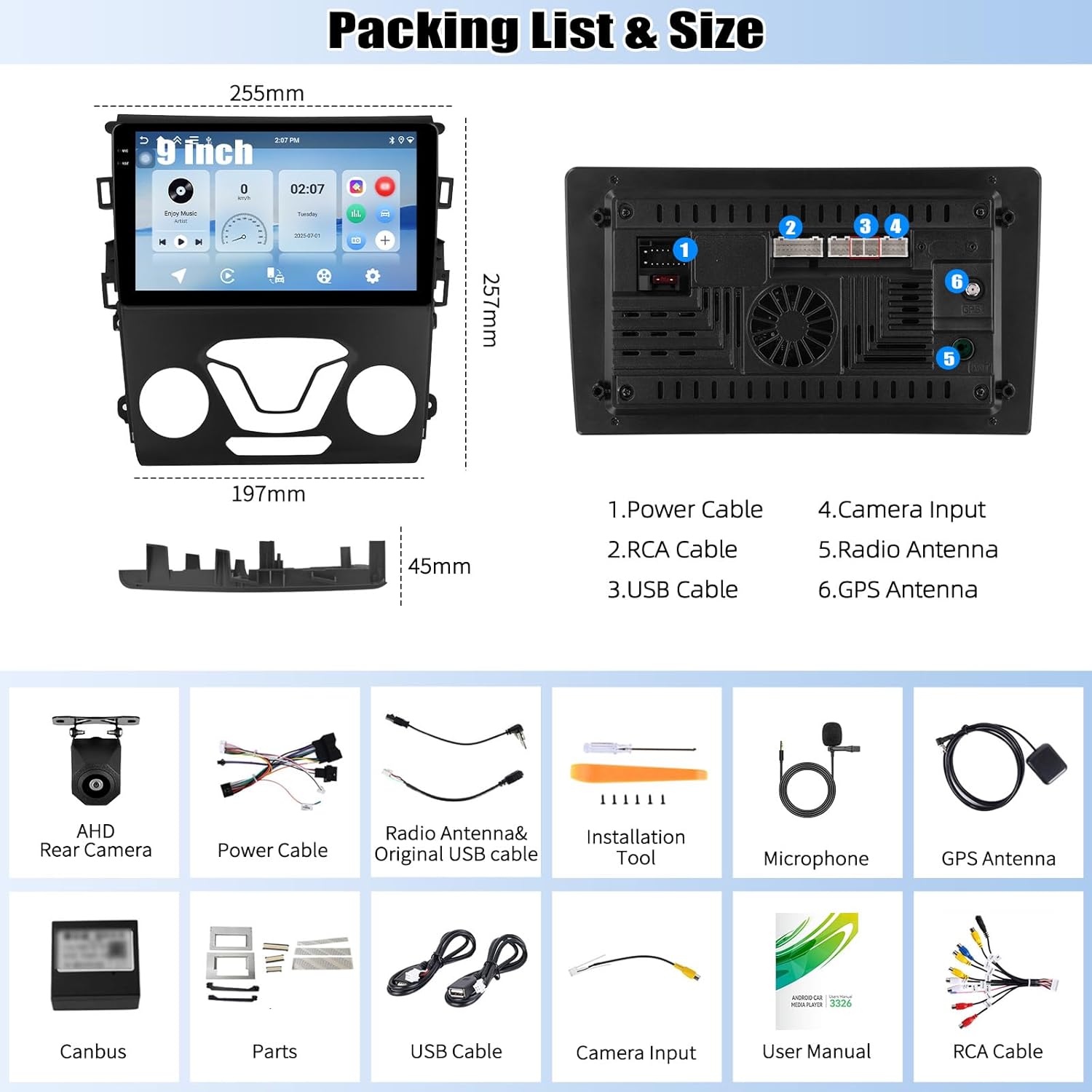
Image: A three-step visual guide demonstrating the assembly of the head unit, including screw removal, bracket attachment, and cable connections.
4.2. Collegamento Canbus per il controllo del volante
The included Canbus protocol box is essential for retaining original steering wheel control functionality. Ensure it is correctly connected.
- Plug the 8-pin cable into the connector of the head unit.
- Confirm that the CANBUS box is connected.
- After connecting, you must set the protocol correctly in the system settings for steering wheel controls to work. Go to Impostazioni > Configurazione di fabbrica (Parola d'ordine: 1234) > Impostazioni CAN, quindi scegli Raise - Ford - Mondeo - 2013-2018 - Low Configuration per il tuo veicolo.

Image: Wiring diagram illustrating the connection of the Canbus box to the head unit and the vehicle's harness, highlighting the 8-pin cable for steering wheel control.
4.3. Cablaggio della telecamera per la retromarcia
Proper wiring of the reversing camera ensures automatic display when reversing. The reversing input must be plugged in even if the camera is not used.
- Connect the positive pole of the camera's power supply to the car's reversing light positive pole.
- Connect the negative pole of the camera's power supply to the car's reversing light negative pole.
- The reversing trigger is controlled by the stereo; therefore, a separate trigger wire connection is not required.
Importante: The white plug (labeled 'WIFI/BT') must be connected to the main device for Bluetooth and WiFi signals to function correctly.

Image: Detailed wiring diagram for the reversing camera, showing connections to the vehicle's reversing light power and the head unit's video input.
5. Guida operativa
5.1. Connessione CarPlay wireless
- Connect the car radio's Bluetooth to your iPhone. The Bluetooth name is typically "Car BT". The Bluetooth PIN is 1234. A successful connection will show "phone audio, music audio" on your phone.
- Fare clic su "SpeedPlay" sull'unità principale.
- Allow "Contacts and Favorites Sync" and "Use CarPlay with SpeedPlay" when prompted.
- Wait for the connection to establish. The first connection may take slightly longer.
5.2. Connessione automatica Android wireless
- Fare clic su "SpeedPlay" sull'unità principale.
- Connect your Android phone to the rear 4-pin USB port using your original data cable.
- Allow "USB debugging" when prompted on your phone.
- Wait for the connection to establish. The first connection may take slightly longer.

Image: Step-by-step instructions for connecting both Wireless Apple CarPlay and Wireless Android Auto to the car stereo, including necessary phone and head unit actions.
5.3. Navigazione GPS
The head unit comes with pre-installed offline maps. For online navigation and real-time traffic updates, ensure the device is connected to WiFi or a mobile hotspot. You can download additional map data or navigation apps from the Google Play Store.
5.4. Funzioni Bluetooth
To pair your phone, go to the Bluetooth settings on the head unit and search for available devices. Select your phone and enter the PIN (default is 1234). Once paired, you can make/receive calls and stream audio.
5.5. Radio FM/RDS
Access the Radio application from the main menu. Use the scan function to find available stations or manually tune to a frequency. RDS (Radio Data System) will display station information if broadcasted.
5.6. Comandi al volante
After proper Canbus setup (Section 4.2), your original steering wheel buttons should function. If not, you may need to manually map the buttons within the head unit's settings. Navigate to Impostazioni > Controllo del volante and follow the on-screen instructions to assign functions.
6. Risoluzione Dei Problemi
- Comandi al volante non funzionanti: Ensure the Canbus box is correctly connected and the protocol settings are configured as described in Section 4.2. Double-check the 8-pin cable connection.
- La telecamera di backup non viene visualizzata: Verify that the reversing input cable is securely plugged into the head unit. Check the camera's power connections. If the image is unclear or distorted, adjust the camera resolution settings via Impostazioni > Impostazioni di fabbrica (Parola d'ordine: 1234) > Fonte video.
- No Bluetooth or WiFi Signal: Confirm that the white plug (WIFI/BT antenna) is securely connected to the main device.
- General Software Issues/Bugs: Ensure the system software is up to date. If persistent issues occur, a factory reset may resolve them (Note: this will erase all user data). Consult customer support for advanced troubleshooting.
- Scarsa qualità del microfono: Use the provided external microphone for improved call clarity. Ensure it is properly connected to the head unit.
7. Specifiche
| Caratteristica | Specificazione |
|---|---|
| Nome del modello | Autoradio 4G+64G |
| Marca | CAMECHO |
| Sistema operativo | Androide 15 |
| Memoria/Archiviazione | 4 GB di RAM + 64 GB di ROM |
| Dimensioni dello schermo | 9 pollici |
| Tipo di visualizzazione | Touchscreen Incell |
| Risoluzione | 1280*720 |
| Tecnologia di connettività | Bluetooth 5.0, Wi-Fi |
| Caratteristiche speciali | Wireless CarPlay & Android Auto, GPS Navigation, RDS/FM Radio, Rear View Camera Input, Steering Wheel Control, Split Screen, Mirror Link |
| Tipo di mappa | In tutto il mondo (online/offline) |
| Peso dell'articolo | 2.64 libbre |
| Dimensioni del prodotto | 10 x 1.8 x 10.1 pollici |
| Tipo di montaggio | Supporto per cruscotto |
8. Garanzia e supporto
8.1. Informazioni sulla garanzia
Questa unità stereo per auto CAMECHO è dotata di un Garanzia di 1 anno dalla data di acquisto, a copertura dei difetti di fabbricazione. Si prega di conservare la prova d'acquisto per eventuali reclami in garanzia.
8.2. Assistenza clienti
For technical assistance, installation queries, or any other support needs, please contact our customer service team.
E-mail: CAMECHOVIP@126.com

Image: A customer support representative ready to assist, with the support email address prominently displayed for user inquiries.


