Introduzione
This manual provides essential information for the safe and efficient use of your Philips Smart TV Ambilight THE ONE 55 inch 4K 144 Hz, model 55PUG8929/78. Please read these instructions carefully before operating the device and retain them for future reference.
Your Philips TV features Ambilight technology, a P5 processor for enhanced image quality, Dolby Vision and Dolby Atmos for immersive audiovisual experiences, a 144Hz refresh rate with VRR and AMD FreeSync Premium for gaming, and the Titan OS smart TV platform.
Impostare
1. Disimballaggio e contenuto della confezione
Rimuovere con attenzione tutti i componenti dall'imballaggio. Assicurarsi che tutti gli articoli siano presenti prima di gettare via i materiali di imballaggio.
- 1 Smart TV Philips 55"
- 1 Telecomando
- 2 batterie AAA
- 1 Cavo di alimentazione
- 1 Guida rapida
- 1 Legal and safety leaflet
- 1 Supporto da tavolo
Note: The product does not include installation services. For apartment delivery, lifting, or wall mounting, the customer is responsible. Philips is not responsible for installation or assembly.
2. Montaggio del supporto o montaggio a parete
If using the included table stand, follow the instructions in the quick start guide to securely attach it to the TV. Ensure all screws are tightened properly. If wall mounting, use a VESA-compatible wall mount (sold separately) and consult a professional for installation to ensure safety and proper alignment. The TV supports VESA 30cm mounting.

Immagine: Frontale view of the Philips 55 inch Smart TV with its table stand assembled.
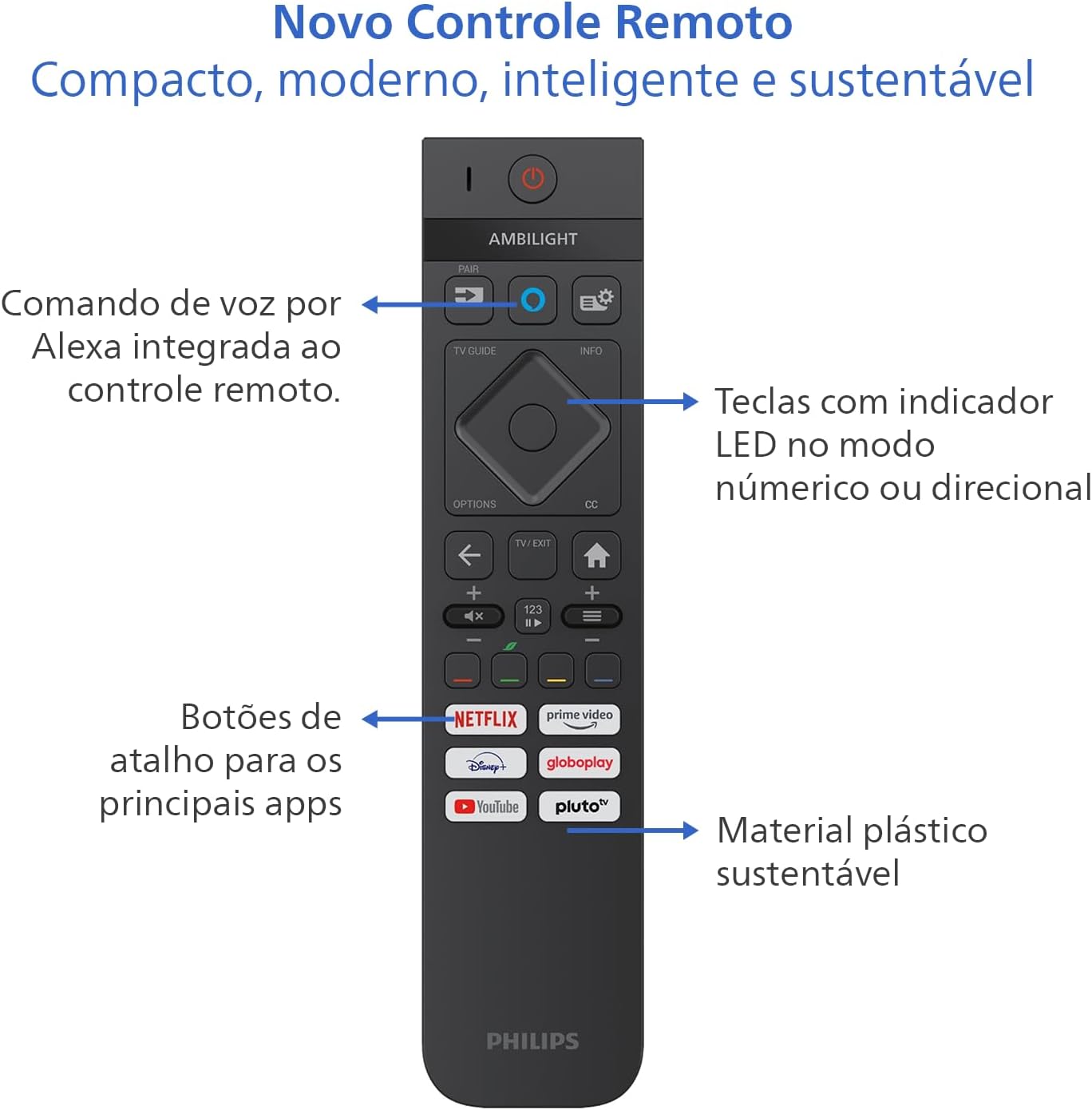
Image: Diagram showing the dimensions of the Philips 55 inch Smart TV with and without the stand, including VESA wall mount specifications (30cm).
3. Collegamento di periferiche
Connect your devices to the TV's ports. Refer to the back and side views for port locations.
- Energia: Connect the power cable to the TV and a suitable electrical outlet (110V/220V compatible).
- HDMI: Use HDMI 2.1 ports for high-definition devices like gaming consoles, Blu-ray players, or set-top boxes. There are 4 HDMI ports available.
- USB: Connect USB drives for media playback or external devices. There are 2 USB ports.
- Antenna/RF: Connect your antenna cable for terrestrial TV reception.
- Ethernet (RJ-45): Per una connessione Internet cablata.
- Audio L-R: Ingresso audio analogico.
- SPDIF (audio ottico): Per l'uscita audio digitale su soundbar o sistemi home theater.
- Uscita cuffie: Per collegare le cuffie.

Immagine: Pro lateralefile of the Philips 55 inch Smart TV, highlighting the accessible USB ports and other side connections.

Immagine: Posteriore view of the Philips 55 inch Smart TV, displaying the full array of input and output ports for various connections.
4. Accensione iniziale e configurazione di rete
After connecting the power cable, press the power button on the remote control. Follow the on-screen instructions to complete the initial setup, including language selection, country, and network connection (Wi-Fi or Ethernet). The TV supports Wi-Fi Dual Band and Bluetooth 5.2 for wireless connectivity.
Istruzioni per l'uso
1. Funzioni di controllo remoto
The included remote control is designed for intuitive navigation and features voice command with integrated Alexa. Insert the two AAA batteries into the remote control before use.

Immagine: dettagliata view of the Philips Smart TV remote control, highlighting the voice command button (Alexa), LED indicator keys, and dedicated shortcut buttons for popular streaming applications.
- Pulsante di accensione: Accende o spegne la TV.
- Voice Command (Alexa): Press and hold to use voice commands for searching content, controlling smart home devices, and more.
- Pad di navigazione: Use the directional buttons to navigate menus and select options.
- Pulsanti di scelta rapida: Direct access to popular streaming apps like Netflix, Prime Video, YouTube, and Pluto TV.
- Volume/Canale: Regola il volume e cambia canale.
- LED Indicator Keys: Keys with LED indicators for numeric or directional mode.
2. Smart TV Features (Titan OS)
Your TV runs on Titan OS, offering a user-friendly interface and quick access to various applications. The home screen is customizable, allowing you to prioritize your favorite apps and content.

Image: The Philips Smart TV's home screen, showing a selection of streaming applications and a personalized content layout.
- Personalized Home Screen: Access your favorite content and applications with recommendations tailored to your preferences.
- Interfaccia intuitiva: Organize your home screen by prioritizing frequently used applications for easy daily access.
- Scoperta dei contenuti: Easily find new content with agile navigation and smart search functions.
3. Tecnologia Ambilight
Ambilight projects colors from the screen onto the surrounding wall, enhancing immersion. Your TV features three-sided Ambilight with 8 illumination modes.

Image: A Philips Ambilight TV displaying dynamic backlighting that extends the on-screen colors onto the wall, creating an immersive viewesperienza di acquisizione.
- Naturale: Softer colors and brightness for visual comfort.
- Vivido: Stronger, more vibrant Ambilight colors to create a sense of expanded imagery.
- Lounge: Can be active even when the TV is off, creating a cozy ambient atmosphere.
- Gioco: Adapts lights to dark and dynamic scenes, enhancing gaming immersion.
- Musica: Ambilight follows the rhythm of music, ideal for creating a festive home environment.
- AmbiWake Up: Simulates sunrise with soft Ambilight, gentle music, and weather forecast.
- Ambi-sleep: With the screen off, Ambilight emits an orange light and nature sounds to promote sleep.
- Aurora: Transforms the TV into a decorative piece, displaying continuous animations for a pleasant ambiance.

Image: Comparison of Ambilight's Natural mode (soft, comfortable lighting) and Vivid mode (strong, vibrant lighting for expanded imagery).

Image: Comparison of Ambilight's Lounge mode (ambient lighting when TV is off) and Game mode (dynamic lighting for gaming immersion).

Image: Comparison of Ambilight's Music mode (lights synchronize with music) and AmbiWake Up mode (simulates sunrise).

Image: Comparison of Ambilight's Ambi-sleep mode (orange light and nature sounds for sleep) and Aurora mode (decorative animations).
4. Picture and Sound Quality
The TV features a P5 processor, 4K resolution, Dolby Vision, and HDR10+ for exceptional image quality. The audio system includes 40W RMS, Dolby Atmos, and DTS Play-Fi for immersive sound.

Image: Explanation of the Philips P5 Perfect Picture Engine, illustrating how it optimizes colors, contrasts, and movements for realistic images.

Image: Visual comparison demonstrating the enhanced detail and richness of images with Dolby Vision and HDR compared to standard display.
- P5 Processor: Optimizes colors, contrasts, and movements in real-time for vivid and realistic images.
- Dolby Vision e HDR10+: Provides cinematic visual experience with impressive brightness, contrast, and color detail in 4K resolution.
- 40W RMS Audio: Powerful sound output that fills the environment with clarity and intensity.
- Dolby Atmos e DTS:X: Advanced audio technologies creating a three-dimensional sound effect for an immersive experience.
- Intellisound with AI: Automatic audio adjustment based on content, ensuring clear and balanced sound from subtle dialogues to intense soundtracks.
5. Caratteristiche di gioco
Designed for gamers, this TV offers a fluid and responsive gaming experience.

Image: The Philips Smart TV's Game Bar interface, showing various settings for optimizing the gaming experience, including VRR, ALLM, and FreeSync Premium.
- 144Hz VRR: Variable Refresh Rate ensures ultra-fast, tear-free, and stutter-free motion.
- AMD FreeSync Premium: Provides stable, fluid, and lag-free gaming.
- Barra di gioco: Accedi rapidamente alle impostazioni specifiche per il gioco.
- ALLM (modalità automatica a bassa latenza): Automatically switches to low-latency mode for responsive gaming.
- Gioco su cloud: Compatible with cloud gaming services like Blacknut.
Manutenzione
1. Pulizia della TV
- Schermo: Pulire delicatamente lo schermo con un panno morbido e privo di lanugine. Per macchie ostinate, strofinare leggermenteampImmergere il panno in acqua o in un detergente specifico per schermi. Non spruzzare mai liquidi direttamente sullo schermo.
- Consiglio dei ministri: Use a soft, dry cloth to clean the TV cabinet. Avoid abrasive cleaners or solvents.
- Telecomando: Pulire con un panno morbido e asciutto.
2. Aggiornamenti software
Periodically check for software updates to ensure optimal performance and access to the latest features. You can usually find this option in the TV's settings menu under "System" or "About TV". Ensure your TV is connected to the internet for updates.
Risoluzione dei problemi
If you encounter issues with your TV, refer to the following common troubleshooting steps before contacting support.
Nessun potere
- Ensure the power cable is securely connected to both the TV and the electrical outlet.
- Controlla se la presa di corrente funziona collegando un altro dispositivo.
- Prova a premere il pulsante di accensione sul televisore stesso, non solo sul telecomando.
Nessuna immagine o scarsa qualità dell'immagine
- Verificare che sia selezionata la sorgente di ingresso corretta (ad esempio, HDMI 1, TV).
- Controllare che tutti i collegamenti dei cavi (HDMI, antenna) non siano allentati o danneggiati.
- Regolare le impostazioni dell'immagine (luminosità, contrasto, colore) nel menu TV.
- If using an external device, try connecting it to a different HDMI port or another TV to rule out device issues.
Nessun suono o scarsa qualità del suono
- Assicurarsi che il volume non sia disattivato e che sia alzato.
- Check audio settings in the TV menu, ensuring the correct audio output is selected (e.g., TV speakers, external audio system).
- If using external speakers or a soundbar, check their power and connections.
Il telecomando non funziona
- Sostituire le batterie con nuove batterie AAA.
- Assicurarsi che non vi siano ostacoli tra il telecomando e il sensore IR del televisore.
- If the remote uses Bluetooth, try re-pairing it with the TV (refer to the TV's settings for pairing instructions).
Network/Internet Connection Issues
- Check your router and modem to ensure they are powered on and functioning correctly.
- Riavvia il router e il modem.
- If using Wi-Fi, ensure the TV is within range of your router. Try connecting via Ethernet cable if possible.
- Verify Wi-Fi password if prompted.
Specifiche
| Caratteristica | Dettaglio |
|---|---|
| Marca | Philips |
| Modello | 55PUG8929/78 |
| Dimensioni dello schermo | 55 pollici |
| Tecnologia di visualizzazione | 4K UHD, LED, IPS |
| Risoluzione | 3840 x 2160 pixel (4K) |
| Frequenza di aggiornamento | Frequenza 144 Hz |
| Tempo di risposta | 8 millisecondi |
| Viewangolo di ing | 178 gradi |
| Proporzioni | 16:9 |
| Rapporto di contrasto | 1:200,000 |
| Sistema operativo | Sistema operativo Titan |
| Capacità di archiviazione della memoria | 8 GB |
| Caratteristiche speciali | Dolby Atmos / DTS-X, HDR10+/HLG/HDR10, Titan OS, Ambilight |
| Potenza di uscita audio | 40 Watt (RMS) |
| Canali audio surround | 2.0 |
| Tecnologia di connettività | HDMI, USB, Wi-Fi, Bluetooth |
| Porte HDMI | 4 (compatibile con HDMI 2.1) |
| Porte USB | 2 |
| Altri collegamenti | 1 Audio L-R, 1 RF (Antenna), 1 SPDIF (Optical Audio), 1 Headphone Output, 1 Ethernet RJ-45 |
| Connettività wireless | Bluetooth 5.2, Wi-Fi Dual Band |
| Voltage | 110 Volt, 220 Volt |
| Etichetta di efficienza energetica | A (ENCE) |
| Dimensioni del prodotto (senza supporto) | 123 x 8.1 x 72 cm (L x P x A) |
| Peso del prodotto (senza supporto) | 14.2 kg |
| Peso del prodotto (con supporto) | 14.6 kg |
| Colore | Nero |
| Certificazione | INMETRO |
| Anno | 2025 |
Informazioni sulla garanzia
Your Philips Smart TV model 55PUG8929/78 comes with a Garanzia del produttore di 1 anni. This warranty covers defects in materials and workmanship under normal use. Please retain your proof of purchase for warranty claims. For detailed terms and conditions, refer to the legal and safety leaflet included in your package.
Assistenza clienti
For further assistance, technical support, or warranty claims, please contact Philips customer service. You can find contact information on the Philips official websito o nella documentazione fornita con il televisore.
Philips Ufficiale Websito: www.philips.com