1. Prodotto finitoview
The GIGABYTE B760M DS3H WIFI6E GEN5 is an M-ATX motherboard designed to support 14th and 13th Generation Intel Core Processors. It features an LGA 1700 socket and is built with a focus on performance and connectivity for modern computing needs.
Caratteristiche principali:
- Socket Intel LGA 1700: Supports 14th and 13th Gen Intel Core Series Processors.
- Compatibilità DDR5: Features Dual Channel DDR5 memory support across 4 DIMM slots.
- Progettazione di potenza robusta: Equipped with a Hybrid 8+2+1 Phases Digital VRM Solution for stable power delivery.
- Connettività di nuova generazione: Includes PCIe 5.0, M.2 slots, and USB 3.2 Gen 2x2 Type-C ports.
- Rete ad alta velocità: Integrated Intel Wi-Fi 6E and 2.5GbE LAN for fast and reliable network connections.
- Funzionalità intuitive: Incorporates Smart Fan 6 for advanced cooling control and Q-Flash Plus for BIOS updates without CPU, memory, or GPU installation.

Figura 1.1: Dall'alto verso il basso view of the GIGABYTE B760M DS3H WIFI6E GEN5 motherboard, showing the LGA 1700 socket, DDR5 DIMM slots, PCIe slots, and M.2 slots.
2. Configurazione e installazione
This section provides general guidelines for installing your GIGABYTE B760M DS3H WIFI6E GEN5 motherboard. Always refer to the detailed instructions provided with your CPU, cooler, and other components for specific installation steps.
2.1 Component Installation Order
- Installazione CPU: Carefully open the LGA 1700 socket lever, align the CPU with the triangular mark on the socket, place the CPU gently, and close the lever to secure it.
- Installazione del dissipatore della CPU: Install your chosen CPU cooler according to its manufacturer's instructions. Ensure proper thermal paste application.
- Installazione della memoria (RAM): Insert DDR5 memory modules into the DIMM slots. For dual-channel operation, refer to the motherboard manual for recommended slot configurations (typically slots A2 and B2 first). Press firmly until the clips on both ends lock the module in place.
- Installazione SSD M.2: Locate the M.2 slots on the motherboard. Insert the M.2 SSD at an angle and secure it with the provided screw or EZ-Latch mechanism.
- Installazione della scheda grafica (GPU): Insert your graphics card into the primary PCIe 5.0 x16 slot. Ensure it is fully seated and secured by the PCIe EZ-Latch.
- Collegamento dell'alimentazione: Collegare il connettore di alimentazione ATX a 24 pin e il connettore di alimentazione CPU a 8 pin dall'alimentatore alla scheda madre.
- Dispositivi SATA: Connect SATA data cables to your storage drives (HDDs/SSDs) and the SATA 6Gb/s ports on the motherboard.
- Connettori del pannello frontale: Connect the case's front panel headers (power button, reset button, USB ports, audio jacks) to the corresponding pins on the motherboard. Refer to the motherboard's silkscreen labels for correct orientation.
- Installazione dell'antenna: For Wi-Fi functionality, screw the included Wi-Fi antennas onto the rear I/O panel's antenna connectors (WiFi EZ-Plug).

Figure 2.1: Motherboard layout diagram highlighting key connectors such as USB ports, Wi-Fi antenna connectors, HDMI, DisplayPort, LAN, and audio jacks.
3. Istruzioni per l'uso
3.1 Initial Boot-Up and BIOS/UEFI Access
- Dopo aver assemblato il sistema, collega un monitor, una tastiera e un mouse.
- Accendi il sistema. Durante il processo di avvio, premi ripetutamente il tasto DEL tasto per accedere all'utilità di configurazione BIOS/UEFI.
- In the BIOS/UEFI, you can configure boot order, enable/disable features, adjust fan speeds (Smart Fan 6), and monitor system status.
3.2 Installazione del driver
- After installing your operating system, install the necessary drivers for the motherboard components.
- Drivers can be found on the official GIGABYTE website for your specific motherboard model. Key drivers include chipset, LAN, Wi-Fi, audio, and USB drivers.
3.3 BIOS Update with Q-Flash Plus
- The Q-Flash Plus feature allows you to update the BIOS without installing the CPU, memory, or graphics card.
- Scarica l'ultimo BIOS file dal GIGABYTE website and rename it to GIGABYTE.bin.
- Copia il BIOS rinominato file su un'unità flash USB (formato FAT32).
- Inserire l'unità flash USB nella porta USB Q-Flash Plus designata sul pannello I/O posteriore.
- With the power supply connected and turned on (but the system off), press the Q-Flash Plus button. The LED will flash, indicating the update process. Wait until the LED stops flashing.
4. Manutenzione
Una manutenzione regolare contribuisce a garantire la longevità e le prestazioni ottimali della scheda madre e del sistema.
- Rimozione della polvere: Periodically clean dust from inside your computer case, especially from heatsinks, fans, and motherboard surfaces, using compressed air. Ensure the system is powered off and unplugged before cleaning.
- Aggiornamenti del BIOS: Keep your BIOS updated to the latest version to benefit from performance improvements, bug fixes, and support for new hardware. Use the Q-Flash Plus feature or the BIOS utility.
- Aggiornamenti driver: Controllare regolarmente il GIGABYTE website for updated drivers for your motherboard's components.
- Ispezione fisica: Occasionally inspect all cable connections (power, SATA, front panel) to ensure they are secure.
5. Risoluzione Dei Problemi
Questa sezione affronta i problemi più comuni che potresti incontrare.
5.1 Problemi comuni e soluzioni
- Nessuna alimentazione / Il sistema non si accende:
- Assicurarsi che l'alimentatore sia collegato alla scheda madre (ATX a 24 pin e CPU a 8 pin) e alla presa a muro.
- Check if the power supply switch is in the ON position.
- Verificare che il cavo del pulsante di accensione del pannello frontale sia collegato correttamente alla scheda madre.
- No Display / No POST (Power-On Self-Test):
- Confirm that the monitor is connected to the graphics card (or integrated graphics if applicable) and powered on.
- Reinserire saldamente i moduli RAM nei rispettivi slot. Provare ad avviare il computer con un solo modulo RAM.
- Reseat the graphics card in its PCIe slot. Ensure any required PCIe power cables are connected to the GPU.
- Clear the CMOS by removing the CMOS battery for 5-10 minutes or using the Clear CMOS jumper (refer to the full manual for location).
- Il sistema operativo non si avvia:
- Check the boot order in the BIOS/UEFI to ensure your primary storage drive is selected.
- Verify that the SATA data and power cables are securely connected to your storage drive.
- If using an M.2 SSD, ensure it is properly seated and detected in the BIOS.
- Problemi di connettività di rete:
- For wired LAN, ensure the Ethernet cable is securely connected and the LAN driver is installed.
- For Wi-Fi, ensure the antennas are properly attached to the WiFi EZ-Plug connectors and the Wi-Fi driver is installed.
- Controlla le impostazioni di rete nel tuo sistema operativo.
If issues persist, consult the comprehensive GIGABYTE user manual or contact technical support.
6. Specifiche tecniche
| Caratteristica | Dettaglio |
|---|---|
| Marca | GIGABYTE |
| Nome del modello | B760M DS3H WIFI6E GEN5 |
| Presa CPU | LGA1700 |
| Processori compatibili | 14th, 13th Gen Intel Core Series Processors |
| Chipset | Chipset Intel B760 Express |
| Tecnologia della memoria RAM | DDR5 |
| Slot di memoria | 4 x DDR5 DIMM sockets (Dual Channel) |
| Velocità massima della memoria | Fino a 5600 MHz (OC) |
| Slot PCIe | 1 x PCIe 5.0 x16 slot, 2 x PCIe 3.0 x1 slots |
| Connettori M.2 | 2 x M.2 connectors (PCIe 4.0 x4) |
| Porte SATA | 4 x connettori SATA 6Gb / s |
| Porte USB (posteriori) | 1 x USB 3.2 Gen 2x2 Type-C, 1 x USB 3.2 Gen 2, 2 x USB 3.2 Gen 1, 4 x USB 2.0/1.1 |
| Fare rete | Intel Wi-Fi 6E, 2.5GbE LAN |
| Audio | Realtek Audio CODEC (High Definition Audio) |
| Uscite video | 1 x HDMI, 1 x DisplayPort (requires CPU with integrated graphics) |
| Fattore di forma | Micro ATX (M-ATX) |
| Dimensioni (LxWxH) | 8.82 x 8.82 x 1 pollici |
| Peso dell'articolo | 2 libbre |
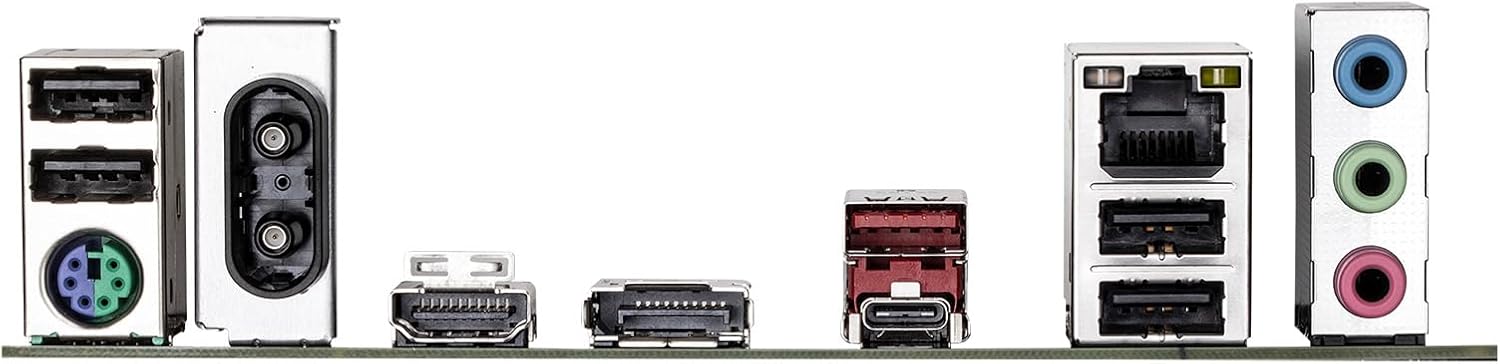
Figure 6.1: Rear I/O panel showing various ports including USB, LAN, Wi-Fi antenna connectors, HDMI, DisplayPort, and audio jacks.
7. Informazioni sulla garanzia
GIGABYTE products are covered by a limited warranty. For detailed and up-to-date warranty terms, conditions, and registration procedures, please refer to the official GIGABYTE website or the warranty card included with your product. Warranty periods may vary by region and product type.
8. Supporto tecnico
For technical assistance, driver downloads, BIOS updates, FAQs, and further product information, please visit the official GIGABYTE support websito:
Before contacting support, please have your motherboard model name (B760M DS3H WIFI6E GEN5) and serial number ready.


