1. Introduzione
This manual provides detailed instructions for the installation, operation, and maintenance of the ANYFAR RM-BM2506F Decoder Adapter. This device integrates advanced features like Wireless CarPlay, Android Auto, Mirror Link, and camera support into compatible BMW vehicles equipped with the CIC infotainment system. Please read this manual thoroughly before installation and use to ensure proper functionality and safety.
2. Prodotto finitoview e Caratteristiche principali
The ANYFAR RM-BM2506F Decoder Adapter enhances your vehicle's infotainment system with modern connectivity and multimedia capabilities.

Image: The ANYFAR RM-BM2506F Decoder Adapter unit, showing its various ports and connectors.
- CarPlay e Android Auto wireless: Enjoy seamless integration of your smartphone with wireless connectivity for navigation, music, calls, messaging, and voice assistant functions.
- Mirror Link & USB Drive Playback: Mirror your phone's display to the car screen for video playback from various apps. A USB port is included for playing media from a USB drive or charging your phone.
- In-Car Hi-Fi Audio: Experience high-quality audio through digital transmission, preserving the original sound quality of your car's audio system without interference or delay.
- Conservare i comandi originali dell'auto: Maintain full functionality of your vehicle's existing controls, including touchscreen, voice control, physical buttons, and iDrive knob.
- Backup Camera Input Support: Connect a backup camera or front camera. The camera feed will automatically display on the car screen when shifting into reverse.
3. Compatibilità
This decoder adapter is specifically designed for 2008-2013 BMW models equipped with the CIC infotainment systemÈ fondamentale verificare la compatibilità del veicolo prima dell'installazione.
3.1 Modelli di veicoli compatibili
The following BMW models are compatible:

Image: A table illustrating compatible BMW 1, 3, 5, 6, 7 Series, X1, X3, X5, X6, Z4, and MINI models with their respective production years (2008-2013).
- BMW Serie 1: (E87) 2008-2012
- BMW Serie 3: (E90/E91/E92/E93) 2009-2012
- BMW Serie 5: (E60/E61) 2008-2009
- BMW Serie 6: (F12/F13) 2010-2012
- BMW Serie 7: (F01/F02) 2011-2012
- La BMW X1 è la versione più piccola della BMW XXNUMX. (E84) 2009-2014
- La BMW X3 è la versione più piccola della BMW XXNUMX. (F25) 2011-2013
- La BMW X5 è la versione più piccola della BMW XXNUMX. (F70) 2009-2013
- La BMW X6 è la versione più piccola della BMW XXNUMX. (E71/E72) 2009-2013
- BMW Z4: (E89) 2009-2013
- MINI: (R55/R56/R60) 2008-2012
3.2 CIC System Verification
L'adattatore è only compatible with BMW vehicles featuring the CIC system. To confirm your system type, compare your car's radio home screen menu picture with the examples below. Additionally, verify the LVDS port on the back of your OEM car screen is a 4-PIN connector.
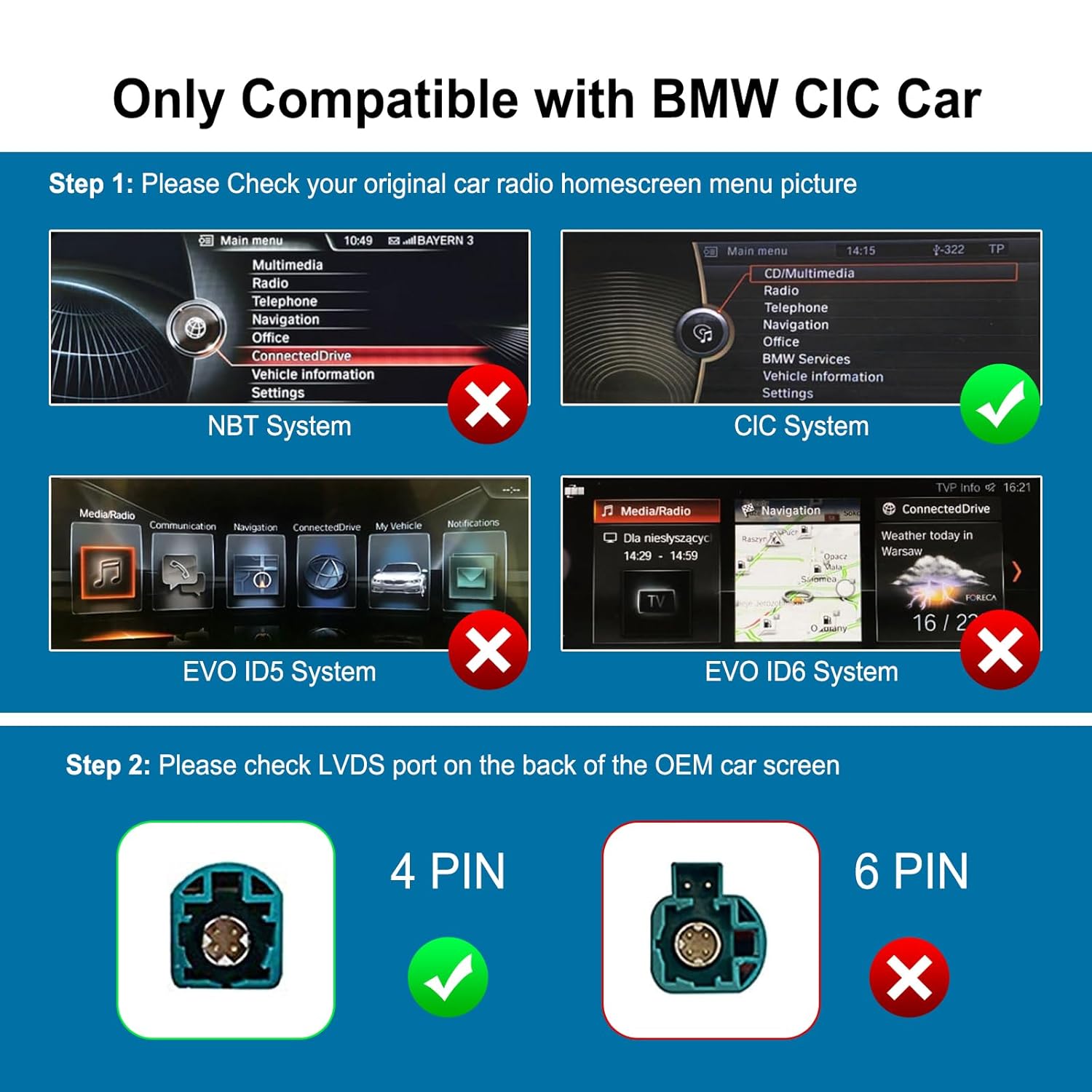
Image: Visual guide to identify the CIC system interface, distinguishing it from NBT, EVO ID5, and EVO ID6 systems. A green checkmark indicates CIC compatibility, while red crosses mark incompatible systems.
4. Configurazione e installazione
Installation of the ANYFAR RM-BM2506F Decoder Adapter requires technical proficiency. If you are not comfortable with car electronics installation, it is recommended to seek professional assistance.
4.1 Passaggi generali di installazione
- Preparazione: Prima di iniziare qualsiasi lavoro elettrico, assicurarsi che l'accensione del veicolo sia spenta e che la batteria sia scollegata.
- Unità principale di accesso: Carefully remove the trim panels and components necessary to access the OEM head unit and the back of the car screen.
- Collegare i cavi LVDS: Disconnect the original LVDS cable from the OEM screen. Connect the provided LVDS cable from the decoder adapter to the OEM screen. Then, connect the original LVDS cable to the 'OUT LVDS' port on the decoder adapter.
- Collegamenti di alimentazione e CAN: Connect the power and CAN bus wires from the decoder adapter to the vehicle's wiring harness as indicated in the wiring diagram.
- Collegamenti ausiliari: Connect the AUX OUT cable to the vehicle's AUX input. This is crucial for audio output.
- USB e microfono: Connect the USB extension cable for media playback and phone charging. Connect the external microphone for voice commands and calls.
- Collegamenti della telecamera (opzionali): If installing a backup or front camera, connect the CVBS cables to the designated 'Rear View CVBS' and 'Front View CVBS' ports on the adapter. Ensure the 12V camera power is correctly wired.
- Toggle Switch Configuration: Adjust the DIP switches on the decoder adapter according to your specific vehicle model and screen resolution. Refer to the product documentation for the correct switch settings.
- Funzionalità di prova: Before reassembling, reconnect the battery and test all functions (CarPlay, Android Auto, Mirror Link, USB, Camera, original controls) to ensure correct operation.
- Rimontare: Once all functions are verified, carefully reassemble the vehicle's dashboard components.
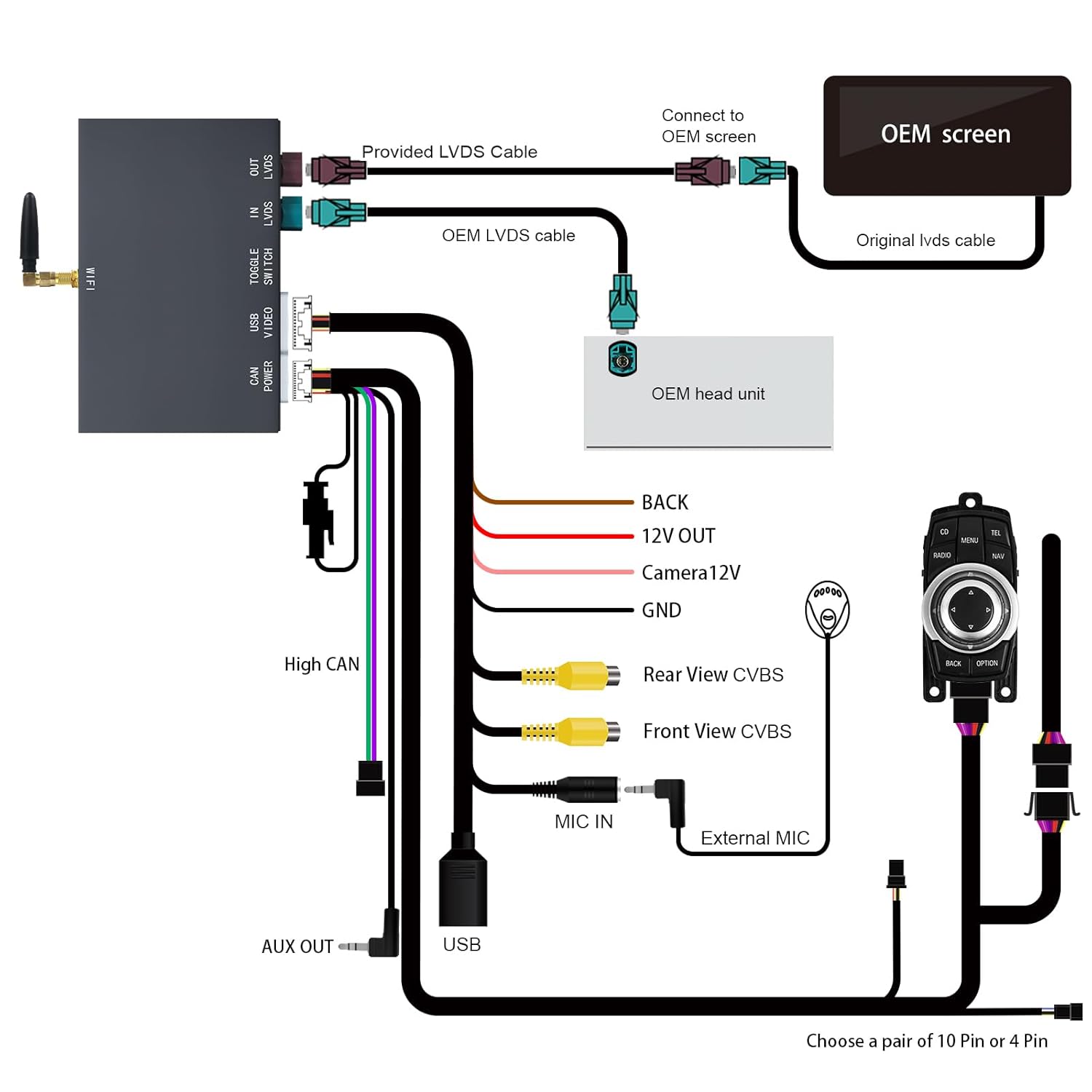
Image: A comprehensive wiring diagram illustrating the connections between the ANYFAR decoder adapter, OEM screen, OEM head unit, and various auxiliary inputs like USB, microphone, and cameras.
5. Istruzioni per l'uso
After successful installation, the decoder adapter allows you to access new features while retaining your original car's controls.
5.1 Passaggio da un sistema all'altro
To switch between the original BMW CIC system and the adapter's interface (CarPlay/Android Auto), typically press and hold the MENU or BACK button on your iDrive controller for a few seconds. Refer to your specific vehicle's instructions for exact button mapping.
5.2 CarPlay wireless e Android Auto

Image: A car's infotainment screen displaying the Apple CarPlay interface with various app icons for phone, music, maps, and messages.
- Abbinamento: Sul tuo smartphone, attiva Bluetooth e Wi-Fi. Cercare the adapter's Bluetooth name (usually 'ANYFAR_XXXX') and pair. Confirm the pairing code on both devices.
- Connessione automatica: Once paired, CarPlay or Android Auto should connect automatically when you start the vehicle.
- Funzioni: Use the car's iDrive controller, steering wheel buttons, or voice commands (via Siri or Google Assistant) to navigate apps, make calls, send messages, and control music.
5.3 Mirror Link (AirPlay/AutoLink)

Image: A smartphone displaying a video, with the same video content mirrored onto the car's larger infotainment screen, demonstrating the Mirror Link feature.
This feature allows you to display your smartphone's screen directly onto the car's display. Connect your phone via Wi-Fi or USB, then activate the Mirror Link function from the adapter's menu. This is ideal for viewing videos or other content from your phone.
5.4 Riproduzione USB

Image: A car's infotainment screen displaying various media content, including movie posters and music notes, indicating playback from a USB drive.
Insert a USB drive containing audio or video files into the provided USB port. Navigate to the USB Playback option in the adapter's menu to browse and play your media files.
5.5 Funzione fotocamera

Image: A car's infotainment screen showing the view from a backup camera, complete with dynamic parking guidelines, as the vehicle is in a parking garage.
Se è collegata una telecamera di backup, il display passerà automaticamente alla telecamera view when the vehicle is put into reverse. Front camera views can typically be accessed manually through the adapter's menu or by a short press of a specific button (refer to installation guide for details).
5.6 Conservazione dei comandi originali dell'auto
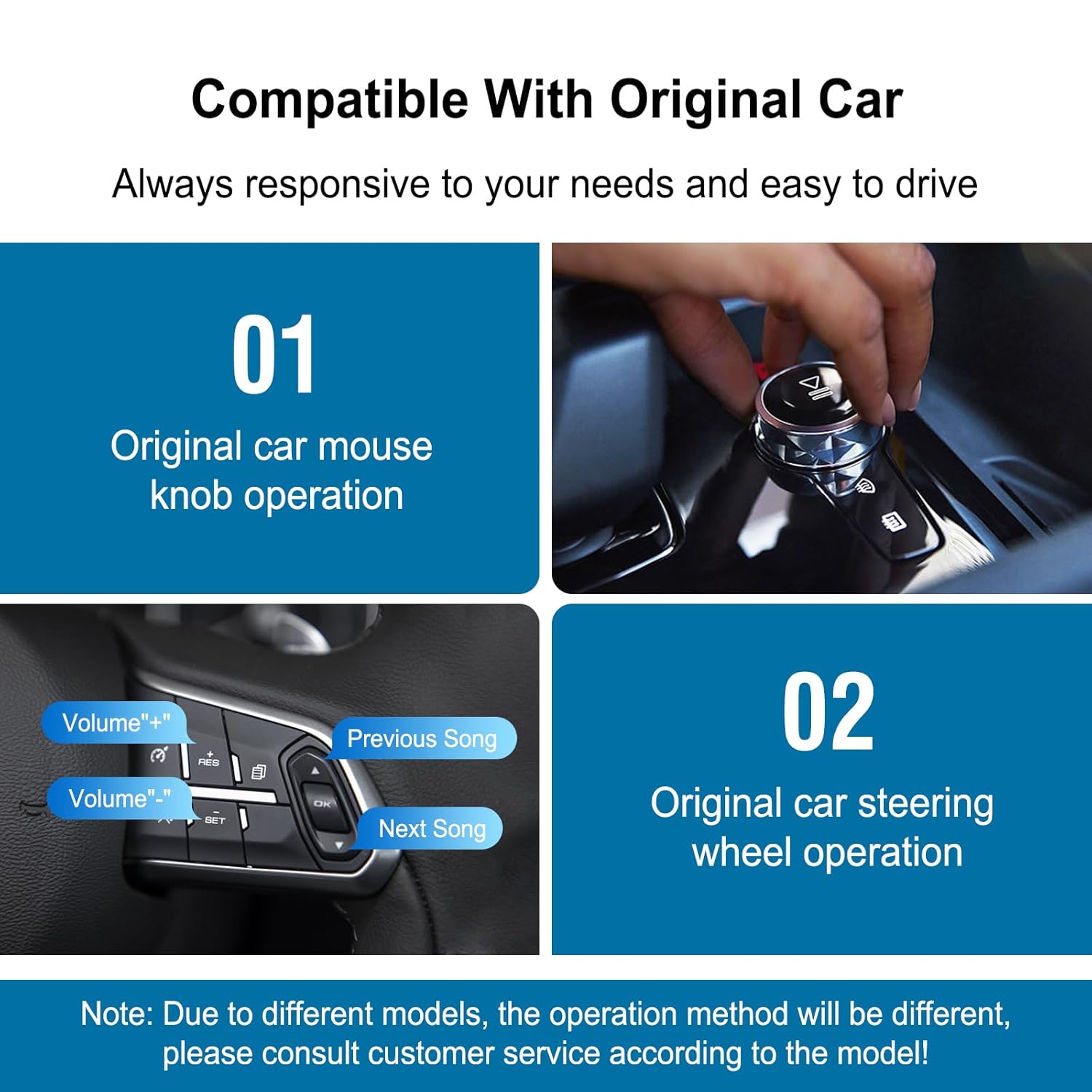
Image: Two panels demonstrating how the original BMW iDrive controller knob and steering wheel buttons are used to operate the system, highlighting the retention of factory controls.
The adapter is designed to work seamlessly with your car's existing controls. You can use the iDrive controller, steering wheel buttons, and original voice control functions to navigate the CarPlay/Android Auto interface and other adapter features.
6. Manutenzione
The ANYFAR RM-BM2506F Decoder Adapter is designed for durability and requires minimal maintenance.
- Pulizia: Keep the unit free from dust and moisture. If cleaning is necessary, use a soft, dry cloth. Do not use liquid cleaners or solvents.
- Aggiornamenti software: Controllare periodicamente le istruzioni del produttore website for any available firmware updates. Updates can improve performance and add new features. Follow the provided instructions carefully when performing updates.
- Condizioni ambientali: Avoid exposing the unit to extreme temperatures or direct sunlight for prolonged periods, as this can affect its lifespan.
7. Risoluzione Dei Problemi
If you encounter issues with your ANYFAR Decoder Adapter, refer to the following troubleshooting steps:
| Problema | Possibile causa | Soluzione |
|---|---|---|
| No display from adapter | Incorrect LVDS connection; Power issue; Incorrect DIP switch settings | Check all LVDS cables are securely connected. Verify power connections. Ensure DIP switches are set correctly for your vehicle. |
| No audio from adapter features | AUX cable not connected or selected; Volume too low | Ensure the AUX OUT cable is connected to your car's AUX input and the car's audio source is set to AUX. Increase volume. |
| CarPlay/Android Auto wireless non si connette | Bluetooth/Wi-Fi not enabled on phone; Incorrect pairing; Interference | Ensure phone's Bluetooth and Wi-Fi are on. Forget device and re-pair. Restart phone and car. |
| Original car controls not working in adapter mode | CAN bus connection issue; Adapter software glitch | Check CAN bus wiring. Restart the adapter by turning off and on the car. |
| La telecamera di backup non viene visualizzata | Camera not powered; CVBS cable loose; Incorrect camera settings | Verify camera power supply. Check CVBS cable connection. Ensure camera input is enabled in adapter settings. |
8. Specifiche
- Numero modello: Modello RM-BM2506F
- Marca: OVUNQUE
- Produttore: Huizhou Rhythm Technology Co, Ltd
- Sistemi compatibili: BMW CIC System (2008-2013 models)
- Connettività: Wireless CarPlay, Wireless Android Auto, Mirror Link (AirPlay/AutoLink), USB
- Ingressi: USB, Microphone, Rear View CVBS, Front View CVBS
- Risultati: LVDS, AUX Audio
- Dimensioni della confezione: 10.63 x 6.69 x 4.33 pollici
- Peso dell'articolo: 1.74 libbre
- Numero di articoli: 1
9. Garanzia e supporto
For warranty information, technical support, or further assistance, please contact the seller or manufacturer directly. Refer to your purchase documentation for specific warranty terms and contact details.
Manufacturer: Huizhou Rhythm Technology Co, Ltd
Marca: ANYFAR


