1. Introduzione
This manual provides detailed instructions for the installation, setup, and operation of your Veise VE028 Wi-Fi Smart Lock with Knob. This smart lock offers multiple convenient unlocking methods and remote management capabilities for enhanced home security and accessibility.
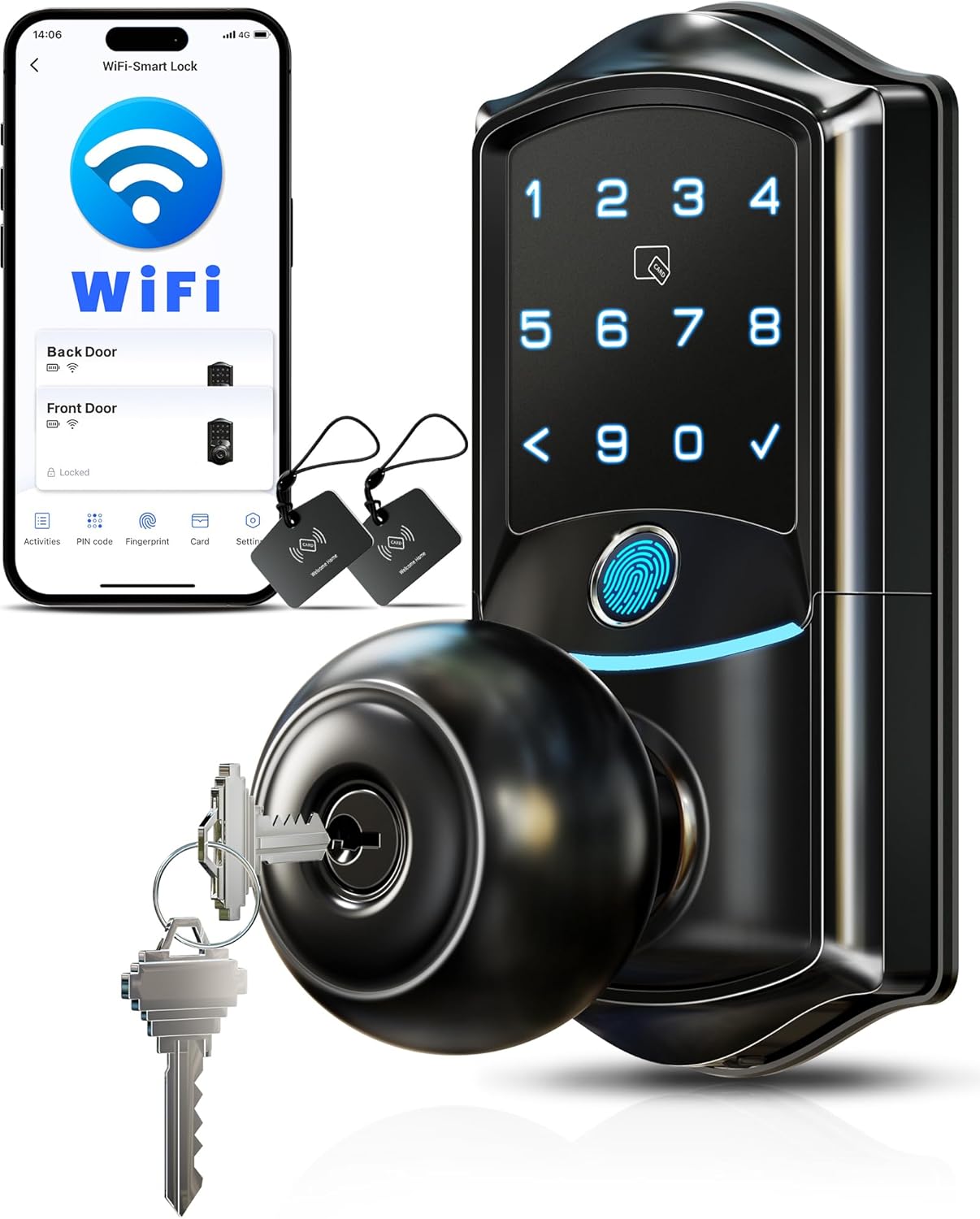
Figure 1: Veise VE028 Wi-Fi Smart Lock with Knob and included accessories.
2. Cosa c'è nella scatola
- Exterior Assembly (with keypad and knob)
- Interior Assembly (with battery compartment and knob)
- Fermo
- Piastra d'urto
- Piastra di montaggio
- 2 tasti meccanici
- 2 Carte IC
- Viti della piastra di montaggio
- Viti di chiusura
- Viti di sciopero
- Manuale d'uso
- Manuale di installazione
- Strumento di ripristino
3. Guida all'installazione
3.1. Controlli pre-installazione
Prima di iniziare l'installazione, assicurati che la tua porta soddisfi le seguenti specifiche:
- Spessore della porta: Da 1-3/8" a 2" (da 35 mm a 50 mm)
- Diametro del foro: 2-1/8" (54 mm)
- Entrata: 2-3/8" o 2-3/4" (60 mm o 70 mm)
The lock is compatible with standard door preparations. Ensure there is sufficient clearance if installing with an existing deadbolt.
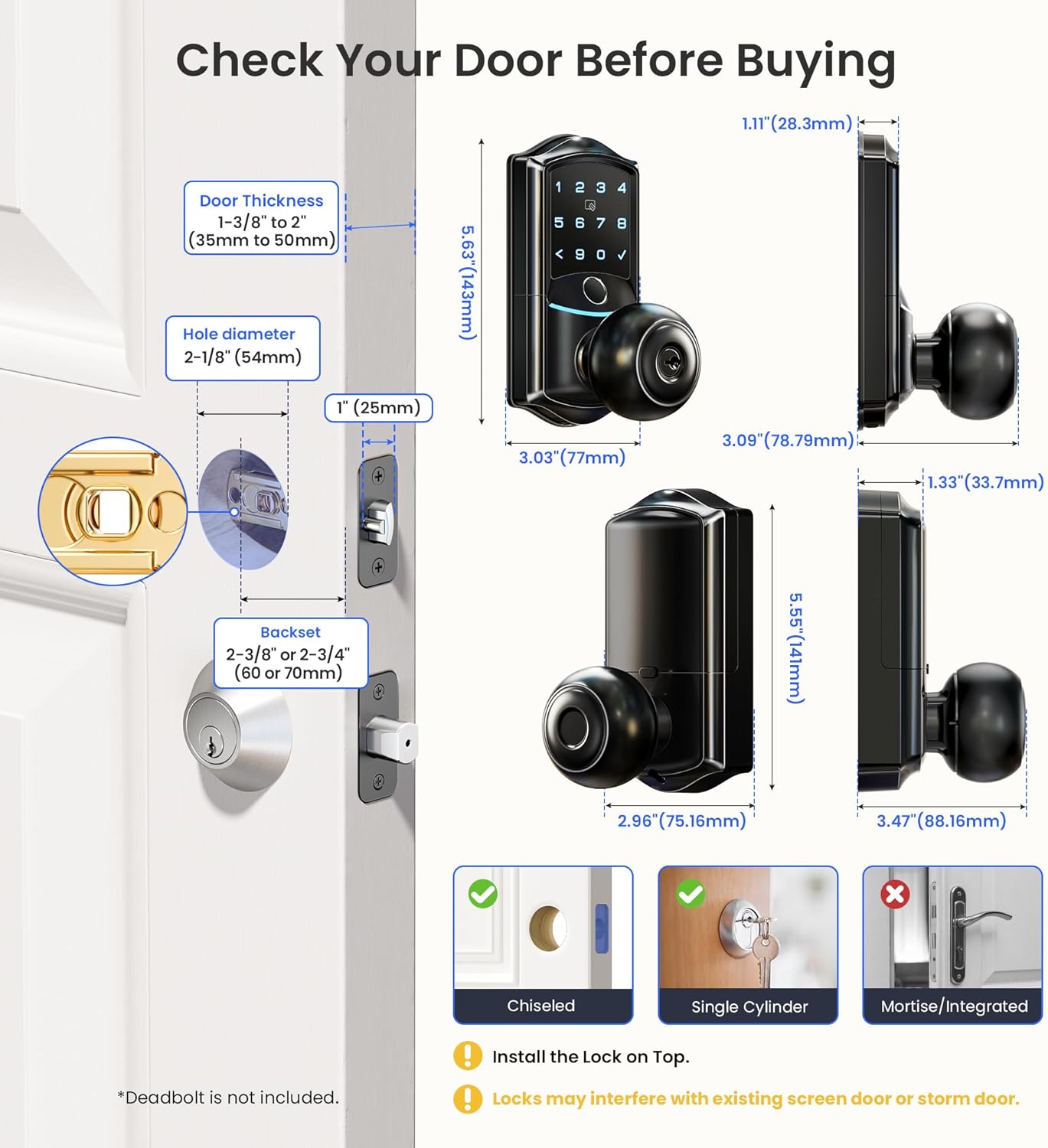
Figure 2: Door dimensions and compatibility.

Figure 3: Compatible door installation scenarios.
3.2. Fasi di installazione
Per una guida visiva dettagliata, fare riferimento al video di installazione ufficiale:
Video 1: Veise VE028 Smart Lock Installation Guide. This video provides step-by-step instructions for physically installing the lock on your door.
- Prepara la porta: Remove any existing lock hardware. Ensure the door frame is aligned and the hole in the door frame is drilled to a minimum of 1" (25mm) depth.
- Installa il fermo: Insert the latch into the door edge. Ensure the beveled edge of the latch tongue faces the direction the door swings shut. Secure with latch screws.
- Installare la piastra di battuta: Attach the strike plate to the door frame, aligning it with the latch. Secure with strike screws.
- Installare il gruppo esterno: Route the cable from the exterior assembly through the latch hole and insert the torque blade through the slot in the latch.
- Installare la piastra di montaggio: Secure the mounting plate to the interior side of the door using the mounting plate screws, ensuring it is parallel to the door edge.
- Installare il gruppo interno: Connect the cable from the exterior assembly to the socket on the interior assembly. Push any excess cable into the socket to avoid clamping. Attach the interior assembly to the mounting plate and tighten the screws.
- Inserire le batterie: Open the battery cover on the interior assembly and insert 8 AA alkaline batteries (non-rechargeable, 1.5V). Close the battery cover.
- Fissare la manopola interna: Secure the interior knob to the interior assembly and tighten the screw with a screwdriver.
4. Configurazione e associazione dell'app
Manage your Veise VE028 Smart Lock remotely using the KK Home App. Follow these steps to set up and pair your lock:
Video 2: Veise VE028 App Pairing Tutorial. This video guides you through the process of connecting your smart lock to the KK Home app.
- Download the KK Home App: Scan the QR code in your manual or search for 'KK Home' in your app store.
- Registrati/Accedi: Create a new account or log in to your existing KK Home account.
- Abilita Bluetooth: Ensure Bluetooth is enabled on your smartphone and keep your phone within 2 meters of the lock during pairing.
- Aggiungi dispositivo: In the app, tap 'Add Device' or the '+' icon. Select 'VE028' from the list of nearby devices, or scan the QR code/enter the ESN manually (found on the back of the interior assembly).
- Confirm Installation & Reset: Confirm that the lock is installed and has been reset (see Section 6.2 for reset instructions).
- Cambia codice master: Follow the app prompts to change the default master PIN code to a secure 4-10 digit code.
- Connettiti al Wi-Fi: Select your 2.4GHz Wi-Fi network and enter the password. (Note: If using a 5GHz network, check the app's FQA for instructions on switching network channels).
- Name Your Lock: Once connected, name your lock (e.g., 'Front Door', 'Bedroom') and complete the setup.
5. Istruzioni per l'uso
The Veise VE028 Smart Lock offers multiple ways to secure and access your property:
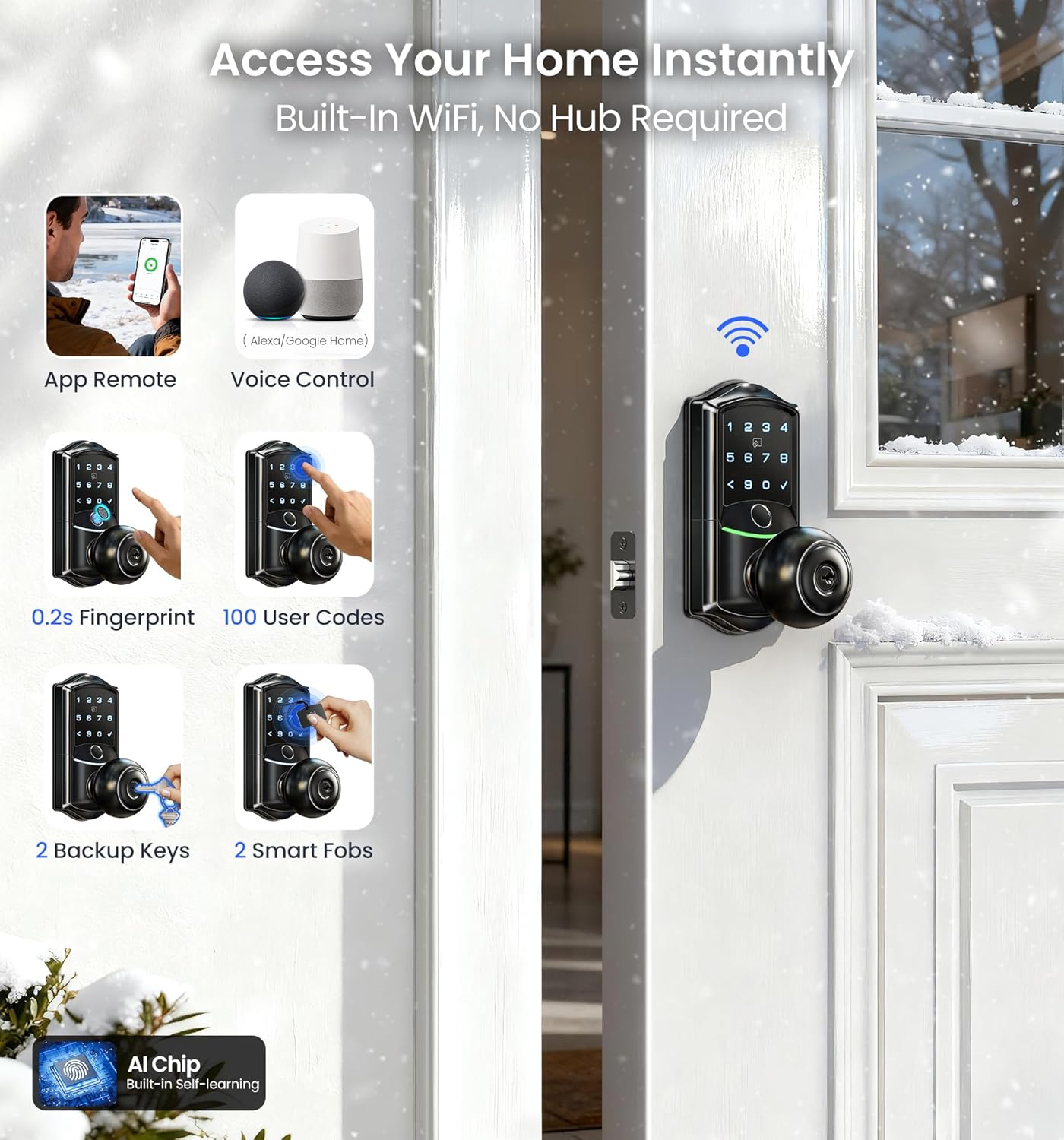
Figure 4: Multiple convenient unlocking options.
Video 3: Veise VE028 KK Home App Functions. This video demonstrates various app functionalities including setting passcodes, adding fingerprints, managing cards, notifications, auto-lock settings, and sharing permissions.
5.1. Metodi di sblocco
- Impronta digitale: Place your registered finger on the fingerprint sensor for quick access.
- Codice PIN: Enter your 4-10 digit PIN code on the digital keypad. The anti-peep entry feature allows you to enter random digits before or after your actual code to prevent others from guessing it.
- Scheda IC: Present a registered IC card to the sensor area on the lock.
- App KK Home: Use the app to remotely unlock or lock your door from anywhere.
- Controllo vocale: Integrate with Amazon Alexa or Google Assistant for hands-free locking and unlocking.
- Chiave di backup: Use the physical mechanical key as a traditional backup unlocking method.
5.2. PIN Code Management
The KK Home App allows you to create and manage various types of PIN codes:
- Permanente: For family members and regular users.
- Ricorrente: For fixed periods, suitable for Airbnb guests, short-term tenants, or housekeeping workers.
- Durata: Temporary use for a specified period, ideal for short-term tenants or vacationers.
- One-Time: Remote one-time use for letting agencies or housekeeping workers.

Figure 5: Custom PIN codes for various access needs.
5.3. Fingerprint and IC Card Management
Add and manage fingerprints and IC cards through the KK Home App. Ensure your fingers are clean and dry when registering fingerprints.
5.4. Remote Access & Notifications
With built-in Wi-Fi, you can control your lock remotely, monitor its real-time status, and receive instant security alerts directly on your phone. The app provides access logs to track who accessed your lock and when.

Figure 6: Remote management and real-time alerts.
5.5. Auto-Lock Settings
Enable the auto-lock feature in the app to automatically secure your home after every use. You can set the auto-lock timer from 5 seconds to 3 minutes.

Figure 7: Configure auto-lock settings for automatic security.
5.6. Privacy Mode & Passage Mode
- Modalità privacy: When enabled, the lock can only be opened with the master code or the mechanical key. Privacy Mode will automatically turn off after unlocking with the Master Code.
- Modalità di passaggio: Disables the auto-lock mechanism, allowing the door to remain unlocked. This is useful for frequent entry/exit. Passage mode can be enabled/disabled via the app or by pressing the physical button on the interior side of the lock panel.

Figure 8: Security features including Passage Mode.
5.7. Integrazione del controllo vocale
Connect your Veise VE028 Smart Lock with Amazon Alexa or Google Assistant for convenient voice control. Log in and authorize the KK Home App to link with your preferred voice assistant.

Figure 9: Hands-free security with voice control.
5.8. Share Device Permissions
Share access to your lock with family, friends, or visitors via the KK Home App. You can choose between 'Family access' (view device status, activities, manage settings) or 'Guest access' (view device status and activities). Share via the other person's KK Home email or QR code. Once they accept the invitation, sharing is complete.
6. Manutenzione
6.1. Sostituzione della batteria
The lock is powered by 8 AA batteries (not included) for up to 240+ days of use. The app will provide low battery alerts. In case of complete battery depletion, use the Type-C emergency unlock design or the backup mechanical key to gain access.
6.2. Resetting the Lock
If you encounter connection issues or need to restore factory settings, you can reset the lock:
Video 4: How to Reset the Lock of Veise VE028. This video demonstrates the process of resetting your smart lock to its factory settings.
- Keep the door open and the lock unlocked.
- Using the provided reset tool, press and hold the reset button for 5 seconds until you hear the voice prompt "Restored to factory settings".
- After resetting, use the default master password (12345678) to unlock successfully. The lock will automatically recognize left and right doors.
- After resetting, please follow the app pairing steps again to re-pair your lock.
7. Risoluzione Dei Problemi
If you experience issues during pairing or if the lock is not found in the device list, try the following:
- Perform a resetting on the lock (see Section 6.2). Test if the default master code (12345678) works to unlock.
- Make sure the location and Bluetooth functions in your phone's settings are turned on.
- Ensure the lock is supplied with power (batteries are correctly installed and charged).
8. Specifiche
| Caratteristica | Dettaglio |
|---|---|
| Marca | Veise |
| Modello | VE028 |
| Caratteristiche speciali | APP Remote Control, 0.2s Fingerprint Unlock, Anti-Peeping Password, Auto-Lock, Built-in Wi-Fi, No Hub Needed, Voice Control |
| Tipo di blocco | Wi-Fi, Biometric, Keypad |
| Dimensioni (L x P x A) | 3.54 x 6.3 x 8.2 pollici |
| Materiale | Alluminio |
| Usi consigliati | Front door, Bedrooms, Side Doors, Garage, Back door, Hotel, Apartment, Office, Rental, etc. |
| Colore | Nero opaco |
| Tipo di controllore | Google Assistant, Amazon Alexa, Remote App Control |
| Protocollo di connettività | Wifi |
| Peso dell'articolo | 2.83 libbre |
| Batterie richieste | Sì (8 batterie AA, non incluse) |
9. Garanzia e supporto
Your Veise VE028 Smart Lock is backed by a Garanzia di 1 anno E supporto tecnico a vita. For any questions or assistance, please contact Veise customer support:
- Toll Free (USA): +1 (855) 400-3853 (Monday-Friday 9 AM-5 PM PST)
- E-mail: support@iveise.com (24/7 email support)


