1. Prodotto finitoview
The NIIMBOT B1 Thermal Label Printer is a versatile and portable label maker designed for various labeling needs in office, home, and business environments. It utilizes thermal printing technology, eliminating the need for ink or toner cartridges. The device connects via Bluetooth to a dedicated mobile application, offering extensive customization options for labels.
Caratteristiche principali:
- Stampa termica: Non richiede inchiostro o toner, riducendo i costi correnti.
- Connettività Bluetooth: Seamless connection to iOS and Android devices via the "NIIMBOT" app.
- Potente app mobile: Access to over 30 fonts, multiple languages, 100 borders, and 1500 symbols for label design. Features auto-identification of label size.
- Utilizzo versatile: Ideal for small businesses, schools, offices, retail, apparel, jewelry, and home organization.
- Connettività USB: Supports PC connection (requires driver download from official webposto).
- Compatto e portatile: Designed for easy transport and use anywhere.
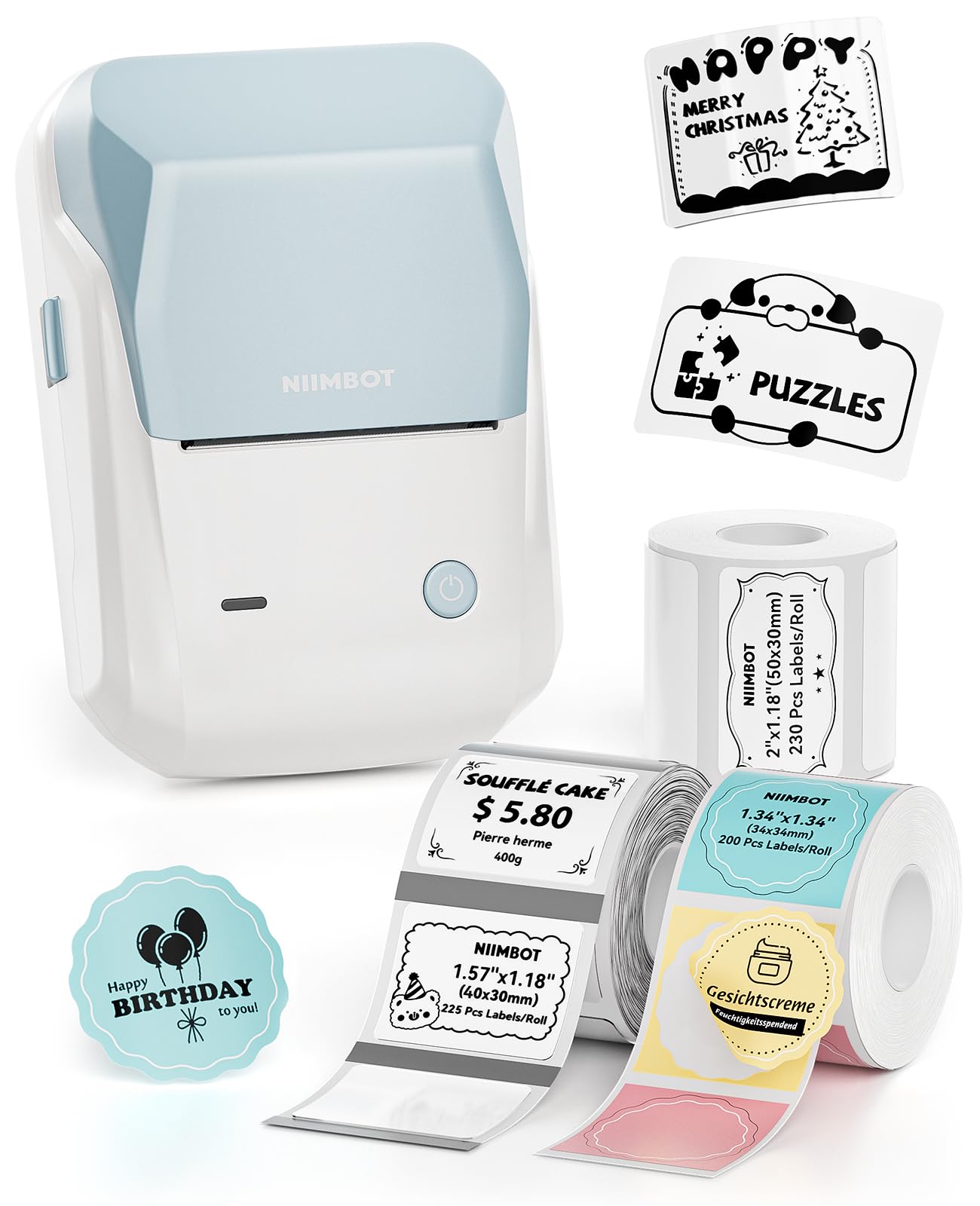
Image: The NIIMBOT B1 Label Maker Machine in Light Blue, showcasing il suo design compatto.
2. Impostazione
2.1 Unboxing e controllo iniziale
Dopo aver aperto la confezione, assicurarsi che siano presenti tutti i componenti:
- NIIMBOT B1 Label Maker (1 unit)
- Label Paper Rolls (3 rolls: 2''x1.18'' White, 1.57''x1.18'' Transparent, 1.34''x1.34'' Colorful Round) - Note: The 50x30mm white label paper is pre-installed in the printer.
- Cavo di ricarica USB (1 unità)
- Manuale dell'utente (1 unità)

Image: Contents of the NIIMBOT B1 package, including the label maker, three rolls of labels, and charging cable.
2.2 Ricarica del dispositivo
Before first use, fully charge the label maker using the provided USB cable. The charging port is typically located on the side of the device.
2.3 Installazione della carta per etichette
- Open the label printer cover.
- Place the label roll into the paper bin with the label side facing down.
- Leave approximately 0.2 inches (5mm) of the label sticking out before closing the cover.
- Ensure the label roll is correctly aligned and secured by adjusting the guides inside the printer.

Image: Visual guide on how to load label paper into the NIIMBOT B1 printer.
2.4 Download e connessione dell'app
- Download the "NIIMBOT" app from your device's app store (iOS or Android).
- Abilita il Bluetooth sul tuo smartphone o tablet.
- Open the "NIIMBOT" app and select the printer model B1.
- Follow the in-app instructions to connect the printer via Bluetooth. The app will auto-identify the label size.
- For PC connection, download the necessary drivers from the official NIIMBOT brand websito.
Video: A demonstration of connecting the NIIMBOT B1 label printer to a mobile device via Bluetooth and printing a label.
3. Istruzioni per l'uso
3.1 Designing Labels with the NIIMBOT App
The NIIMBOT app provides a user-friendly interface for creating custom labels:
- Testo: Enter your desired text. Customize font, size, and alignment.
- Icone e simboli: Choose from a library of over 1500 symbols to enhance your labels.
- Confini: Apply various borders to frame your label content.
- Modelli: Utilizzare modelli predefiniti per le attività di etichettatura più comuni.
- Codice a barre/codice QR: Generate and print barcodes or QR codes directly on your labels.
- Immagini: Incorporate images into your label designs.

Image: Screenshot of the NIIMBOT app interface, highlighting various design elements like fonts, borders, and symbols.
3.2 Stampa delle etichette
Una volta completata la progettazione dell'etichetta nell'app:
- Review la stampa preview to ensure the layout is as desired.
- Adjust print density or number of copies if needed.
- Tap the "Print" button in the app. The label maker will quickly print your labels.
Video: A demonstration of printing a "Merry Christmas" label using the NIIMBOT B1 printer.
The thermal printing technology ensures clear, smudge-proof labels without the need for ink.
4. Manutenzione
4.1 Cleaning the Print Head and Rollers
Regular cleaning helps maintain print quality and extends the life of your printer. Clean the print head and rubber rollers if you notice:
- Stampa poco chiara
- Loud noise during paper feeding or paper return
Passaggi per la pulizia:
- Spegnere la stampante.
- Open the paper bin cover and locate the print head (a dark strip) and rubber rollers.
- If the printer was just used, wait for the print head to cool completely.
- Gently wipe the print head and rubber rollers with a cotton swab lightly moistened with rubbing alcohol to remove any residue or debris.
- Allow the alcohol to completely evaporate before closing the cover and powering on the printer.
4.2 Cura della batteria
- Charge the printer for at least 30 minutes if it does not power on.
- Avoid exposing the printer to extreme temperatures (below 0°C/32°F or above 50°C/122°F) to preserve battery life.
5. Risoluzione Dei Problemi
5.1 Problemi comuni e soluzioni
- Printer printing blank labels:
This usually indicates the label paper is laid reversely. Ensure the label side is facing down when loading the roll.
- Printer continuously feeds labels:
Check for residue or debris on the sensors or print head. Clean the paper bin cover and print head as described in the Maintenance section. Also, ensure you are using genuine label paper for best results.
- Printout looks gray or faded:
This can happen if the label roll is heat sensitive or if the print head needs cleaning. Try cleaning the print head with rubbing alcohol.
- Printer skips labels:
Check if the label size and template match in the app. Reinstall the label roll, ensuring it's correctly positioned. Press the power button five times to print a self-test page, or double-click to retract label paper.
- Printer does not power on:
Caricare il dispositivo per almeno 30 minuti. Se il problema persiste, contattare l'assistenza clienti.
- Problemi di connessione Bluetooth:
Ensure Bluetooth is enabled on your device and the printer is within range. Restart both the printer and your mobile device. Re-pair the printer through the NIIMBOT app.
6. Specifiche
| Caratteristica | Dettaglio |
|---|---|
| Dimensioni del prodotto | 6.5"P x 2.7"L x 3.8"A |
| Peso dell'articolo | 10.4 once (0.65 libbre) |
| Tecnologia di stampa | Termico |
| Tecnologia di connettività | Bluetooth, USB |
| Dimensione massima del supporto | 3 x 5 pollici |
| Formati dei supporti supportati | 3 x 5 pollici |
| Velocità di stampa massima in bianco e nero | 35 millimetri/secondo |
| Uscita della stampante | Monocromo |
| Interfaccia Hardware | USB |
| Batterie | È necessaria 1 batteria AAAA (inclusa) |
| Serie di modelli | B1 |
7. Garanzia e supporto
7.1 Garanzia del prodotto
Specific warranty details are not provided in the product information. Please refer to the product packaging or contact NIIMBOT customer service for warranty information.
7.2 Assistenza clienti
If you encounter any issues not covered in this manual, or if your Bluetooth label maker is too broken to fix or won't start at all, please contact NIIMBOT customer support. You can often find contact information on the official NIIMBOT website or through the "NIIMBOT" app.
Per ulteriori risorse e supporto, visitare il NIIMBOT Store on Amazon.