1. Prodotto finitoview
The VENTION 6-in-1 USB C Docking Station is a versatile adapter designed to expand the connectivity of your USB-C enabled laptop or device. It integrates multiple essential ports into a single, compact unit, making it ideal for mobile professionals and streamlined workstations.

Figure 1: VENTION 6-in-1 USB C Docking Station with various connected devices.
Caratteristiche principali:
- Uscita HDMI 4K: Collegalo a display esterni per ottenere un'uscita video ad alta risoluzione.
- Erogazione di potenza (PD) da 100 W: Charge your host device while using the hub.
- Trasferimento dati USB 3.0: Two USB-A ports for high-speed peripheral connections.
- Lettori di schede SD/TF: Direct access to photos and files dalle schede di memoria.
- Design durevole: Constructed with an aluminum body for effective heat dissipation and portability.

Figura 2: dettagliata view of the VENTION 6-in-1 USB C Docking Station ports.
2. Istruzioni per l'installazione
2.1 Contenuto della confezione
Prima di iniziare, assicurati che tutti gli elementi siano presenti:
- VENTION 6-in-1 USB C Docking Station (Model THJHB)
- Cavo host USB-C integrato
2.2 Collegamento della docking station
- Connect the integrated USB-C host cable from the docking station to a compatible USB-C port on your laptop or device. Ensure your device's USB-C port supports DisplayPort Alternate Mode (DP Alt Mode) for video output and Power Delivery for charging.
- For Power Delivery (PD) charging, connect your laptop's original USB-C power adapter to the Ingresso USB-C PD port on the docking station. This allows the hub to pass power through to your host device while providing power to connected peripherals.
- The docking station is plug-and-play and typically does not require driver installation for basic functionality.

Figure 3: Connecting the docking station for 100W Power Delivery.
2.3 Compatibilità
The VENTION 6-in-1 USB C Docking Station is widely compatible with various operating systems and devices:
- Sistemi operativi: Windows, Mac OS, iPad OS, Chrome OS, Android.
- Dispositivi compatibili: MacBook Air, MacBook Pro, iMac, Mac mini, iPad Pro, iPad Air, iPad, iPad mini, Galaxy Tab, Surface Pro, Samsung S22/S21, OnePlus 11, Steam Deck, and other USB-C devices that support DP Alt Mode.
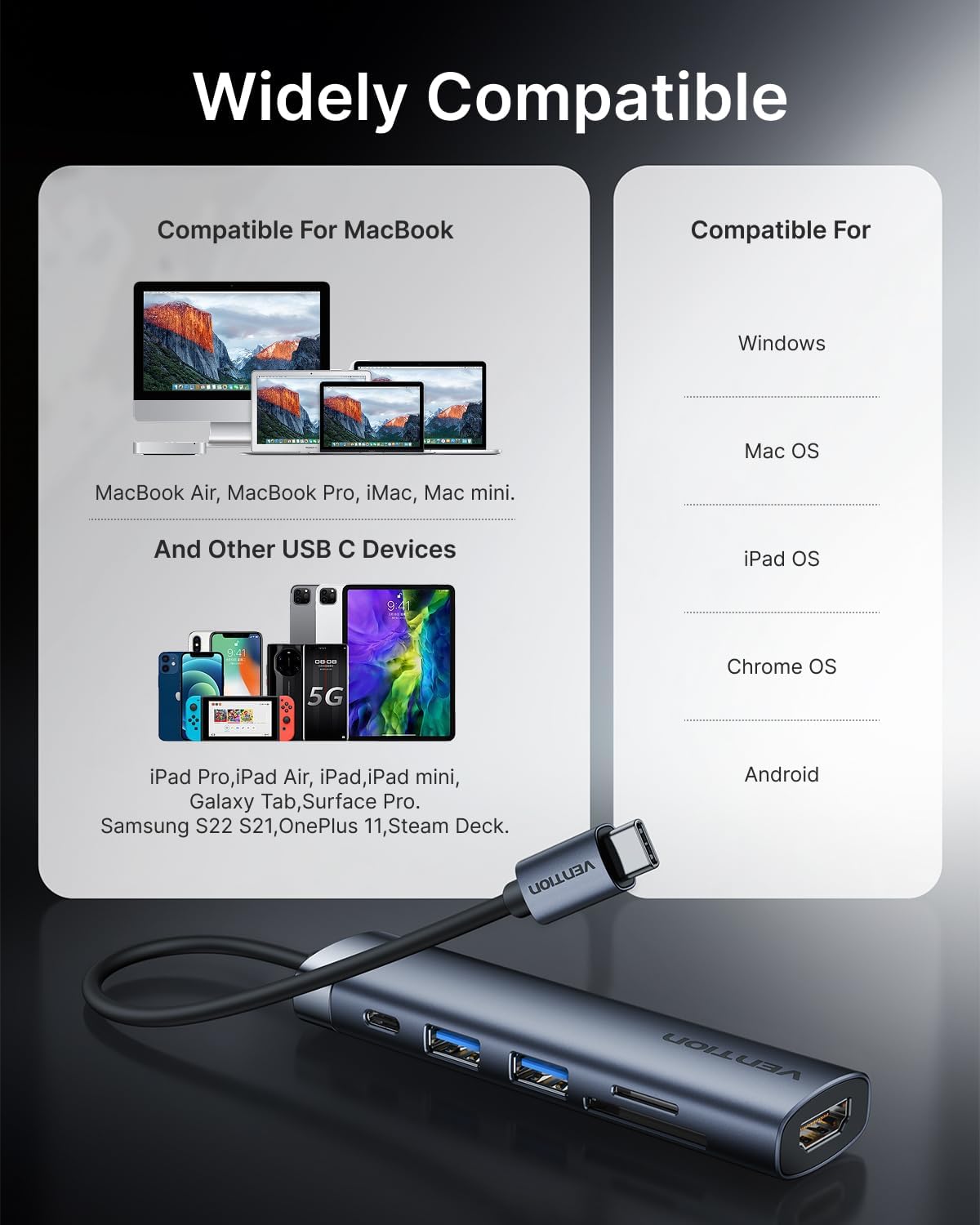
Figura 4: Compatibilità suview for the docking station.
Importante: For full functionality, especially video output and Power Delivery, ensure your host device's USB-C port supports DisplayPort Alternate Mode (DP Alt Mode) and Power Delivery. Refer to your device's specifications or user manual.
3. Utilizzo della docking station
3.1 Uscita video HDMI
Connect an HDMI cable from the docking station's HDMI port to your external monitor, TV, or projector. The hub supports resolutions up to 4K at 30Hz.
- Modalità specchio: Duplicate your laptop's screen on the external display.
- Modalità estesa: Estendi il tuo desktop su più schermi per avere più spazio di lavoro.
Regola le impostazioni dello schermo tramite le preferenze di visualizzazione del tuo sistema operativo.
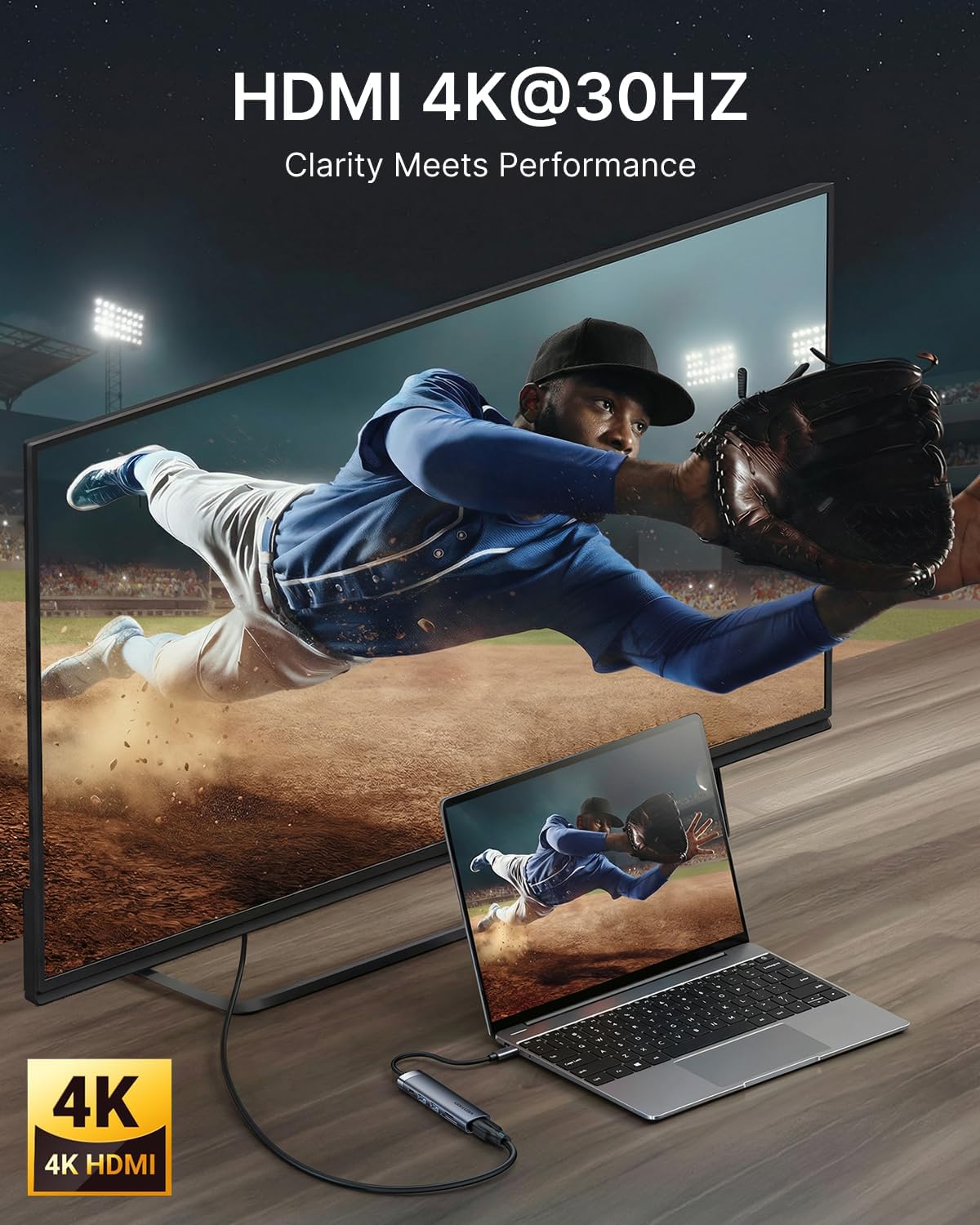
Figure 5: 4K HDMI output connection.
3.2 Trasferimento dati USB
The docking station features two USB 3.0 ports, offering data transfer speeds up to 5Gbps. These ports are suitable for connecting a variety of USB peripherals:
- Dischi rigidi esterni
- Chiavette USB
- Tastiere e mouse
- Printers and other USB-enabled accessories

Figure 6: USB 3.0 ports for high-speed data transfer.
3.3 Lettore di schede SD/TF
Insert your SD or microSD (TF) card into the corresponding slot for quick access to your media files. The card readers support various card types and offer fast data transfer speeds (up to 104MB/s).

Figure 7: Using the integrated SD and TF card readers.
4. Manutenzione
4.1 Pulizia
To maintain optimal performance and appearance, clean the docking station regularly:
- Disconnect the device from all power sources and host devices before cleaning.
- Per pulire la parte esterna, utilizzare un panno morbido, asciutto e privo di lanugine.
- Evitare l'uso di prodotti chimici aggressivi, detergenti abrasivi o solventi, poiché potrebbero danneggiare la finitura.
- For ports, use compressed air to gently remove dust and debris.
4.2 Conservazione e manipolazione
Proper storage and handling will extend the life of your docking station:
- Conservare il dispositivo in un luogo fresco e asciutto, lontano dalla luce solare diretta e da temperature estreme.
- Evitare di piegare o torcere eccessivamente il cavo USB-C integrato.
- The aluminum body is designed for heat dissipation; ensure adequate airflow around the device during operation.
5. Risoluzione Dei Problemi
If you encounter issues with your VENTION 6-in-1 USB C Docking Station, refer to the following common problems and solutions:
5.1 Nessuna visualizzazione sul monitor esterno
- Controllare i collegamenti dei cavi: Assicurarsi che il cavo HDMI sia collegato saldamente sia alla docking station sia al monitor.
- Verifica la porta USB-C: Confirm that your laptop's USB-C port supports DisplayPort Alternate Mode (DP Alt Mode). Not all USB-C ports support video output.
- Ingresso monitor: Select the correct HDMI input source on your monitor.
- Impostazioni di risoluzione: Try lowering the display resolution on your laptop to see if the monitor detects the signal.
- Riavvia i dispositivi: Disconnect and reconnect the docking station, then restart your laptop and monitor.
5.2 Dispositivi USB non riconosciuti
- Riconnetti: Unplug and re-plug the USB device into the docking station.
- Test Another Port: Prova a collegare il dispositivo USB a una porta USB diversa sulla docking station o direttamente al tuo laptop.
- Alimentazione elettrica: If using power-hungry USB devices (e.g., external hard drives), ensure your laptop's power adapter is connected to the docking station's USB-C PD IN port.
- Aggiornamenti driver: Ensure your laptop's USB-C drivers are up to date.
5.3 Velocità di trasferimento dati lente
- Compatibilità USB 3.0: Ensure both the connected device and your laptop's USB-C port support USB 3.0 or higher for optimal speeds.
- Interferenza: Avoid placing the docking station near sources of electromagnetic interference.
5.4 Charging Issues (PD)
- Adattatore di alimentazione: Use your laptop's original power adapter or a certified USB-C PD charger with sufficient wattage (supportato fino a 100 W).
- Porta USB-C: Verifica che la porta USB-C del tuo laptop supporti Power Delivery.
- Qualità del cavo: Ensure the USB-C cable connecting your power adapter to the hub is rated for Power Delivery.
6. Specifiche
| Caratteristica | Dettaglio |
|---|---|
| Dimensioni del prodotto | 4.34 x 1.12 x 0.59 pollici |
| Peso dell'articolo | 2.08 once |
| Numero modello articolo | THJHB |
| Marca | VENZIONE |
| Colore | Grigio |
| Velocità di trasferimento dati | 5 Gigabit al secondo (USB 3.0) |
| Materiale | Alluminio |
| Caratteristiche speciali | Fast Data Transfer, Lightweight, Pass Through Charge, Plug and Play, Portable |
| Uscita HDMI | 4K a 30 Hz |
| Ingresso USB-C PD | Fino a 100W |
| Lettore di schede | SD, MicroSD (TF) |
7. Garanzia e supporto
For warranty information or technical support, please refer to the documentation included with your purchase or visit the official VENTION websito. I dettagli di contatto del servizio clienti sono solitamente reperibili sulla confezione del prodotto o sulla pagina di supporto del produttore.


